

My site shows a 500 error
Find out why your website shows "500 Internal Server Error" and fix the most common causes.
What it means
A 500 error means the web server or your site's code ran into a problem it could not recover from, so it sent an error page instead of your site. The server is running; something in your site's files, settings or code is failing. The error log says what.
Check this first
- In the panel, open Metrics → Errors.
- Choose the Domain. The log shows the most recent errors your website logged, newest first.
- Reload the broken page in your browser, then reload the log. Look at the newest lines.
- Use Filter to narrow a long log, for example to the name of a file or plugin.
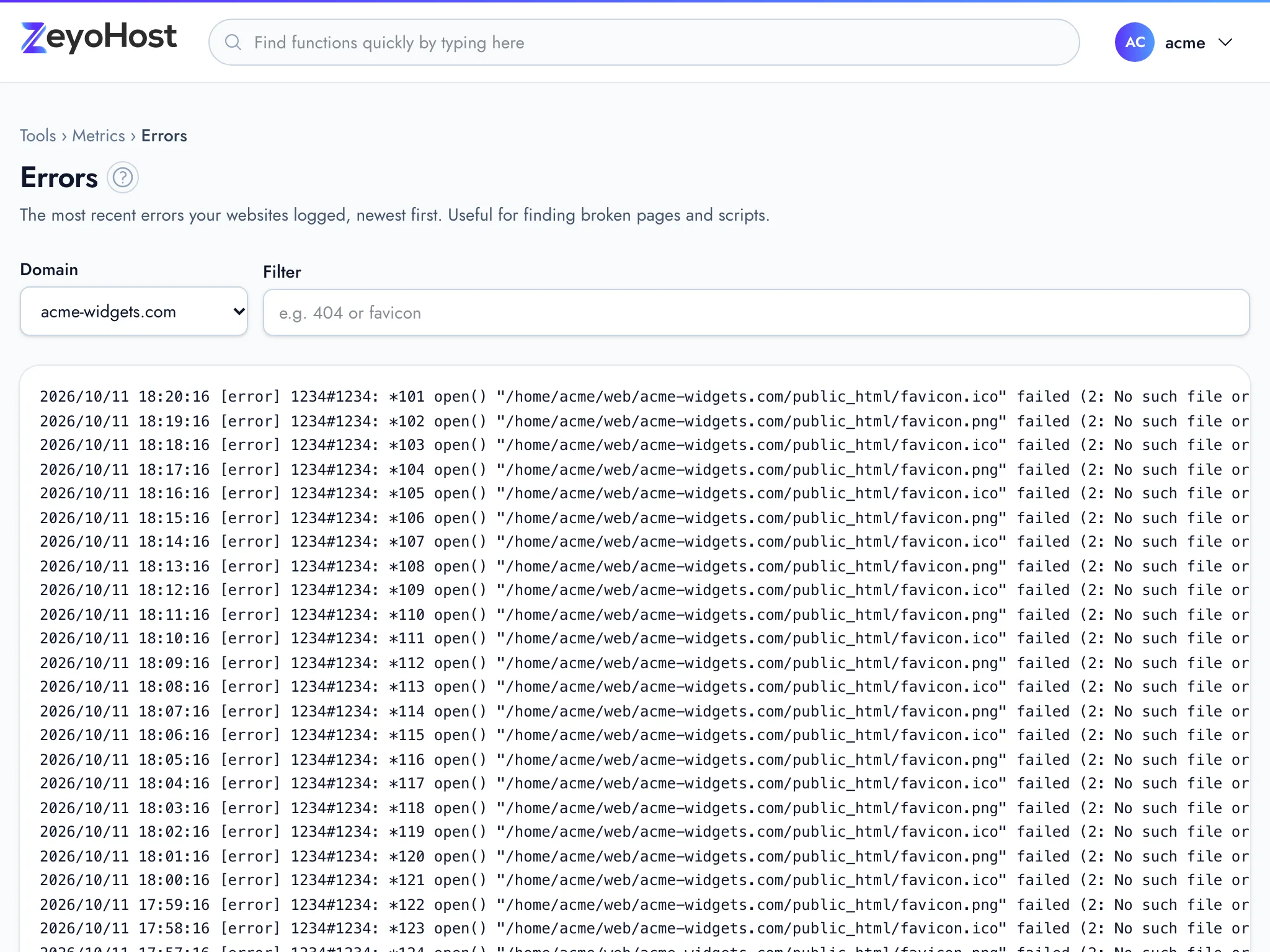
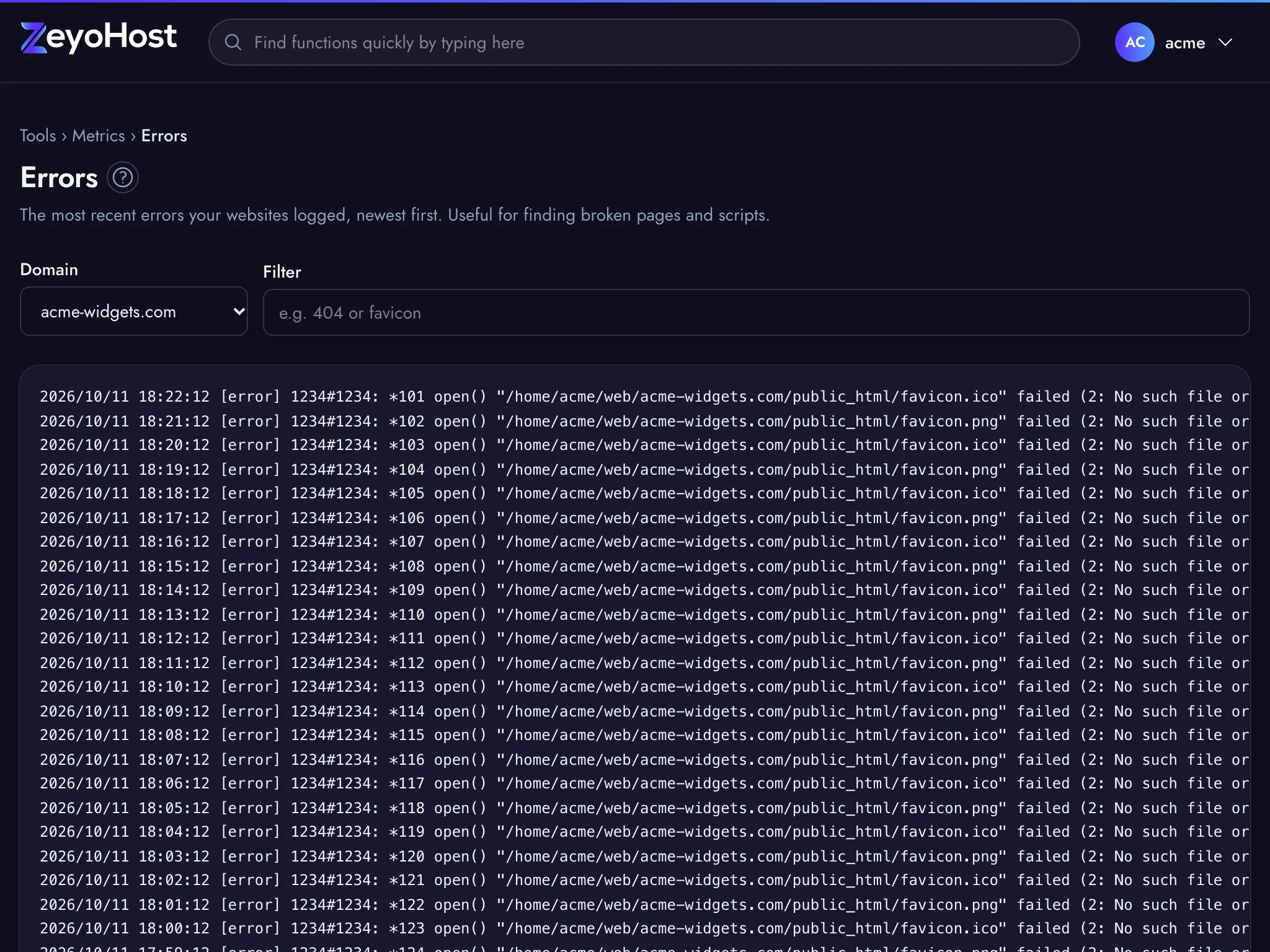
The last lines usually name a file and a line number, or a missing function or extension. That points to one of the causes below. See Errors.
Fix it
You changed something just before it broke
Undo the last change. If you edited a file in File Manager, open it again with Edit and put back what was there. If you installed or updated a plugin or theme, remove or roll back that one first.
The site needs another PHP version
Older applications may need an older PHP version, and newer ones a newer one. The log often mentions a function that does not exist or a syntax error in code that worked before.
- Open Software → Select PHP Version.
- Find the domain in the list and note its Current version.
- Choose another version in the list under Change to. If the site does not run on a PHP version yet, the list says Choose a version…. The change is saved when you choose it. Then reload your site.
See Select PHP Version.
File permissions are wrong
After uploading or unpacking files from another host, permissions can be too open or too strict.
- Open Security → Fix Home Permissions.
- Click Check to see what is wrong, then Fix Permissions.
It only touches your websites' folders, and never makes a file readable or writable by other people. See Fix Home Permissions.
WordPress shows the error
- Open Software → WordPress® Manager.
- On the site's row, click Debug on, then reload the broken page.
- WordPress now writes its errors to
wp-content/debug.login the site's folder, without showing them to visitors. Open that file in File Manager and read the last lines. If it is larger than 1 MB, download it with FTP instead. - Fix, update or remove the plugin or theme it names, then click Debug off.
The site cannot reach its database
If the log mentions the database connection, check that your site's configuration file has the right database name, user and password. Database and user names start with your hosting username and an underscore. If you changed the database user's password in MySQL® Databases, put the new one in the configuration file too.
Still broken
If the log is empty or you cannot tell what it means, write to [email protected] with the domain, the time you saw the error and the last lines of the log.
Related
- ErrorsRead the most recent errors a website logged, newest first, to find broken pages, missing files and failing scripts.
- Select PHP VersionChoose which PHP version each of your websites runs, and which version the php command uses in SSH and cron jobs.
- Fix Home PermissionsCheck your website folders for wrong ownership and unsafe permissions, and put them back to safe settings.
- WordPress® ManagerInstall WordPress on one of your websites, then keep it updated, switch debug mode and reset a WordPress password.
- File ManagerBrowse the files of your hosting account, create and edit text files, and copy, move, compress or delete files and folders.
Was this page helpful?
Sent without cookies; we do not store your IP address.
Still stuck? Contact the team; tell us the page and what you see.