

Web Disk
Open your website files like a drive on your computer over SFTP, and drag files in and out.
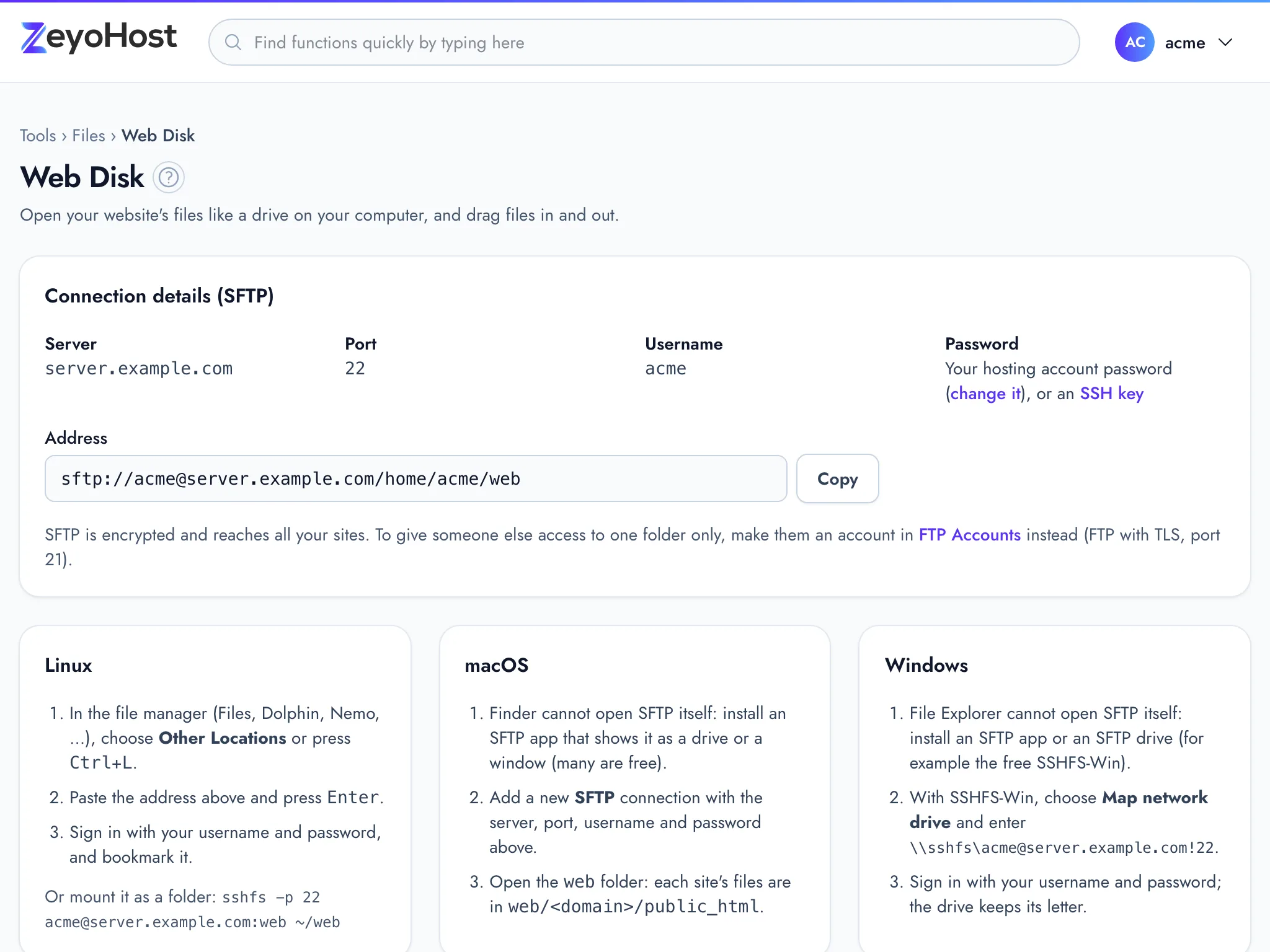
Web Disk gives you the details to open your hosting account's files on your computer, like a drive or a folder, and then drag files in and out. It uses SFTP, which is encrypted and reaches all your sites. Use it for images, archives and files over 1 MB, which the File Manager cannot take.
To give someone else access to one folder only, create an FTP account for them instead.
Get your connection details
- In the panel, open Files → Web Disk.
- Under Connection details (SFTP), note the Server, Port and Username (your hosting account's username).
- For the password, use your hosting account password: the one for FTP, SFTP and SSH, which you can change in Password & Security. It is not your Zeyo Host sign-in and not a mailbox password. You can also sign in with an SSH key added in SSH Access.
- Click Copy next to Address to copy the full SFTP address. It looks
like
sftp://[email protected]/home/acme/weband opens yourwebfolder, where each site's files are in<domain>/public_html.
Connect on Linux
- In your file manager (Files, Dolphin, Nemo and others), choose Other Locations or press Ctrl + L.
- Paste the address and press Enter.
- Sign in with your username and password, and bookmark the location.
To mount it as a folder instead, the page shows an sshfs command with your own details filled in.
Connect on macOS
- Finder cannot open SFTP by itself, so install an SFTP app that shows the server as a drive or a window. Many are free.
- Add a new SFTP connection with the server, port, username and password from the page.
- Open the
webfolder. Each site's files are inweb/<domain>/public_html.
Connect on Windows
- File Explorer cannot open SFTP by itself, so install an SFTP app or an SFTP drive, for example the free SSHFS-Win.
- With SSHFS-Win, choose Map network drive and enter the
\\sshfs\…path shown on the page. - Sign in with your username and password. The drive keeps its letter.
Related
- FTP AccountsCreate FTP logins that can upload files to one folder of a website, and change their password or folder.
- File ManagerBrowse the files of your hosting account, create and edit text files, and copy, move, compress or delete files and folders.
- SSH AccessAdd and remove the SSH public keys that let you log in to your hosting account without a password.
- Password & SecurityChange your hosting account's password, the one for FTP, SFTP and SSH, which is separate from your panel sign-in.
Was this page helpful?
Sent without cookies; we do not store your IP address.
Still stuck? Contact the team; tell us the page and what you see.