

Accounts, hosting accounts and team members
How your Zeyo account, your hosting accounts and the people you invite fit together, and which password is for what.
Zeyo Host keeps you and your hosting apart. You sign in once, with your own Zeyo account, and work in any hosting account you own or were invited into.
While you are signed in, zeyohost.com shows Go to dashboard and your initials at the top right. The menu under your initials has Dashboard, Billing, Help and Log out; logging out there signs you out of the panel too.
| Term | What it is | Where you manage it |
|---|---|---|
| Zeyo account | You: one email address, one password and, if you turn it on, two-factor authentication. It pays, holds your invoices and owns your hosting accounts. The panel calls this your "panel login". | User menu → Sign-in & Security |
| Hosting account | One hosting service on one server, with its own plan and username (for example acme). |
The panel, after you select it |
| Team member | Someone you invited into one hosting account. They sign in with their own Zeyo account and see only the tools you chose. | Preferences → User Manager |
| Mailboxes and FTP accounts | Logins inside a hosting account, each with its own password. | Email Accounts, FTP Accounts |
Sign in with Google, GitHub and others
If your host switched them on, the sign-in page offers Continue with Google (or GitHub, Microsoft, Facebook, X). Google and GitHub sign you straight in when the email address they confirm is the one on your Zeyo account, and can open a new account for a new address. Microsoft, Facebook and X first need connecting:
- Sign in with your email and password.
- Open Sign-in & Security from the user menu and find Connected accounts.
- Click Connect … and allow it at the provider. From then on, its button signs you in.
Your panel password and two-factor authentication keep working: if you use two-factor, the panel still asks for your code after a social sign-in. Disconnect removes the connection at any time.
See all your hosting accounts: My hosting
My hosting is your Zeyo account's overview. If you have more than one hosting account, it opens after you sign in; otherwise it is in the user menu.
- Open My hosting from the user menu at the top right (or sign in, if you have more than one hosting account).
- Under Mine you see each hosting account you own: its first website, Plan, Region, Status, and when it renews and for how much. Orders still being prepared show as Setting up.
- Under Shared with me you see hosting accounts whose owner added you as a team member, with only the tools they chose for you. This group appears only when there are any.
- Click Open panel on the one you want. Every tool now works on that hosting account.
- Add hosting takes you to signup for another plan; your latest invoices are listed below.
You can also switch from the user menu, under Hosting account: accounts shared with you are marked (shared), and the panel confirms "You are now working in …"
To add another hosting account to your Zeyo account, log in and open my.zeyohost.com/signup. See Create your account.
Which password is for what
| Password | Used for | Change it in |
|---|---|---|
| Your Zeyo account password (panel password) | Signing in at my.zeyohost.com | User menu → Sign-in & Security |
| A mailbox password | That mailbox in mail apps and Webmail | Email → Email Accounts → Manage |
| An FTP account password | That FTP account | Files → FTP Accounts → Change Password |
| The hosting account's own password | FTP, SFTP and SSH as the hosting account itself (see Web Disk), and signing in with the hosting account's username | Preferences → Password & Security |
Change your sign-in email or password
- Click your name at the top right and choose Sign-in & Security.
- Enter your Current panel password (needed for these changes).
- To change your email, edit Email and click Change email.
- To change your password, fill in New panel password and Repeat the new password, then click Change password.
Turn on two-factor authentication
Two-factor authentication asks for a 6-digit code from an app on your phone each time you sign in, so a stolen password alone is not enough.
- Click your name at the top right and choose Sign-in & Security.
- Under Two-factor authentication, click Set up two-factor authentication.
- Scan the QR code with an authenticator app (such as Google Authenticator, 1Password or Authy), or type in the key shown below it.
- Enter the code the app shows in Code and click Turn On.
To move it to a new phone, use Move to a new device on the same page. There are no backup codes, so do this before you lose the old phone. If you can no longer sign in, see I cannot sign in.
The Two-Factor Authentication tool under Security is a separate setting for the hosting account itself. It is asked only when someone signs in with the hosting account's username and your Zeyo account has no two-factor authentication of its own.
Invite a team member
- Select the hosting account, then open Preferences → User Manager.
- Under Invite Someone, enter Their email address.
- Tick the Tools they can use.
- Click Send Invitation.
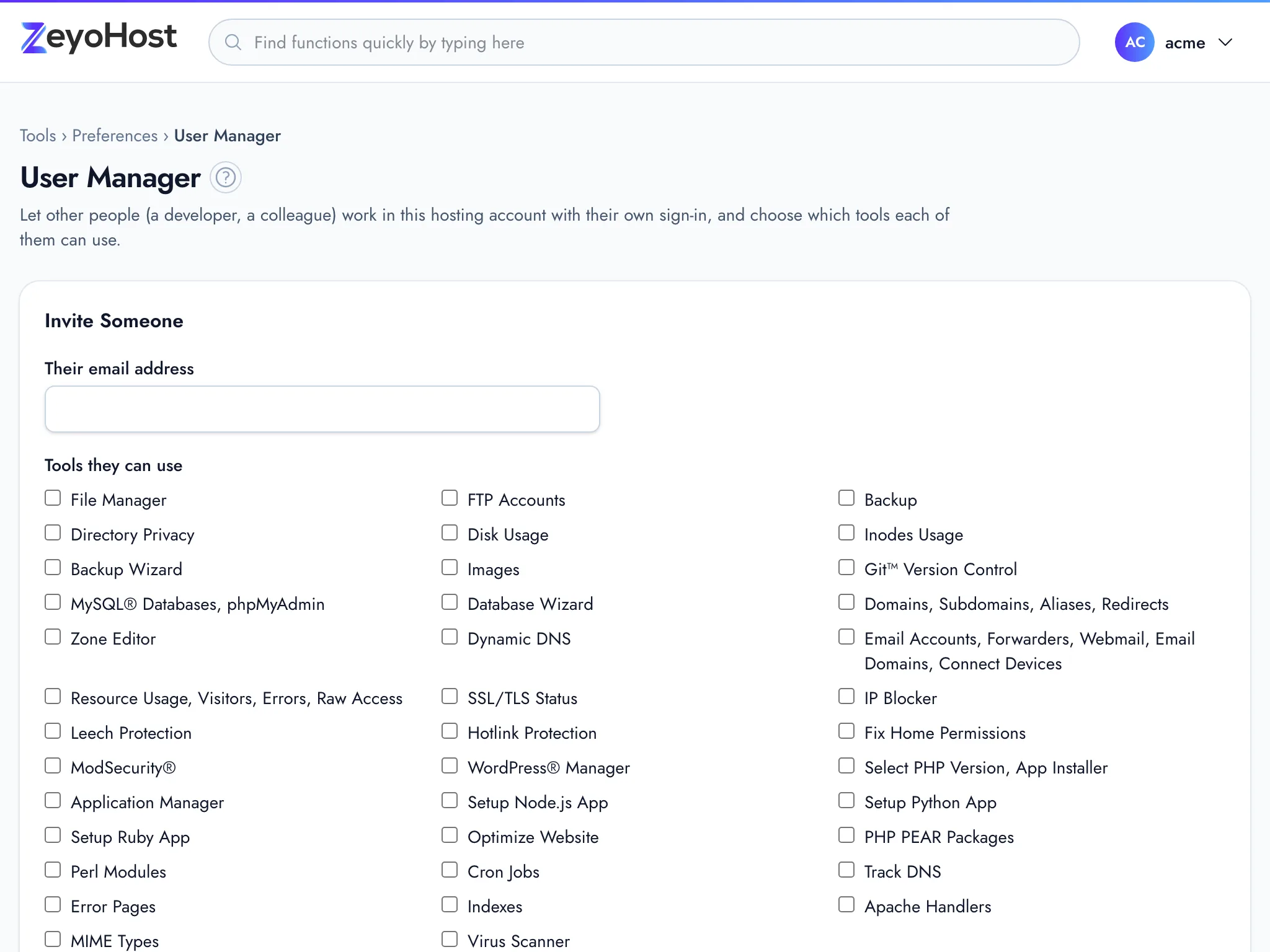
They get an email with an Accept the invitation link that works for 7 days. If they have no Zeyo account yet, they create one from that link; otherwise they sign in to join. Billing, your passwords and keys, and User Manager itself always stay yours.
Under People on this account you can Change tools, Send again an invitation that is still pending or has expired, or Remove someone. Remove asks first; the person can no longer open this hosting account, but keeps their own Zeyo account. A hosting account can have up to 20 people. See User Manager.
Related
- User ManagerInvite a developer or colleague into your hosting account with their own sign-in, and choose which tools they can use.
- Password & SecurityChange your hosting account's password, the one for FTP, SFTP and SSH, which is separate from your panel sign-in.
- Two-Factor AuthenticationTurn on a 6-digit code from an authenticator app for sign-ins with your hosting account's username and password.
- I cannot sign inYour password is refused, you are told to wait, or you lost the phone with your two-factor codes.
- Create your accountOrder a plan at my.zeyohost.com/signup, pay, and sign in to your new hosting for the first time.
Was this page helpful?
Sent without cookies; we do not store your IP address.
Still stuck? Contact the team; tell us the page and what you see.