

Visitors
Turn on visitor statistics for a domain and open its report of who came, from where, and which pages they read.
Visitors turns on statistics reports for your websites. A statistics program reads each website's logs on the server and builds a report of who came, from where, and which pages they read. You turn statistics on per domain and choose the program from the ones your server offers.
Reports are private: when you turn statistics on, the panel puts a login on them at once. You can make a domain's reports public if you want anyone to read them, and private again at any time.
Turn on statistics for a domain
- In the panel, open Metrics → Visitors.
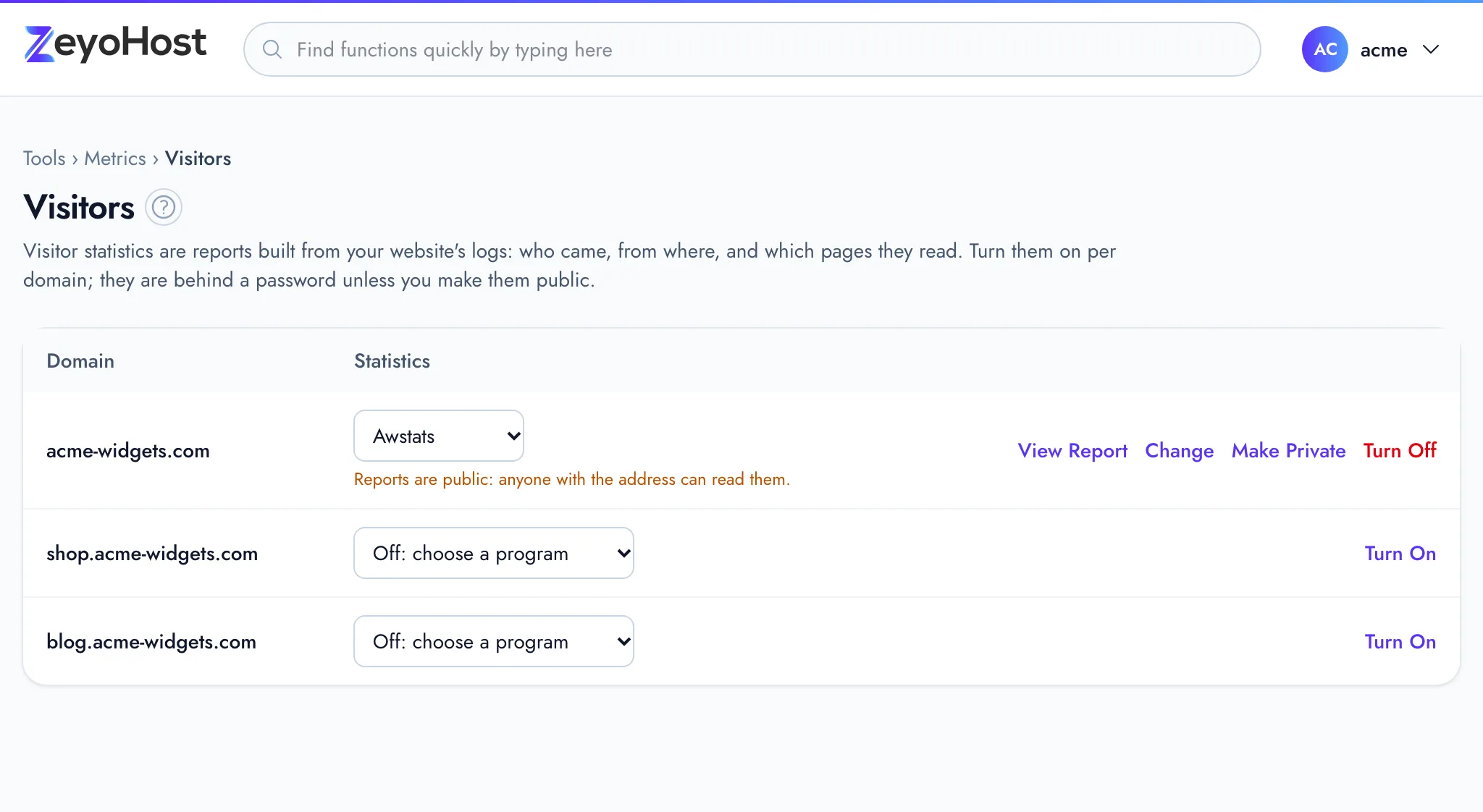
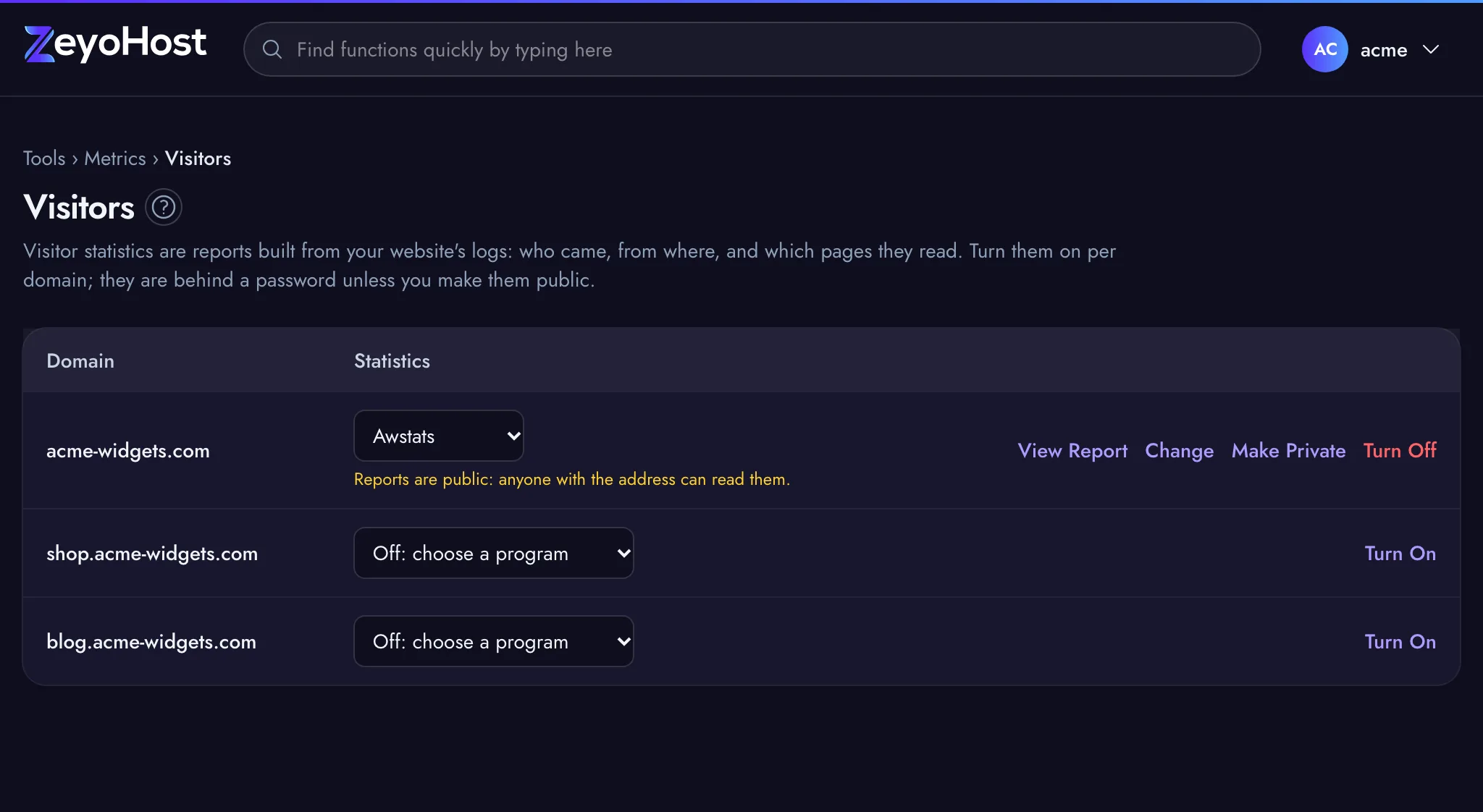
- Find the domain. The Statistics menu reads Off: choose a program when statistics are off.
- Open the menu and choose a program.
- Click Turn On.
- A green notice shows the login for the reports: the User name (your hosting account name) and a generated Password. Save the password in your password manager, then click I have saved it.
The panel confirms that statistics "are on, behind a password" and that the first report appears after the next update. Reports are built from the logs, so expect to wait before the first one shows anything. If the login cannot be set, the panel turns statistics off again rather than leave the reports public, and shows the error.
Under the menu, the panel says who can read the domain's reports: "Reports ask for a password" followed by the user name, or "Reports are public: anyone with the address can read them.".
Open a report
Click View Report on the domain. The report opens in a new tab at your domain's
/vstats/ address, for example https://example.com/vstats/. The link appears once statistics are on. Sign in with
the user name and password for the reports.
The login is only for the reports. It is not your Zeyo Host sign-in, and changing it does not change your hosting account password.
Choose your own password
- Click Change Password on the domain.
- Enter a User name for the reports, for example
reports. Use letters, numbers, dots, dashes or underscores. - Enter a Password, or click Generate. It needs at least 10 characters with upper- and lower-case letters and numbers.
- Click Save.
The panel confirms that the reports "now ask for a password", with the user name.
Make reports public
Do this only if you want anyone to read the domain's reports, for example to share them with a partner who has no login.
- Click Make Public on the domain.
- Read the message, then click Make public.
Make reports private again
Click Make Private on the domain. The panel sets a new login (your hosting account name and a generated password) and shows it once in a green notice, as when you turned statistics on. Save it, then click I have saved it. To choose your own password instead, use Change Password afterwards.
Change the program
Choose another program in the domain's Statistics menu and click Change. The Change link only shows when your server offers more than one program.
Turn statistics off
- Click Turn Off on the domain.
- Read the message, then click Turn Off to confirm.
Common errors
| Message | Why | What to do |
|---|---|---|
| Choose a statistics program first. | No program was chosen in the menu before you clicked Turn On or Change. | Choose a program in the Statistics menu, then click again. |
| example.com already uses awstats. Choose another program to change to. | You clicked Change with the program the domain already uses. | Choose a different program in the menu first. |
| Turn statistics on first. | Statistics are off for the domain, for example after a change in another tab, so there are no reports to protect. | Reload the page and turn statistics on: they start behind a password. |
| Use letters, numbers, dots, dashes or underscores. | The user name for the reports has spaces or other characters, or is longer than 32 characters. | Use only letters, numbers, ., - and _. |
| The user name field is required. | User name for the reports is empty. | Enter a user name. |
| The password field must be at least 10 characters. | The password is too short. | Use a longer one, or click Generate. |
| The password field must contain at least one uppercase and one lowercase letter. | The password has letters of one case only. | Add both, or click Generate. |
| The password field must contain at least one number. | The password has no digit. | Add a number, or click Generate. |
| That item does not exist. | The domain is no longer on your hosting account, or statistics were already off. | Reload the page. |
| That item already exists. | Statistics were already on for that domain, for example after a change in another tab. | Reload the page and use Change instead. |
| One of the values you entered is not valid. Please check it and try again. | The server does not offer the chosen program. | Reload the page and choose a program from the menu. |
Related
- Raw AccessRead the most recent requests to a website, newest first, to see who asked for which page and what the server answered.
- Resource UsageSee how much disk space and bandwidth your hosting account uses against your plan, broken down by type and by website.
- ErrorsRead the most recent errors a website logged, newest first, to find broken pages, missing files and failing scripts.
Was this page helpful?
Sent without cookies; we do not store your IP address.
Still stuck? Contact the team; tell us the page and what you see.