

Images
Make images smaller, convert them to another type such as WebP, or make thumbnails of every image in a folder.
Images works on the JPEG, PNG, GIF and WebP images already in a folder of your hosting account. You can resize an image, convert it to another type, or make a thumbnail of every image in a folder. Smaller images make pages load faster. The result is always saved as a new file: your original is never replaced.
To get images onto the server first, upload them with an FTP account or Web Disk.
Open a folder of images
- In the panel, open Files → Images.
- Folder (from your home folder): the page starts in your first website's
public_html. Type another path, such asweb/example.com/public_html/uploads, to list the images there. - The list shows each image's Name and Size. Click Edit to see its width, height, type and file size.
Resize an image
- Click Edit next to the image.
- Under Resize (keeps its shape), enter the Max width and Max height in pixels, from 1 to 8000. The image is scaled to fit inside both, without stretching.
- Save as: the new file's name. It starts as the original name with
-smalladded. - Click Resize.
Convert an image to another type
- Click Edit next to the image.
- Under Convert, choose the New type: JPEG, PNG, WebP or GIF.
- Save as: the name changes to match the type you chose. If you edit it, keep the matching ending (
.jpg,.png,.webpor.gif). - Click Convert.
After converting, update your pages to use the new file name.
Make thumbnails of a folder
- Open the folder.
- Under Thumbnails, enter the Size (pixels), from 1 to 1000. Each thumbnail fits in a square of that size.
- Click Make Thumbnails.
Thumbnails of every image directly in the folder are saved in its thumbnails folder, with the same names. Images
that already have a thumbnail there are skipped, and so are files that are not images. The message tells you how
many were made and how many were skipped.
Common errors
| Message | Why | What to do |
|---|---|---|
| Folder names can use letters, digits, spaces and . _ - ( ) + , = only. | The folder path has other characters, or . or ... |
Enter a path inside your home folder without those characters. |
| File names can use letters, digits, spaces and . _ - ( ) + , = only. | The new file name has other characters. | Choose a name using only those characters. |
| No JPEG, PNG, GIF or WebP images here. | The folder has no images, or their names use other characters. | Check the folder path. Rename files with unusual characters in the File Manager. |
| The width field must be between 1 and 8000. | The width is out of range (the same message exists for the height). | Enter a number of pixels from 1 to 8000. |
| The size field must be between 1 and 1000. | The thumbnail size is out of range. | Enter a number of pixels from 1 to 1000. |
| That item already exists. | A file with the name under Save as is already in the folder. | Choose another name. |
| One of the values you entered is not valid. Please check it and try again. | The new name does not end in the new type, or a size is out of range. | Use the ending that matches the type, and a size within the limits. |
| That item does not exist. | The image or folder was moved or deleted. | Check the folder path and try again. |
| You do not have permission to do that. | When making thumbnails: the thumbnails folder could not be made in that folder, or thumbnails there is a link. The message appears under the thumbnail size. |
Check the folder's permissions, or run Fix Home Permissions, then try again. |
| The server could not read the data it was given. | The image could not be read or written, for example because the file is damaged. | Check that the image opens on your computer, then upload it again. |
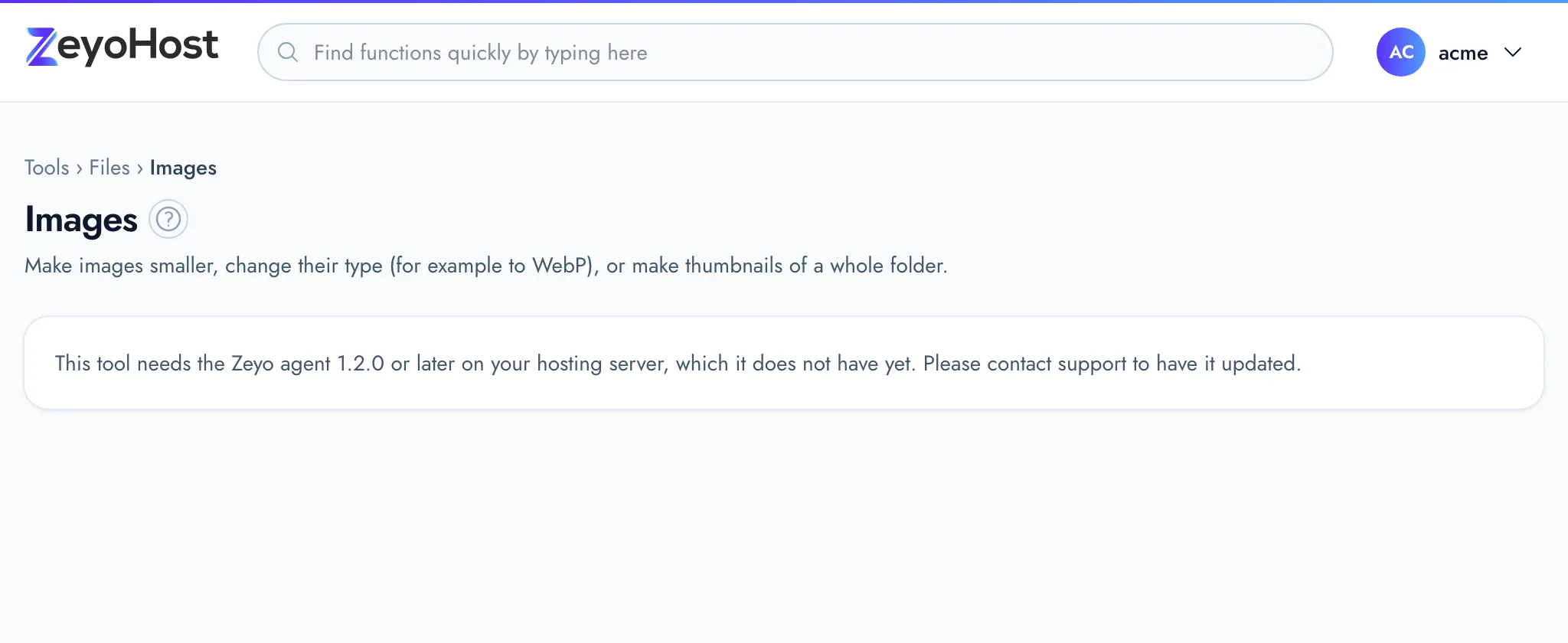
| This tool needs the Zeyo agent 1.2.0 or later on your hosting server, which it does not have yet. Please contact support to have it updated. | Your hosting server needs an update before the tool can run. | Contact support and quote the message. |
Related
- File ManagerBrowse the files of your hosting account, create and edit text files, and copy, move, compress or delete files and folders.
- Optimize WebsiteTurn page caching on or off for each website, clear the cache, and check that pages are sent compressed.
- Hotlink ProtectionStop other websites from showing your images, video and audio on their pages and using your bandwidth.
- FTP AccountsCreate FTP logins that can upload files to one folder of a website, and change their password or folder.
Was this page helpful?
Sent without cookies; we do not store your IP address.
Still stuck? Contact the team; tell us the page and what you see.