

My disk space or inodes are full
The Disk Usage bar is red, or you were told your account has too many files. Find what is taking the space and free it.
What it means
Your plan gives your hosting account a fixed amount of disk space. Everything counts towards it: your websites' files, email, databases and other files in your home folder. When it is used up, new files and new mail cannot be stored.
Inodes are a count of files and folders, whatever their size. Thousands of tiny files, such as cache and session files, can slow backups down and make an account hard to manage even when there is space left.
Check this first
- On the panel's home page, look at Disk Usage under Statistics. The bar turns amber at 70% and red at 90% of your plan's limit.
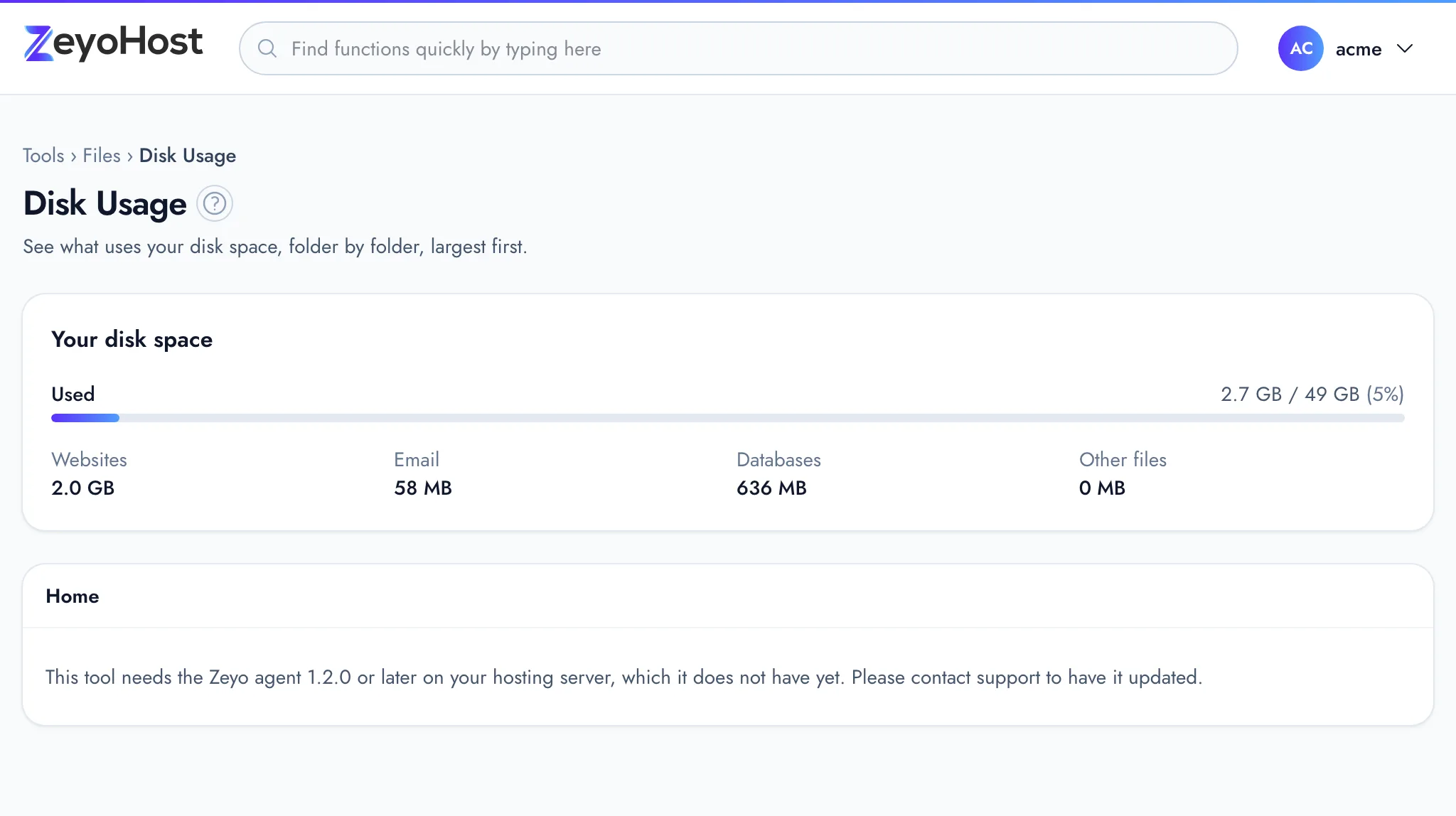
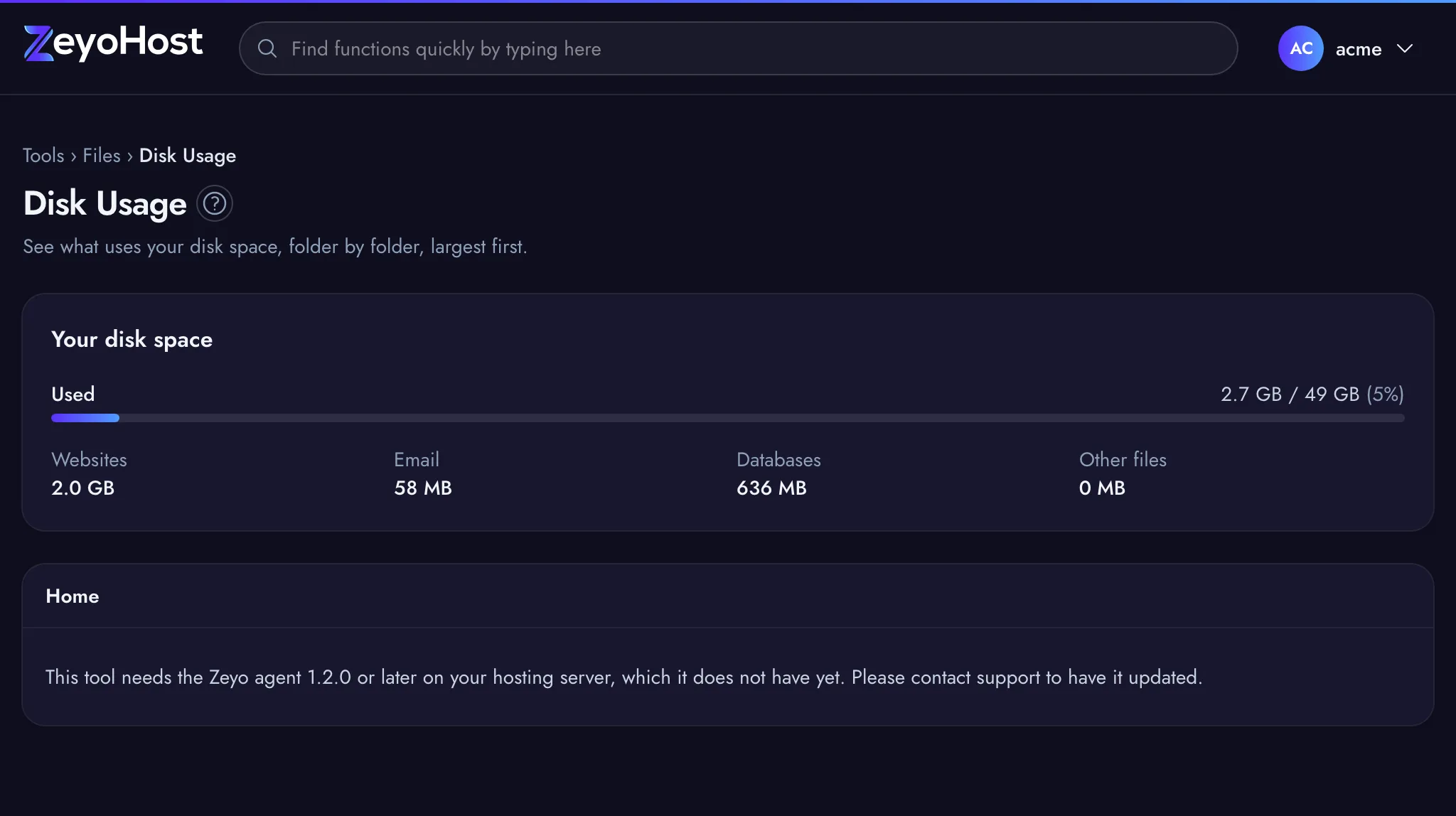
- Open Files → Disk Usage. Your disk space splits the total into Websites, Email, Databases and Other files.
- Below it, folders are listed largest first. Click a folder to open it and keep going down until you find what is large.
- For too many files, open Files → Inodes Usage instead. It lists folders by how many files and folders they hold.
Fix it
Websites take the space
Common culprits are old backups or archives left in a site's folder, uploaded videos, log files and cache folders. Delete what you do not need in File Manager, or download it with FTP first if you want to keep a copy.
For WordPress, remove plugins and themes you do not use, and clear the cache of any caching plugin from inside WordPress.
Email takes the space
Open Email → Email Accounts and look at Storage: Used / Allocated to find the largest mailboxes. Delete old messages and large attachments in Webmail or the mail app, and empty the trash folder.
Databases take the space
Large databases are usually logs, sessions or statistics tables kept by an application. Clean them up from inside the application, or in phpMyAdmin if you know which tables can go.
Too many files (inodes)
In Inodes Usage, open the folders with the highest counts. Cache and session folders are the usual cause. Clear the cache from the application that made it, or delete the folder's contents in File Manager.
You need more space
Move to a plan with more disk space: see Change your plan.
Related messages
| Message | What to do |
|---|---|
| You have reached the limit of your plan. Remove something first, or move to a bigger plan in Billing. | Your plan's limit for that kind of item is reached. Remove something, or change plan. |
| The server has run out of disk space. | The server itself is full, not just your account. Write to [email protected]. |
| This tool needs the Zeyo agent … or later on your hosting server, which it does not have yet. Please contact support to have it updated. | Disk Usage and Inodes Usage are not available on your server yet. Use the home page's Statistics and File Manager meanwhile, and write to [email protected]. |
Related
- Disk UsageSee how much of your plan's disk space you use, and find which folders and files take up the most.
- Inodes UsageSee how many files and folders each folder of your hosting account holds, and find folders full of small files.
- File ManagerBrowse the files of your hosting account, create and edit text files, and copy, move, compress or delete files and folders.
- Email AccountsCreate mailboxes on your domains, change their passwords and storage space, and delete the ones you no longer need.
- Change your planUpgrade straight away, or move to a smaller plan or another billing period at your next renewal.
Was this page helpful?
Sent without cookies; we do not store your IP address.
Still stuck? Contact the team; tell us the page and what you see.