

Create your account
Order a plan at my.zeyohost.com/signup, pay, and sign in to your new hosting for the first time.
You order hosting on one page: choose a plan, pick a username for your hosting, set up the email and password you sign in with, and choose how to pay. Your hosting account is created as soon as the payment arrives. The email and password you choose here are your Zeyo account: you use them to sign in, pay and manage every hosting account you own.
Order a plan
- Click Get started on a plan on our pricing page, or open my.zeyohost.com/signup. From the pricing page, the plan and the billing period you chose (and a coupon, if the link has one) are already selected.
- 1. Plan: choose a plan. Each card shows its price for each billing period, and a setup fee if the plan has one.
- If the plan can be paid in more than one way, choose Pay monthly or Pay yearly.
- 2. Your account: fill in Username for your hosting. It names your files and databases, so pick something short: 3 to 16 lower-case letters and numbers, starting with a letter.
- Enter Your name (optional), your Email, and a Password for the control panel twice. The password needs at least 10 characters, with upper- and lower-case letters and a number.
- 3. Payment: choose a payment method. Only the methods we have switched on are shown. See Payment methods.
- If you have a coupon, enter it in Coupon code (optional). It takes money off your first payment only. See Coupons.
- Check the Your order summary on the right: what is Due today, any one-off setup fee, and what each renewal costs ("Renews at … Cancel any time.").
- Tick I accept the terms of service and the privacy policy and click Continue to payment.
- Pay on the payment provider's page. You then come back to the order page.
What happens after you pay
The Your order page updates by itself every few seconds:
| What it says | What it means |
|---|---|
| Waiting for your payment of … | We have not received the payment yet. Use Pay now to open the payment page again. |
| We sent a link to … Confirm your email to see the payment details. | You chose bank transfer. Open the email "Confirm your email to complete your order" and click Confirm my email. |
| Payment received. Setting up your account… | Your hosting account is being created on a server. This usually takes a minute or two. |
| Your hosting account … is ready. | Done. Click Open the control panel: My hosting opens with the new hosting account selected. |
| This order was cancelled. | The order was not paid and has expired. Start a new order. |
You also get an email, "Your hosting is ready", with your hosting account's name and the server it is on.
If you pay by bank transfer, the page shows the bank details and the invoice number to quote as the payment reference. Your account is set up once we have confirmed the payment.
Sign in for the first time
- Open my.zeyohost.com/login.
- In Email or username, enter the email you ordered with, and the password you chose.
- Click Log in. With one hosting account, its panel opens; with more than one, My hosting lists them so you can open the one you want (see Accounts, hosting accounts and team members).
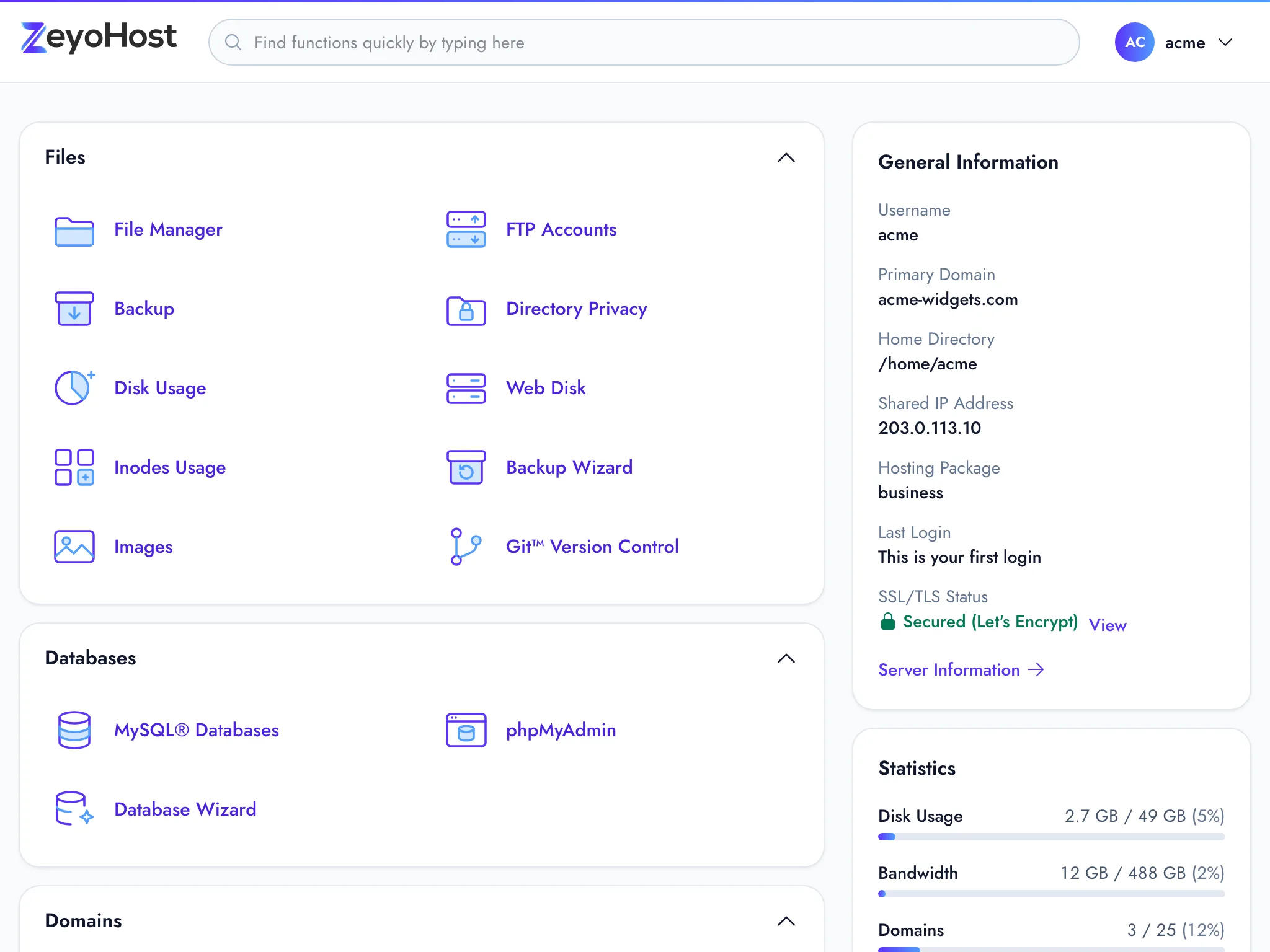
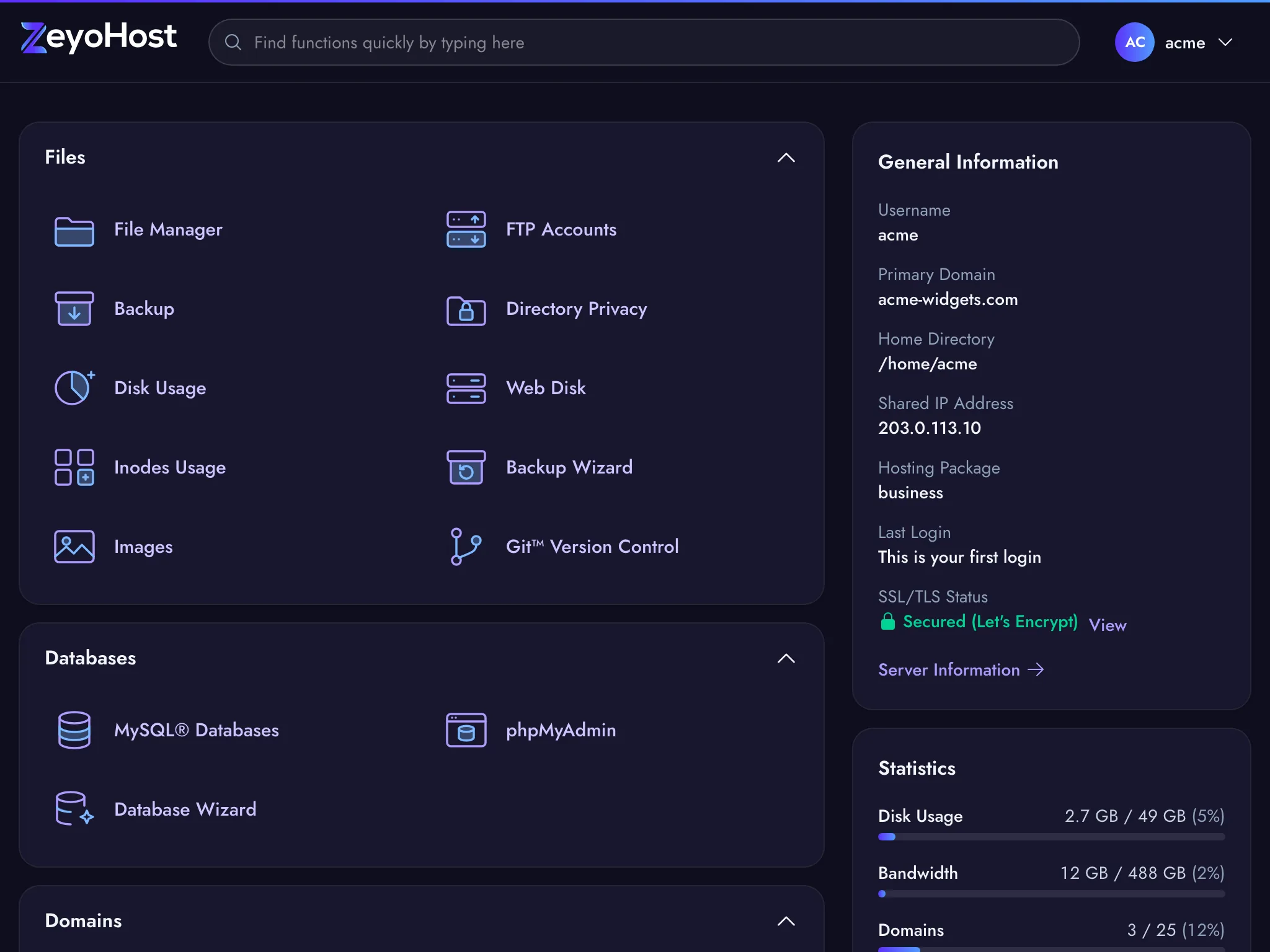
The home page lists your tools by section. On the right, General Information shows your username, primary domain, home directory, shared IP address and hosting package, and Statistics shows how much of your plan you use.
Next, add your website: see Your first website. We also recommend turning on two-factor authentication: see Accounts, hosting accounts and team members.
Common errors
| Message | Why | What to do |
|---|---|---|
| Use 3 to 16 lower-case letters and numbers, starting with a letter. | The username has capitals, symbols, or the wrong length. | Use only a–z and 0–9, starting with a letter. |
| This username is taken. Try another. | Another hosting account or order already uses it, or it is a name the server reserves (such as admin or mail). |
Choose another username. |
| There is already an account with this email. Log in first, then order. | You already have a Zeyo account. | Log in, then open the signup page again. |
| Please accept the terms of service. | The box was not ticked. | Tick I accept the terms of service and the privacy policy. |
| Too many orders from your network. Please try again in an hour. | Several orders were started from your network in the last hour. | Wait an hour, or finish the order you already started. |
| New orders are not open yet. Please check back soon. | No plans or payment methods are available for new orders right now. | Try again later. |
Related
- Plans and pricesWhat a plan includes, how billing periods, setup fees and taxes work, and where to see your own plan.
- Payment methodsThe ways you can pay for hosting, how each one works, and how to update the card or account you pay with.
- CouponsUse a coupon code when you order, and what it takes off.
- Accounts, hosting accounts and team membersHow your Zeyo account, your hosting accounts and the people you invite fit together, and which password is for what.
- Your first websiteAdd your domain to your hosting account and put your website's files in the right folder.
Was this page helpful?
Sent without cookies; we do not store your IP address.
Still stuck? Contact the team; tell us the page and what you see.