

Backup Wizard
Back up your whole hosting account, or restore chosen websites, mail domains, databases and more from a backup, step by step.
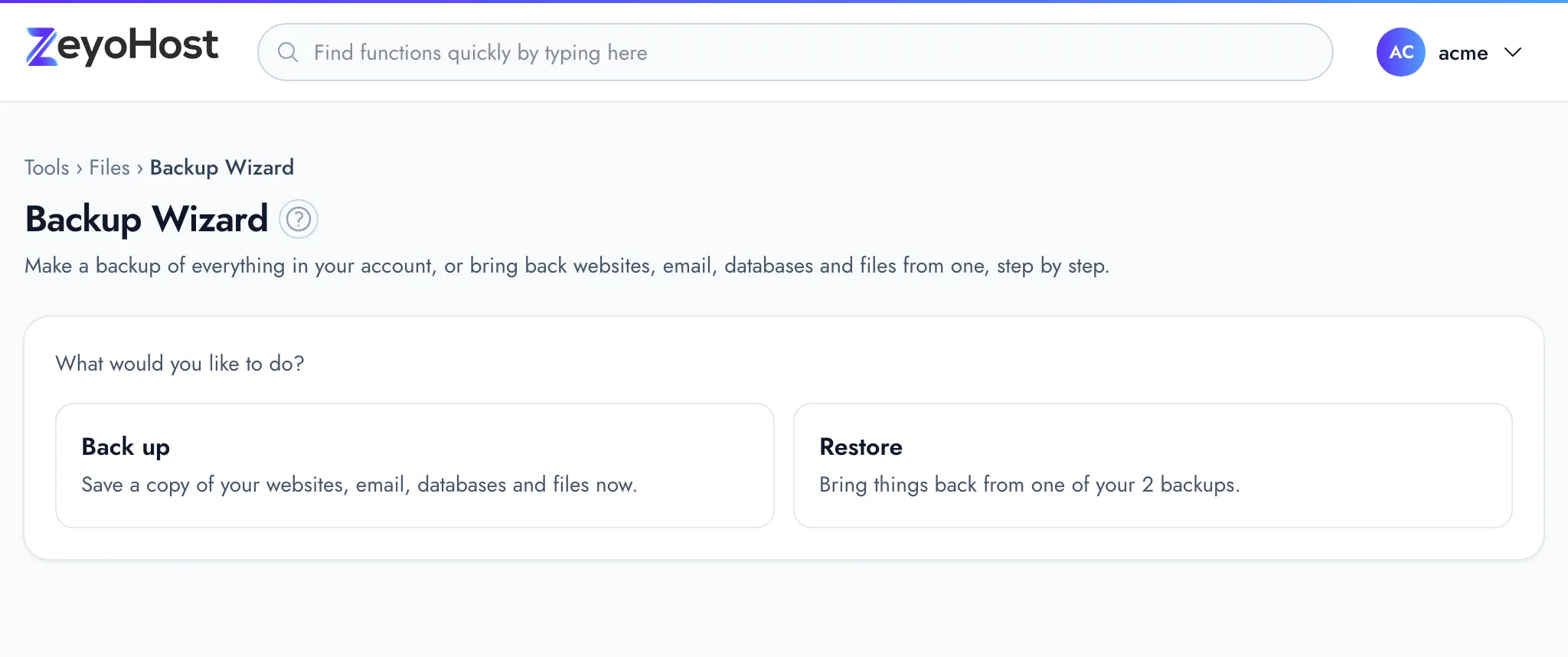
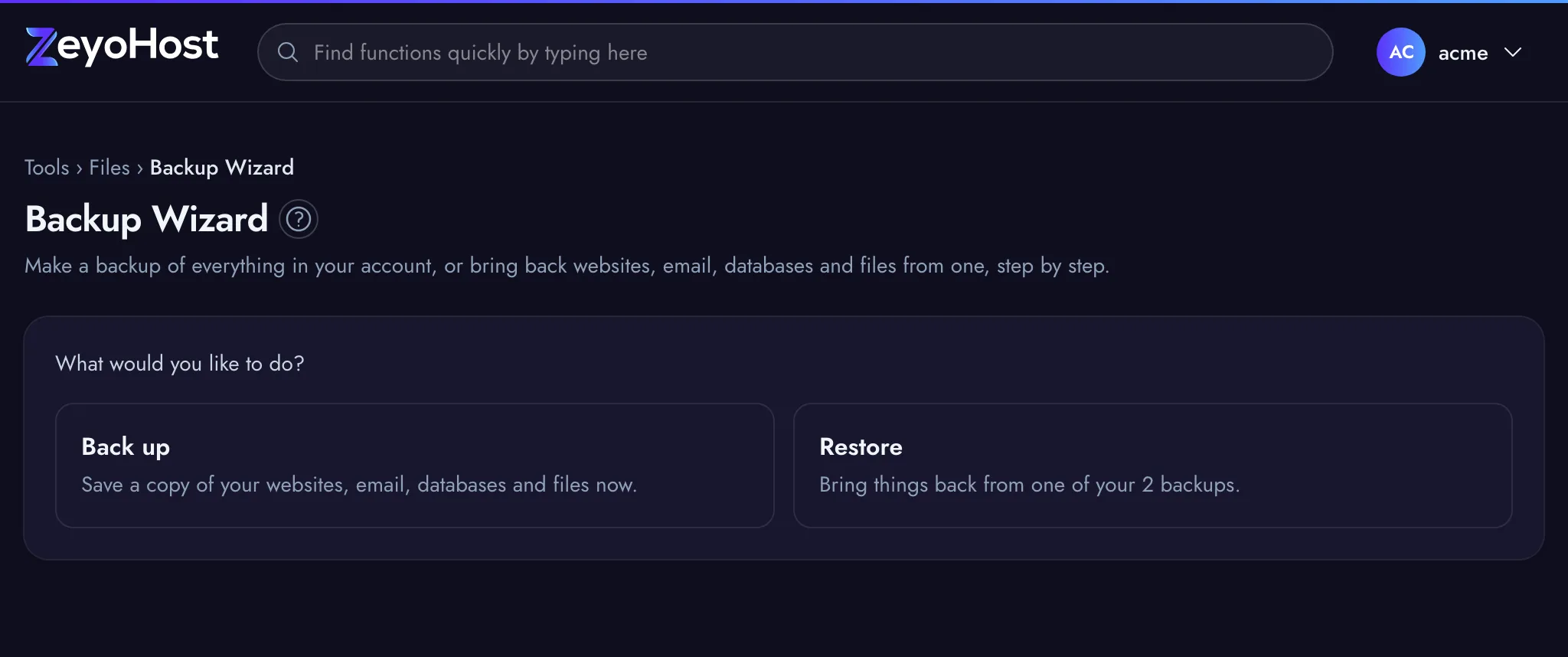
The Backup Wizard walks you through a backup or a restore one question at a time. Unlike the Backup page, it lets you restore single items from a backup: one website, one mail domain or one database, without touching the others.
Back up your account
- In the panel, open Files → Backup Wizard.
- Choose Back up.
- Check how many backups your package keeps and how many you have, then click Back Up Now.
- Click Done.
A full backup includes all your websites, email, databases, DNS zones, cron jobs and files. It runs in the background and appears on the Backup page within a few minutes; larger accounts take longer.
Restore from a backup
- In the panel, open Files → Backup Wizard and choose Restore. It is only available once you have at least one backup.
- Under Which backup?, pick a backup by its date and time. Each one lists its size and the parts it contains. Click Next.
- Choose what to restore. Each part (Websites, DNS zones, Email, Databases, Cron jobs, Files and folders) has an All box, ticked to start with. Untick All to see the single items in that part, such as each website or database, and tick only the ones you want. Untick everything in a part to leave it out. Click Next.
- Read the summary of what will be restored, then click Restore.
- Click Done.
The restore runs in the background on your hosting server and can take a while. When it finishes, the restored items appear in your sites and tools. Use Back on any step to change an earlier answer.
Common errors
| Message | Why | What to do |
|---|---|---|
| Your package keeps … backups. Delete one in Backup before creating another. | You already have as many backups as your package keeps. | Delete an old backup on the Backup page, then try again. |
| Choose a backup. | No backup was picked. | Pick one of the listed backups. |
| Choose at least one thing to restore. | Every part was left out. | Tick All or at least one item. |
| This backup has no … to restore. | The item is not in the chosen backup. | Go Back and pick a backup that contains it. |
| That item already exists. | A backup or a restore is already waiting to run for your account. | Wait for it to finish, then try again. |
| That backup does not exist. | The backup was deleted in the meantime. | Start again and pick another backup. |
Related
- BackupSee the backups of your hosting account, create a new one, and restore websites, email, databases or files from one.
- MySQL® DatabasesCreate a MySQL database and its user for an application such as WordPress, change the user's password, or delete a database.
- File ManagerBrowse the files of your hosting account, create and edit text files, and copy, move, compress or delete files and folders.
- Disk UsageSee how much of your plan's disk space you use, and find which folders and files take up the most.
Was this page helpful?
Sent without cookies; we do not store your IP address.
Still stuck? Contact the team; tell us the page and what you see.