

Cron Jobs
Run a command or script automatically at set times, and choose whether its output is emailed to you.
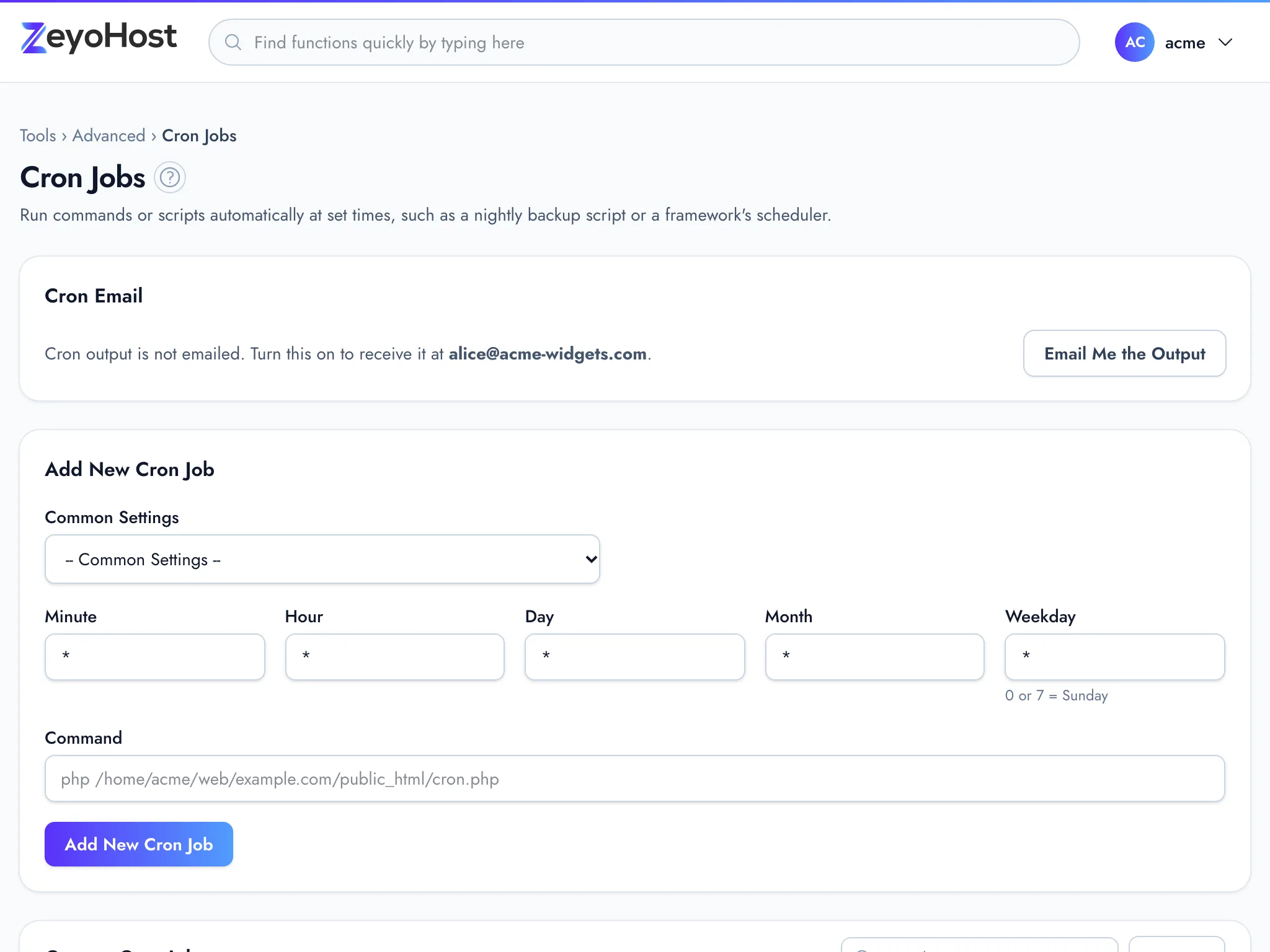
Cron Jobs runs commands or scripts for your hosting account on a schedule, such as a nightly clean-up script or a framework's scheduler that must run every few minutes. Each job has five timing fields (minute, hour, day, month and weekday) and one command.
Add a cron job
- In the panel, open Advanced → Cron Jobs.
- Under Add New Cron Job, choose a schedule from Common Settings, for example Once Per Day. It fills in Minute, Hour, Day, Month and Weekday for you. You can also type the five values yourself.
- Command: the command to run, on one line. Use full paths, for example
php /home/username/web/example.com/public_html/cron.php, with your hosting account's username in place ofusername. - Click Add New Cron Job.
The job appears under Current Cron Jobs. Use Search above the table to find a job by its command.
What the timing fields accept
| Field | Numbers | Notes |
|---|---|---|
| Minute | 0–59 | |
| Hour | 0–23 | |
| Day | 1–31 | Day of the month. |
| Month | 1–12 | |
| Weekday | 0–7 | 0 or 7 = Sunday. |
Each field takes * (every value), a single number (5), a list (1,15), a range (1-5), or a step (*/5 for
every fifth, or 0-30/5 for every fifth within a range).
The Common Settings
| Setting | Minute | Hour | Day | Month | Weekday |
|---|---|---|---|---|---|
| Once Per Minute | * |
* |
* |
* |
* |
| Once Per Five Minutes | */5 |
* |
* |
* |
* |
| Twice Per Hour | 0,30 |
* |
* |
* |
* |
| Once Per Hour | 0 |
* |
* |
* |
* |
| Twice Per Day | 0 |
0,12 |
* |
* |
* |
| Once Per Day | 0 |
0 |
* |
* |
* |
| Once Per Week | 0 |
0 |
* |
* |
0 |
| On the 1st and 15th of the Month | 0 |
0 |
1,15 |
* |
* |
| Once Per Month | 0 |
0 |
1 |
* |
* |
| Once Per Year | 0 |
0 |
1 |
1 |
* |
Change or delete a cron job
- In the panel, open Advanced → Cron Jobs.
- Click Edit on the job. The form above changes to Edit Cron Job and shows the job's values.
- Change what you need and click Save Cron Job, or click Cancel to leave it as it was.
- To remove a job, click Delete on its row, then Delete again in the confirmation.
Get the output by email
The Cron Email box at the top of the page says whether the output of your cron jobs is emailed to you, and to which address.
- In the panel, open Advanced → Cron Jobs.
- Click Email Me the Output to turn it on, or Stop Emailing Output to turn it off.
The output goes to your contact address. Change that address in Contact Information. Jobs that run often and print something send an email each time they run, so turn this on while you test a job and off once it works.
Common errors
| Message | Why | What to do |
|---|---|---|
| Use *, a number from 0 to 59, a list (1,15), a range (1-5) or a step (*/5). | A timing field holds something cron does not understand, or a number that is too high or too low, such as 0 for Day or Month. The numbers in the message depend on the field. |
Use one of the forms in the table above, for example */10 or 0. |
| A cron command must be on one line. | The command contains a line break. | Put the commands on one line, joined with && or ;, or save them in a script and run the script. |
| The command field is required. | The command is empty. | Enter the command to run. |
| You have reached the limit of your plan. Remove something first, or move to a bigger plan in Billing. | Your plan's cron job limit is reached. | Delete jobs you no longer need, or move to a bigger plan. |
| That item does not exist. | When deleting: the job was already deleted, for example in another browser tab. | Reload the page. |
| That cron job no longer exists. Add it again if you still need it. | When saving a change: the job was deleted while you were editing it, for example in another browser tab. | Add the job again with Add New Cron Job if you still need it. |
| A service could not be restarted, so your change may not be live yet. | The server could not restart a service after the change. | Wait a minute and check the job list. If the job does not run, contact support with the message. |
Related
- TerminalOpen a command line for your hosting account in the browser, or connect over SSH from your own computer.
- File ManagerBrowse the files of your hosting account, create and edit text files, and copy, move, compress or delete files and folders.
- Contact InformationChoose the email address where notices about your hosting account are sent, such as quota warnings and cron output.
- Change your planUpgrade straight away, or move to a smaller plan or another billing period at your next renewal.
Was this page helpful?
Sent without cookies; we do not store your IP address.
Still stuck? Contact the team; tell us the page and what you see.