

Set up email
Create a mailbox on your domain and add it to your phone, tablet or computer.
Email on your domain takes two steps: create a mailbox in the panel, then add it to your mail app using the settings the panel's Connect Devices page shows. You can also read mail in your browser with Webmail.
Depending on your plan, your email runs on your hosting server or on Zeyo Host Mail. The steps are the same, except that Zeyo Host Mail needs your domain added and verified first, and its server names are different.
1. Zeyo Host Mail only: add your domain
If Email → Email Domains shows an Add an Email Domain form, your email is on Zeyo Host Mail. Otherwise, skip to step 2: your mail domain was created when you added the domain, and Email Domains lists it as On. Mail for it reaches your hosting server once the domain's MX records point there.
- In the panel, open Email → Email Domains.
- Enter your domain and click Add Domain.
- Click DNS records on the domain's row to see the records email needs. If your domain's DNS is in this panel, click Add them to my DNS zone here, then Change my DNS zone in the dialog. Otherwise add them where your DNS is hosted.
- Click Check now. You can create mailboxes once the domain is verified, and mail arrives once its status says Receiving mail.
See Email Domains for what each record state means.
2. Create a mailbox
- In the panel, open Email → Email Accounts.
- Under Create an Email Account, enter the Username (the part
before the @, such as
info) and choose the Domain. - Enter a Password or click Generate. It needs at least 10 characters with upper- and lower-case letters and numbers. Write it down: your mail app needs it.
- Under Storage Space, choose Limited and a size in megabytes, or Unlimited (on Zeyo Host Mail: Largest your plan allows).
- Click Create.
3. Find your settings
In the panel, open Email → Connect Devices. If you have more than one email domain, choose it in Domain. The page lists the server and port for incoming mail (IMAP and POP3) and outgoing mail (SMTP), and your Webmail address.
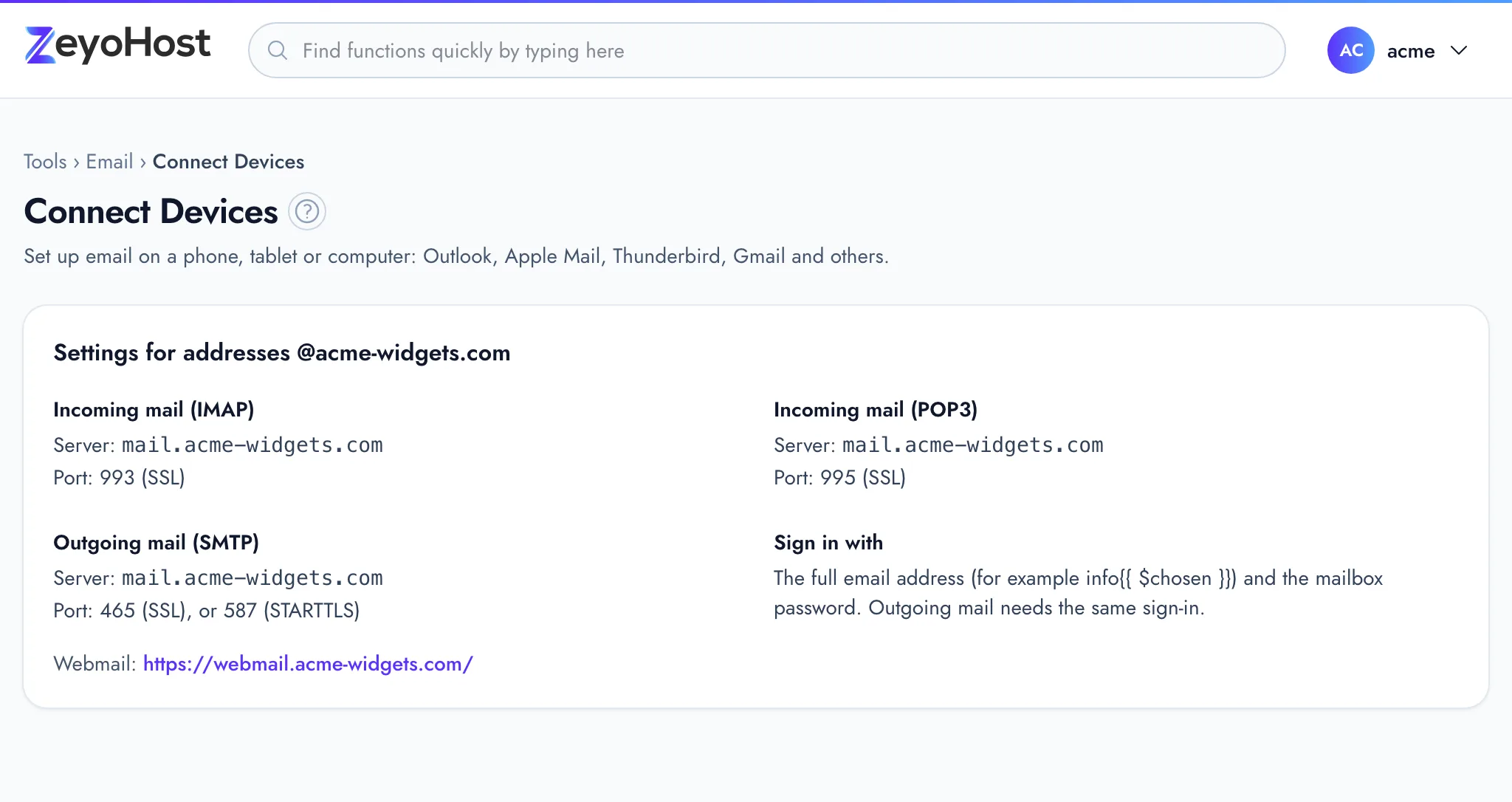
Always use the values on that page. For reference:
| Setting | Email on your hosting server | Email on Zeyo Host Mail |
|---|---|---|
| Incoming (IMAP, recommended) | mail.example.com, port 993, SSL |
imap.zeyohost.email, port 993, SSL |
| Incoming (POP3) | mail.example.com, port 995, SSL |
pop.zeyohost.email, port 995, SSL |
| Outgoing (SMTP) | mail.example.com, port 465 SSL, or 587 STARTTLS |
smtp.zeyohost.email, port 465 SSL, or 587 STARTTLS |
| Username | The full email address | The full email address |
| Password | The mailbox password | The mailbox password |
| Webmail | Shown on Connect Devices | https://webmail.zeyohost.email |
Replace example.com with your own domain. Outgoing mail needs the same username and password as incoming mail.
Choose IMAP unless you have a reason to use POP3: IMAP keeps your mail on the server, so every device sees the same
folders.
4. Add the mailbox to your app
Each app asks for the same things. When it offers a choice, pick manual or advanced setup, choose IMAP, and enter the values from step 3.
iPhone and iPad (Mail)
- Open Settings, then the Mail settings, and choose to add an account.
- Choose Other, then Add Mail Account.
- Enter your name, the full email address, the mailbox password and a description, then tap Next.
- Choose IMAP. Under incoming and outgoing mail server, enter the host name, the full email address as the user name, and the password.
- Tap Next, then Save.
Android (Gmail app)
- In the Gmail app, open the account menu and choose to add another account.
- Choose Other, enter the full email address and choose manual setup.
- Choose the personal IMAP account type and enter the mailbox password.
- Enter the incoming server, port and security type, then the outgoing server, port and security type.
- Make sure outgoing mail asks for sign-in, with the same address and password, and finish.
Outlook
- Add a new account and enter the full email address.
- Choose the advanced or manual option and pick IMAP.
- Enter the incoming server, port 993 and SSL/TLS, and the outgoing server with port 465 (SSL/TLS) or 587 (STARTTLS).
- Enter the mailbox password and finish.
Apple Mail (Mac)
- In Mail, choose to add an account, then Other Mail Account.
- Enter your name, the full email address and the mailbox password, then click Sign In.
- If Mail cannot find the settings, choose IMAP and enter the incoming and outgoing server names and the full email address as the user name.
Thunderbird
- Add a new mail account with your name, the full email address and the mailbox password.
- Choose to configure it manually.
- Enter the incoming IMAP server, port 993, SSL/TLS, and the outgoing SMTP server with port 465 (SSL/TLS) or 587 (STARTTLS). Set the username to the full email address on both.
- Click Done.
Read mail in your browser
Open Email → Webmail. On your hosting server's email, sign in with the full email address and the mailbox password. On Zeyo Host Mail, opening a mailbox from that page signs you straight in. You can also click Check Email next to a mailbox in Email Accounts.
Common errors
| Message | Why | What to do |
|---|---|---|
| You need a verified email domain first. Add one in Email Domains. | Your email is on Zeyo Host Mail and no domain is verified yet. | Do step 1. |
| You need a domain before you can create email accounts. | No domain is on your hosting account yet. | Add one in Domains → Domains. |
| That item already exists. | A mailbox with that address exists. | Choose another username, or manage the existing mailbox. |
| You have reached the limit of your plan. … | Your plan's number of mailboxes is used up. | Delete a mailbox you no longer need, or change your plan. |
If the app says the password is wrong, check that the username is the full address. If mail does not arrive, see Email is not arriving.
Related
- Email AccountsCreate mailboxes on your domains, change their passwords and storage space, and delete the ones you no longer need.
- Connect DevicesFind the server names, ports and sign-in details to set up your email on a phone, tablet or computer.
- Email DomainsSee which domains your email uses, and on Zeyo Host Mail add a domain, set up its DNS records and check them.
- WebmailRead and send email in your browser, without setting up a mail app.
- Email is not arrivingMessages to your domain's addresses never show up. Check where your domain's mail goes, the mailbox and its storage.
Was this page helpful?
Sent without cookies; we do not store your IP address.
Still stuck? Contact the team; tell us the page and what you see.