

Redirects
Send everyone who visits one of your domains to another address, permanently (301) or temporarily (302).
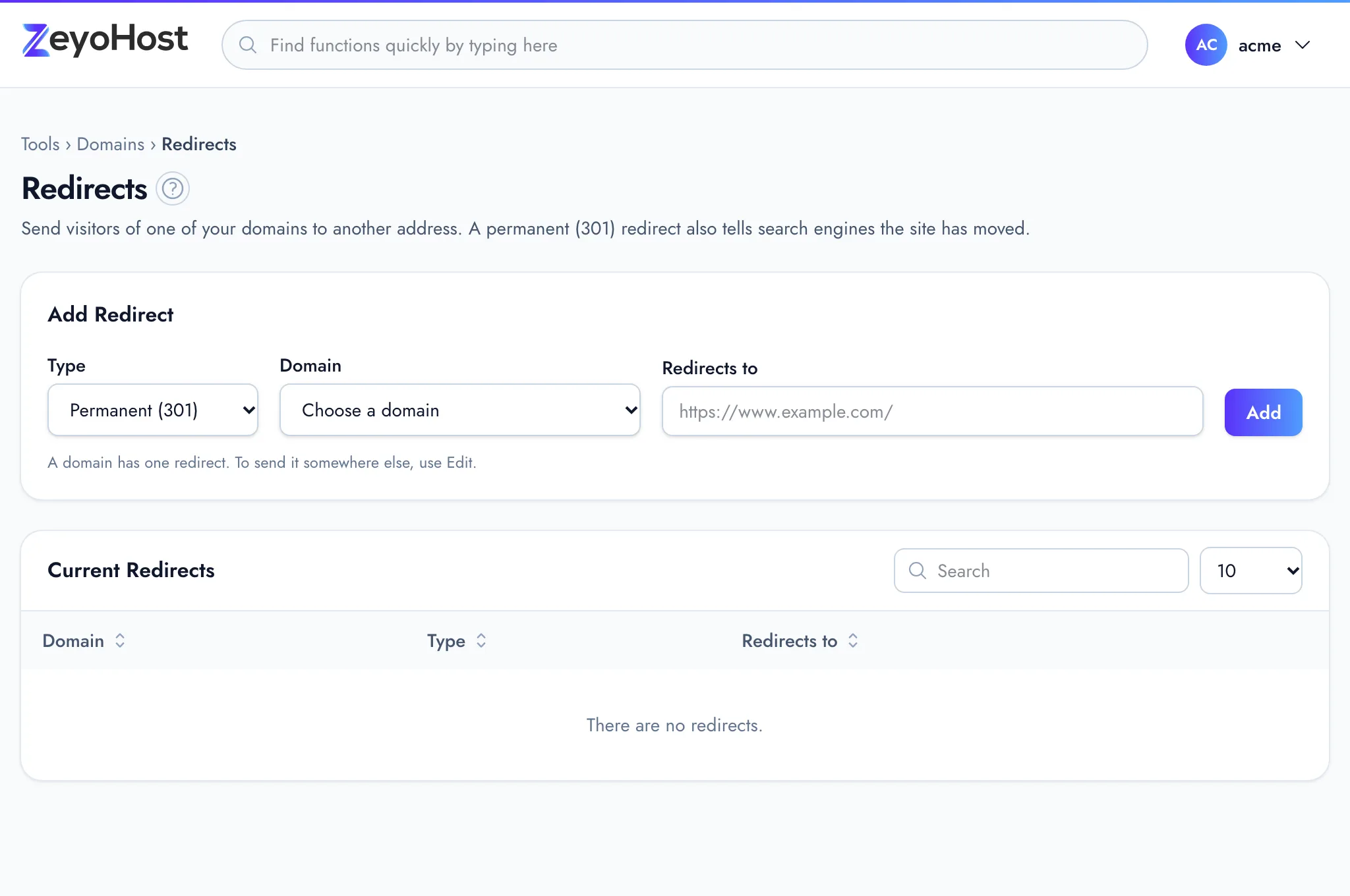
A redirect sends visitors of one of your domains to another address. Use it when a site has moved to a new domain, when an old domain should lead to your main site, or while a domain shows a page somewhere else for a while. Each domain can have one redirect: to send it somewhere else, edit the one it has.
Add a redirect
- In the panel, open Domains → Redirects.
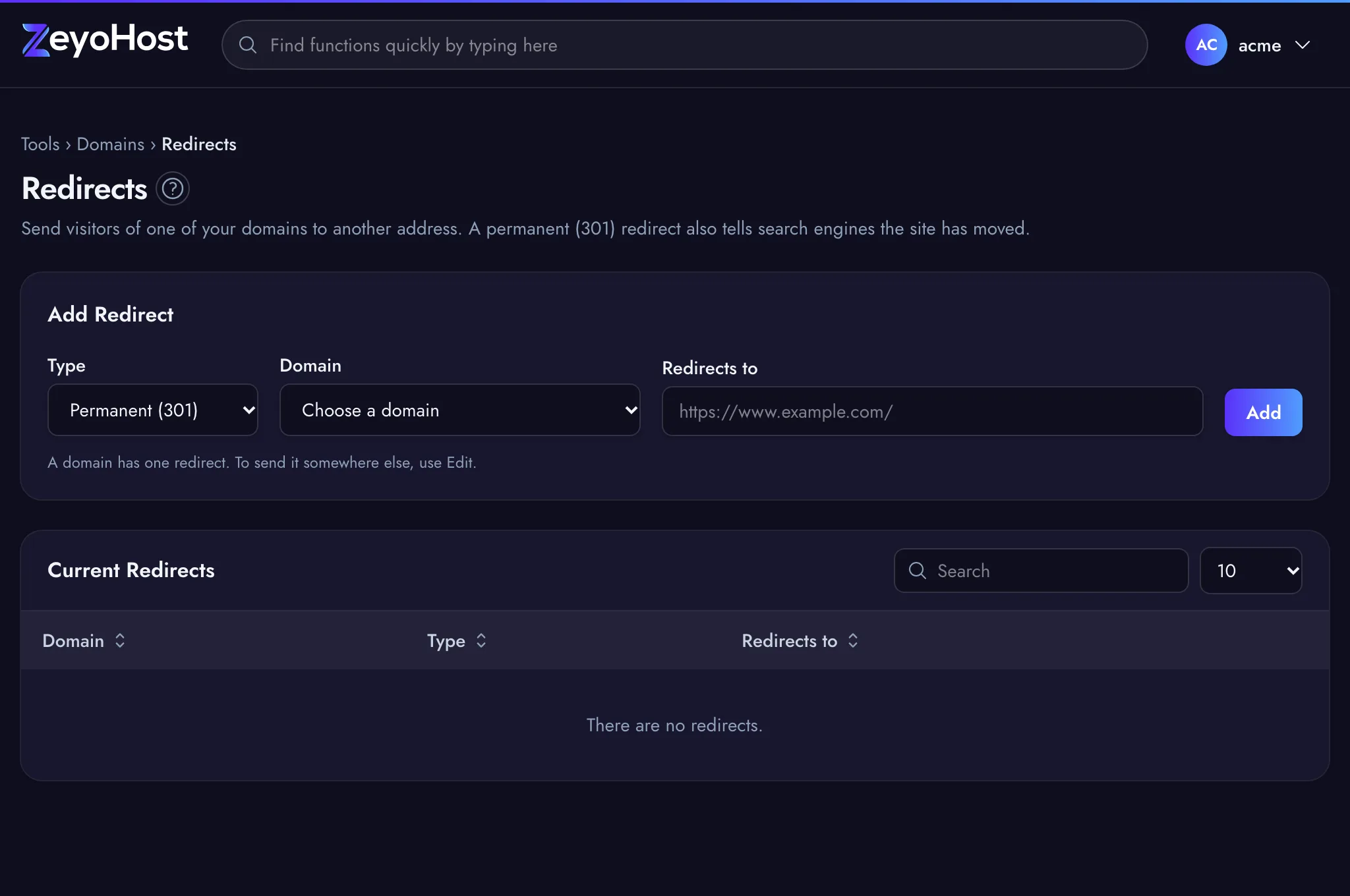
- Under Add Redirect, choose the Type: Permanent (301) or Temporary (302).
- In Domain, choose the domain whose visitors you want to send away.
- In Redirects to, enter the full address, starting with
https://orhttp://, for examplehttps://www.example.com/. - Click Add.
The panel confirms that the domain "now redirects to" the new address, and it appears under
Current Redirects. The server stores the address without a slash at the end, so
https://www.example.com/ is listed as https://www.example.com.
Which type to choose
| Type | Use it when |
|---|---|
| Permanent (301) | The site has moved for good. A permanent redirect also tells search engines the site has moved. |
| Temporary (302) | The domain should go elsewhere for a while, then show its own site again. |
Change a redirect
- Find the domain in Current Redirects and click Edit.
- The form above changes to Change the Redirect on the domain, with its current type and address filled in. Change the Type or Redirects to.
- Click Save, or Cancel to leave it as it is.
Remove a redirect
- Find the domain in Current Redirects and click Remove.
- Click Remove again to confirm.
Common errors
| Message | Why | What to do |
|---|---|---|
| Enter a full address, such as https://www.example.com/page. | The address does not start with http:// or https://, or is not a valid web address. |
Type the whole address, including https://. |
| The redirects to field is required. | Redirects to is empty. | Enter the address visitors should go to. |
| The domain field is required. | No domain is chosen. | Choose a domain from the Domain menu. |
| example.com already redirects to https://www.example.net. A domain has one redirect: use Edit to change it. | The domain already has a redirect, and a domain can have only one. | Click Edit on its row in Current Redirects instead. |
| One of the values you entered is not valid. Please check it and try again. | The server did not accept the address. | Check the address for typing mistakes and try again. |
| That item does not exist. | The redirect was already removed, for example in another tab, before you clicked Edit or Remove. | Reload the page. |
Related
- AliasesShow the same website under another name, such as a second domain or the www. version of your domain.
- DomainsAdd a domain as a new website with its own folder, DNS zone and email, change which folder it serves, or remove it.
- Zone EditorAdd, change and remove the DNS records that tell the internet where your website and email live.
- My site does not load after moving to Zeyo HostYour site worked at your old host but not here. Check DNS, the files' folder, the database and HTTPS.
Was this page helpful?
Sent without cookies; we do not store your IP address.
Still stuck? Contact the team; tell us the page and what you see.