

Error Pages
Change the pages visitors see when a page is not found, not allowed, removed, or fails with a server error.
Error Pages lets you change the pages your visitors see when something goes wrong on your site, so they get your own wording and a way back instead of a bare server message. Each website has its own four pages, which you edit as HTML.
| Page | Shown when |
|---|---|
| 404 Not Found | The address does not exist on your site. |
| 403 Forbidden | The visitor is not allowed to open the address. |
| 410 Gone | The page has been removed on purpose. |
| 500–506 Server error | The site had a problem showing the page. |
Change an error page
- In the panel, open Advanced → Error Pages.
- If you have more than one website, choose it under Website.
- Under Page, choose the page, for example 404 Not Found. The editor shows its current HTML. If the site has no page of its own yet, it shows a plain page to start from.
- Change the HTML in the editor.
- Click Save.
- Click Preview on example.com to open the saved page on your site in a new tab. It opens
over
https://when the website has a certificate, as visitors see it.
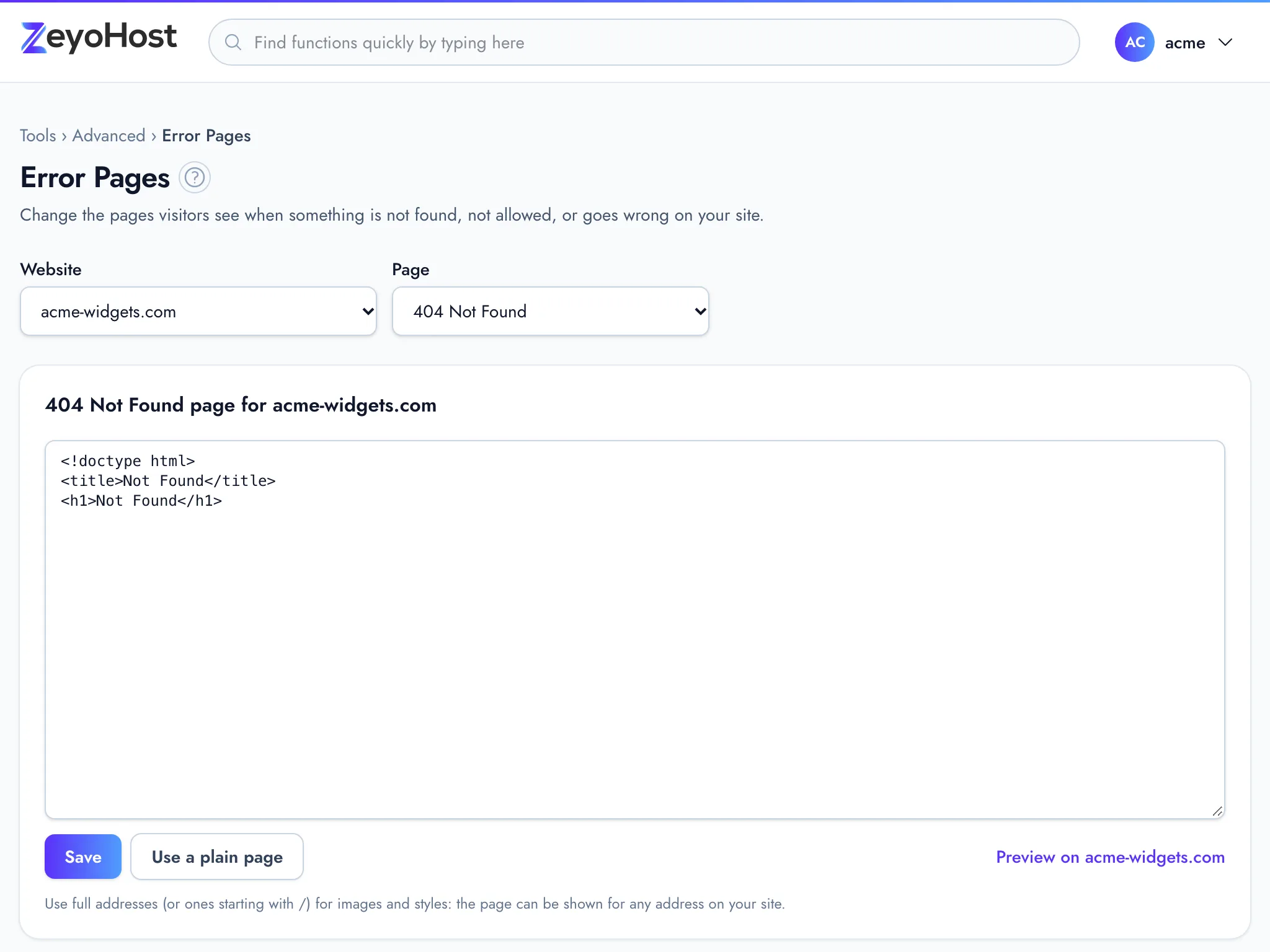
The same page can be shown for any address on your site, so use full addresses (or addresses starting with /)
for images, styles and links, for example /images/logo.png rather than images/logo.png. A page can be up to
100 KB. Letters with accents and other characters outside plain English take more than one byte each, so they count
for more.
The pages are files in the document_errors folder of each website, for example
web/example.com/document_errors/404.html. You can also edit them there with the
File Manager. If that folder was removed, saving a page here creates it again.
Go back to a plain page
The plain page has a short title and message, and a link to your site's home page. It loads nothing from other sites.
- In the panel, open Advanced → Error Pages.
- Choose the Website (if you have more than one) and the Page.
- Click Use a plain page.
- The panel asks Use a plain page? Click Use a plain page to confirm.
Common errors
| Message | Why | What to do |
|---|---|---|
| The page field is required. | The editor is empty. | Enter some HTML, or click Use a plain page. |
| Keep the page under 100 KB. | The HTML is too long. | Move large styles and scripts into their own files on your site and link to them with addresses starting with /. |
| You have no websites yet. Add one in Domains. | Error pages belong to a website, and your hosting account has none. | Add a website in Domains first. |
Related
- File ManagerBrowse the files of your hosting account, create and edit text files, and copy, move, compress or delete files and folders.
- IndexesChoose whether visitors see a list of files when they open a folder of your website that has no index page.
- My site shows a 500 errorFind out why your website shows "500 Internal Server Error" and fix the most common causes.
- DomainsAdd a domain as a new website with its own folder, DNS zone and email, change which folder it serves, or remove it.
Was this page helpful?
Sent without cookies; we do not store your IP address.
Still stuck? Contact the team; tell us the page and what you see.