

Database Wizard
Create a MySQL database and the user your website connects with, one step at a time, and get the connection settings at the end.
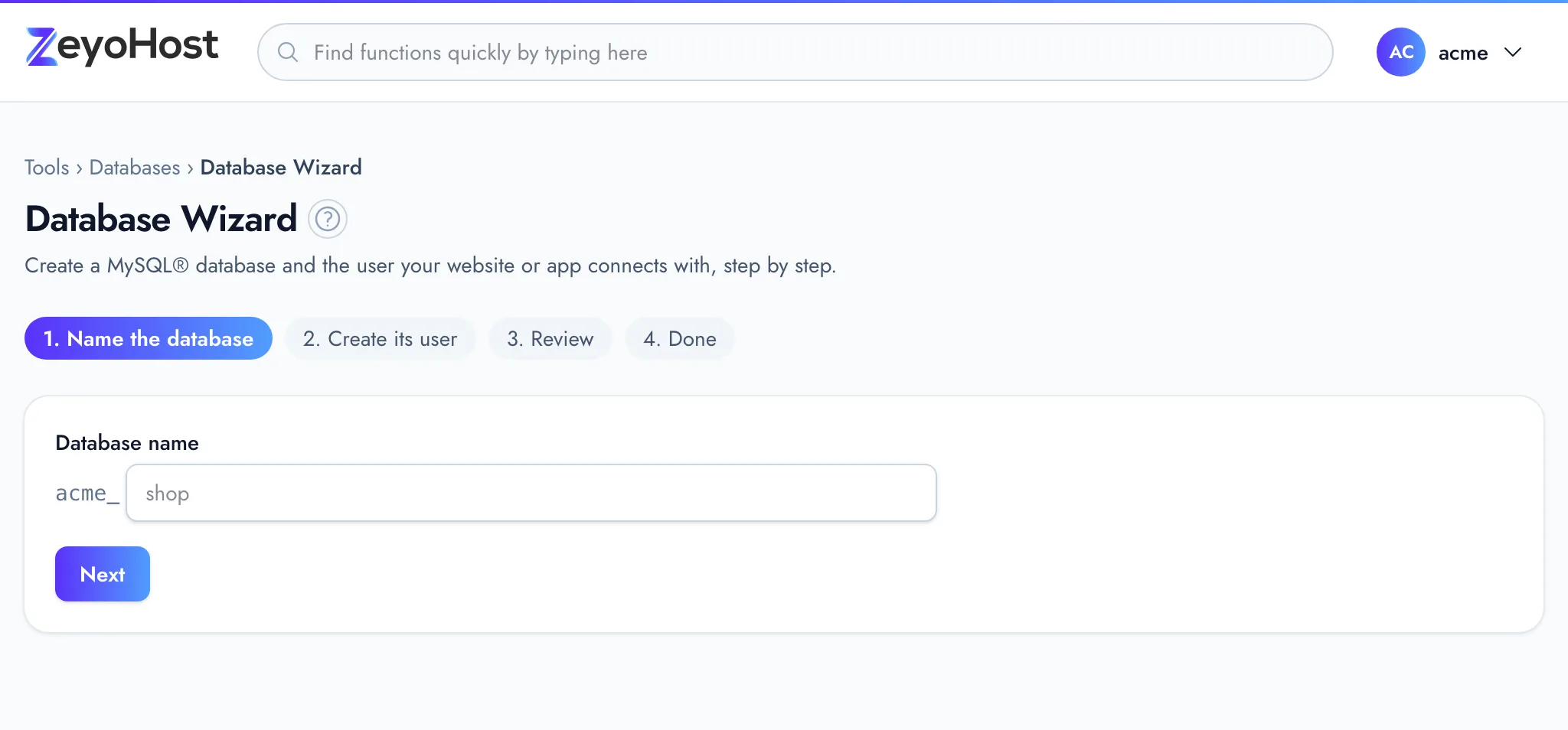
The Database Wizard creates a MySQL® database and its user in four steps: name the database, create its user, review, and done. At the end it shows the settings your website or app needs to connect. It does the same as MySQL® Databases, with one choice per screen.
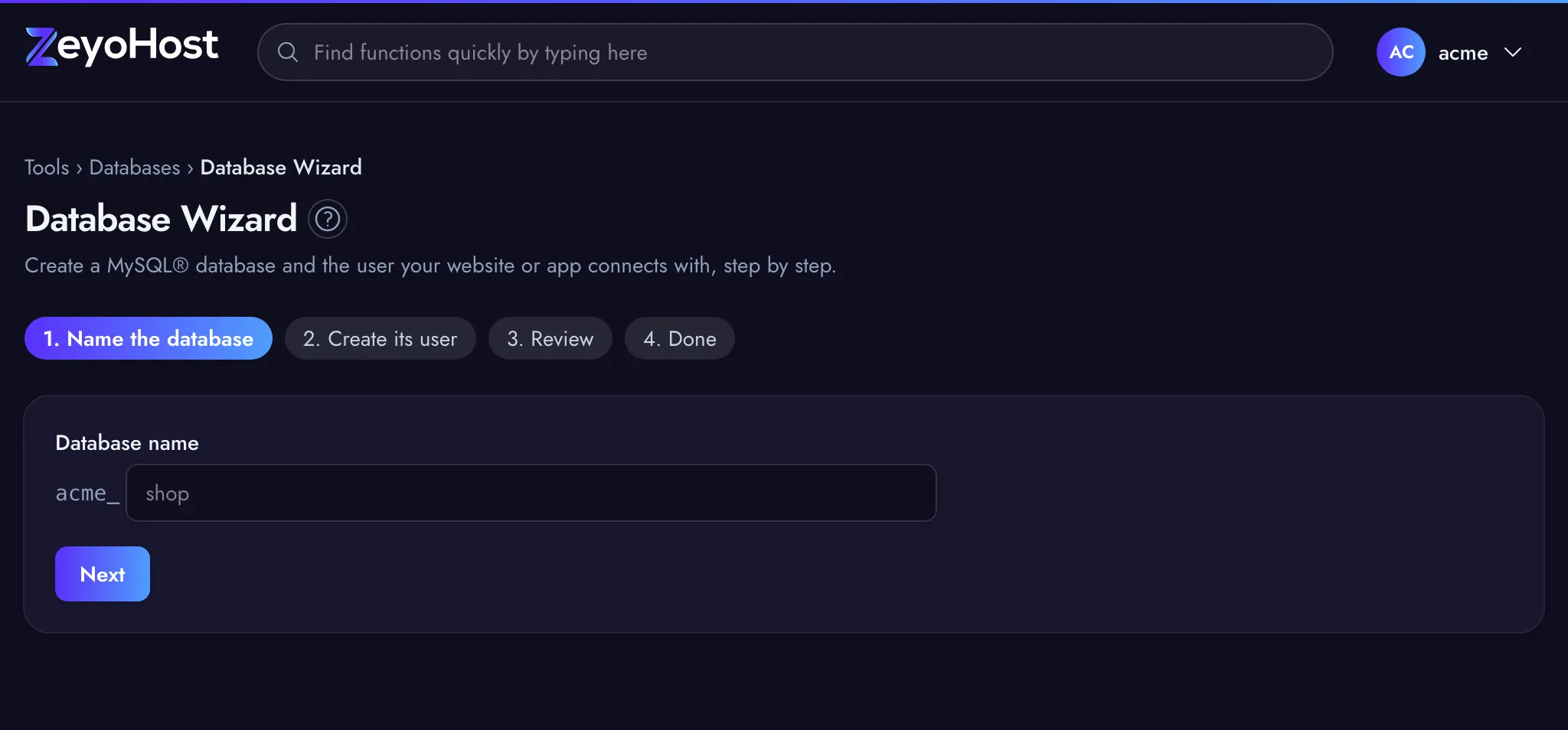
Both names start with your hosting account's username and an underscore, for example acme_shop. The wizard shows
that prefix in front of each field and adds it for you.
Create a database step by step
- In the panel, open Databases → Database Wizard.
- Name the database: type the Database name, for example
shop, and click Next. Use lower-case letters, numbers and underscores. - Create its user: type the Username, then enter a Password or click Generate. It needs at least 10 characters with upper- and lower-case letters and numbers. Copy it somewhere safe, then click Next.
- Review: check the Database and User names. Click Back to change them, or Create Database.
- Done: copy the connection settings into your website or app.
The user gets all privileges on its own database and nothing on any other. The hosting server gives each database its own user this way, so there are no privileges to choose.
The connection settings
| Setting | Value |
|---|---|
| Host | localhost |
| Database | The full name, with the prefix |
| User | The full user name, with the prefix |
| Password | The one you chose in step 2. The wizard does not show it again. |
From the last step you can Open phpMyAdmin to fill the database, go to MySQL® Databases, or click Create another to start again.
If you lose the password, set a new one with Change Password in MySQL® Databases.
Common errors
| Message | Why | What to do |
|---|---|---|
| Use lower-case letters, numbers and underscores. | The name contains a hyphen, a dot, a space or another character. | Use only a–z, 0–9 and _. |
| You already have a database with that name. | A database with this name is already on your hosting account. | Choose another name, or use the existing one. |
| With the account prefix, MySQL user names can be at most 32 characters. | The prefix and the user name together are too long. | Choose a shorter user name. |
| The password field must be at least 10 characters. | The password is too short. | Use a longer one, or click Generate. |
| The password field must contain at least one uppercase and one lowercase letter. | The password has letters of one case only. | Add both, or click Generate. |
| The password field must contain at least one number. | The password has no digit. | Add a number, or click Generate. |
| Another database already has a user with that name. Choose another. | Each database has its own user, and another database already uses this user name. The wizard stays on step 2. | Choose another user name. |
| That item already exists. | A database or user with that name was created elsewhere, for example in another tab, after you went past its step. | Go Back and choose another name. |
| You have reached the limit of your plan. Remove something first, or move to a bigger plan in Billing. | Your plan's database limit is reached. | Delete a database you no longer use, or change your plan. |
Related
- MySQL® DatabasesCreate a MySQL database and its user for an application such as WordPress, change the user's password, or delete a database.
- phpMyAdminOpen phpMyAdmin from the panel and sign in with a database user to browse tables, run queries, and import or export a database.
- Install WordPressInstall WordPress on your domain with WordPress Manager, then sign in to your new site.
- App InstallerInstall a ready-made application, such as Joomla, on one of your domains in one step.
Was this page helpful?
Sent without cookies; we do not store your IP address.
Still stuck? Contact the team; tell us the page and what you see.