

Two-Factor Authentication
Turn on a 6-digit code from an authenticator app for sign-ins with your hosting account's username and password.
This page turns on two-factor authentication for your hosting account. Once it is on, signing in with the hosting account's username and password also asks for a 6-digit code from an app on your phone, so a stolen password alone is not enough.
Turn it on
- In the panel, open Security → Two-Factor Authentication.
- Click Turn On. The page shows Set up your authenticator app.
- Install an authenticator app on your phone if you do not have one (for example Google Authenticator, Authy or 1Password).
- Scan the QR code with the app, or type the key shown next to it into the app by hand.
- Enter the 6-digit code the app shows in Code and click Confirm.
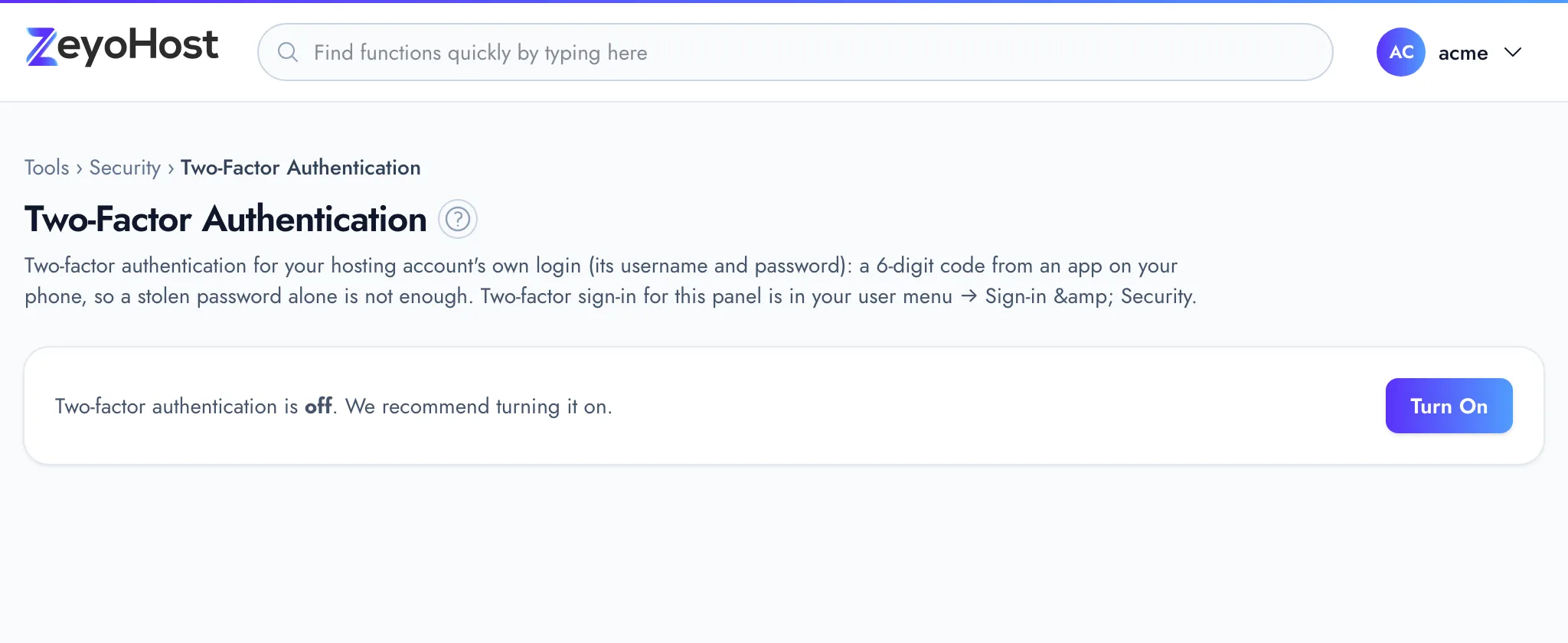
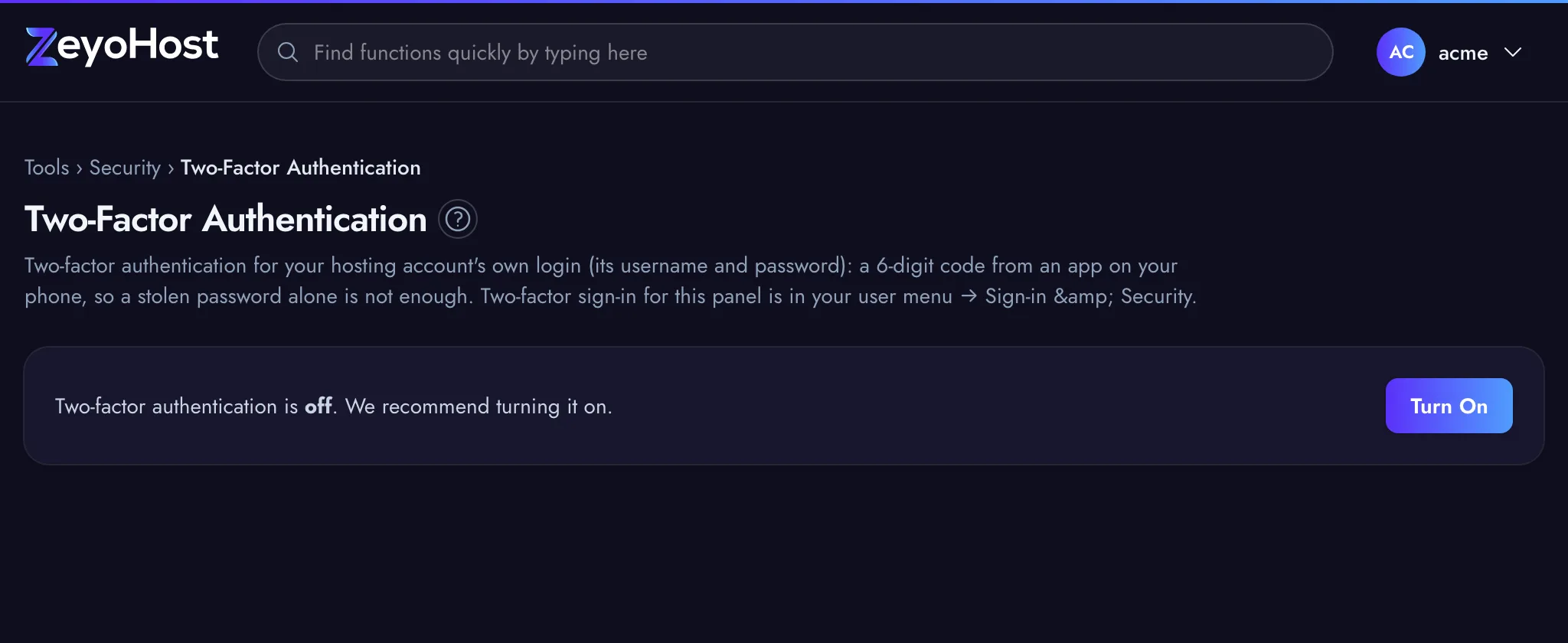
When the code is accepted, the page says "Two-factor authentication is on."
Turn it off
- Click Turn Off.
- Enter your hosting account password (the one for FTP, SFTP and SSH, not your Zeyo account password) in Hosting account password.
- Click Turn Off to confirm.
If you lose your phone, sign in with your Zeyo account's email address instead (that sign-in does not use this code), then turn this off and set it up again with your new phone.
Common errors
| Message | Why | What to do |
|---|---|---|
| That code is not right. Check the time on your phone and try the next code. | The code is wrong or expired, or your phone's clock is off. | Set your phone to set the time automatically, then enter the next code the app shows. |
| The code field must be 6 digits. | The code is empty or not six numbers. | Type the six digits without spaces. |
| Too many attempts. Please wait a minute and try again. | Five wrong codes or passwords in a row. | Wait a minute, then try again. |
| That password is not right. | The password is not the hosting account password. | Enter the password you use for FTP, SFTP and SSH. |
| That item already exists. | Two-factor authentication is already on, for example from another tab. | Reload the page. |
Related
- Login HistorySee recent sign-ins to your hosting account, with the result, the IP address and the browser used.
- Password & SecurityChange your hosting account's password, the one for FTP, SFTP and SSH, which is separate from your panel sign-in.
- I cannot sign inYour password is refused, you are told to wait, or you lost the phone with your two-factor codes.
- Accounts, hosting accounts and team membersHow your Zeyo account, your hosting accounts and the people you invite fit together, and which password is for what.
- Create your accountOrder a plan at my.zeyohost.com/signup, pay, and sign in to your new hosting for the first time.
Was this page helpful?
Sent without cookies; we do not store your IP address.
Still stuck? Contact the team; tell us the page and what you see.