

SSL/TLS Status
See which of your domains use HTTPS, secure them with a free Let's Encrypt certificate, or install a certificate you bought.
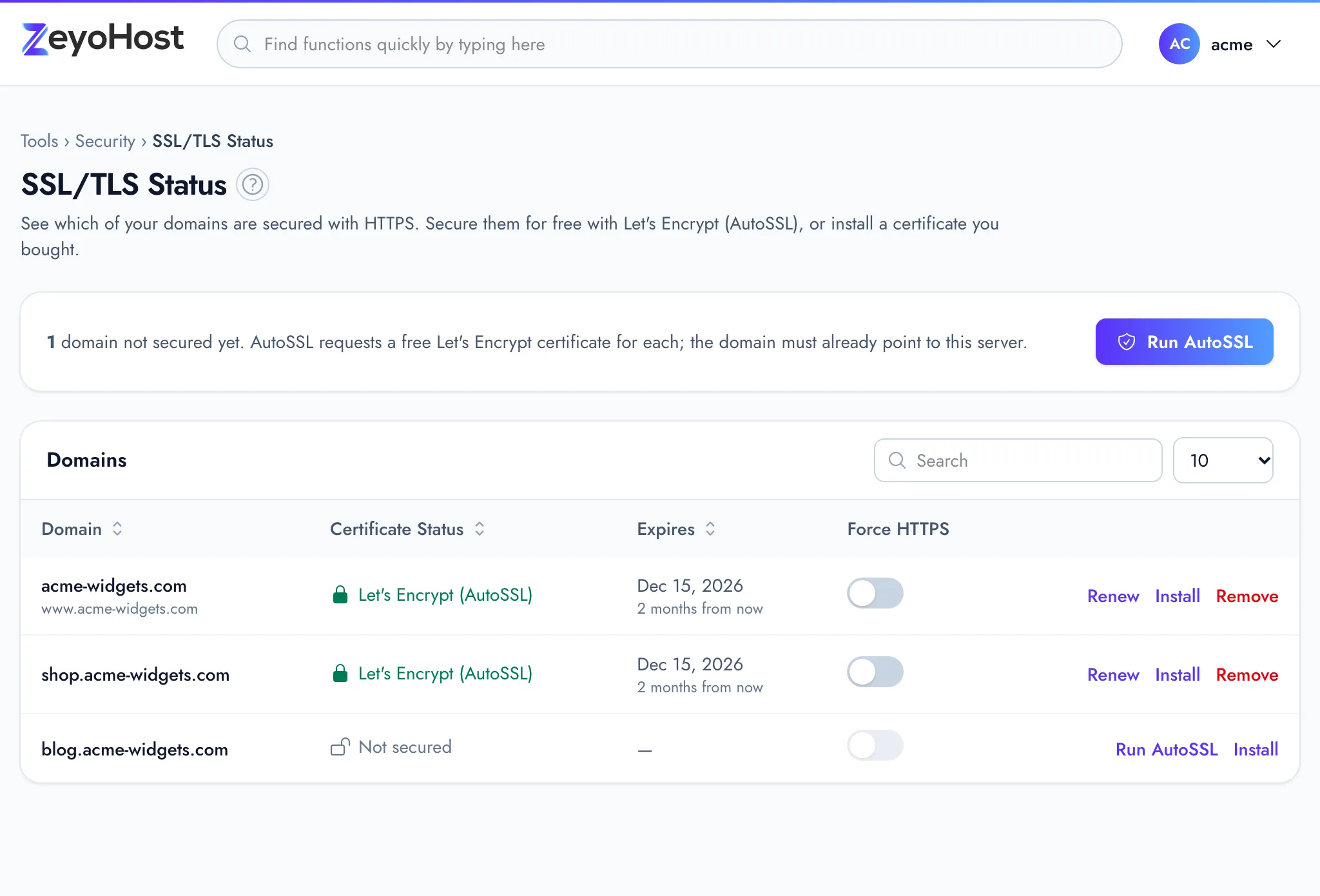
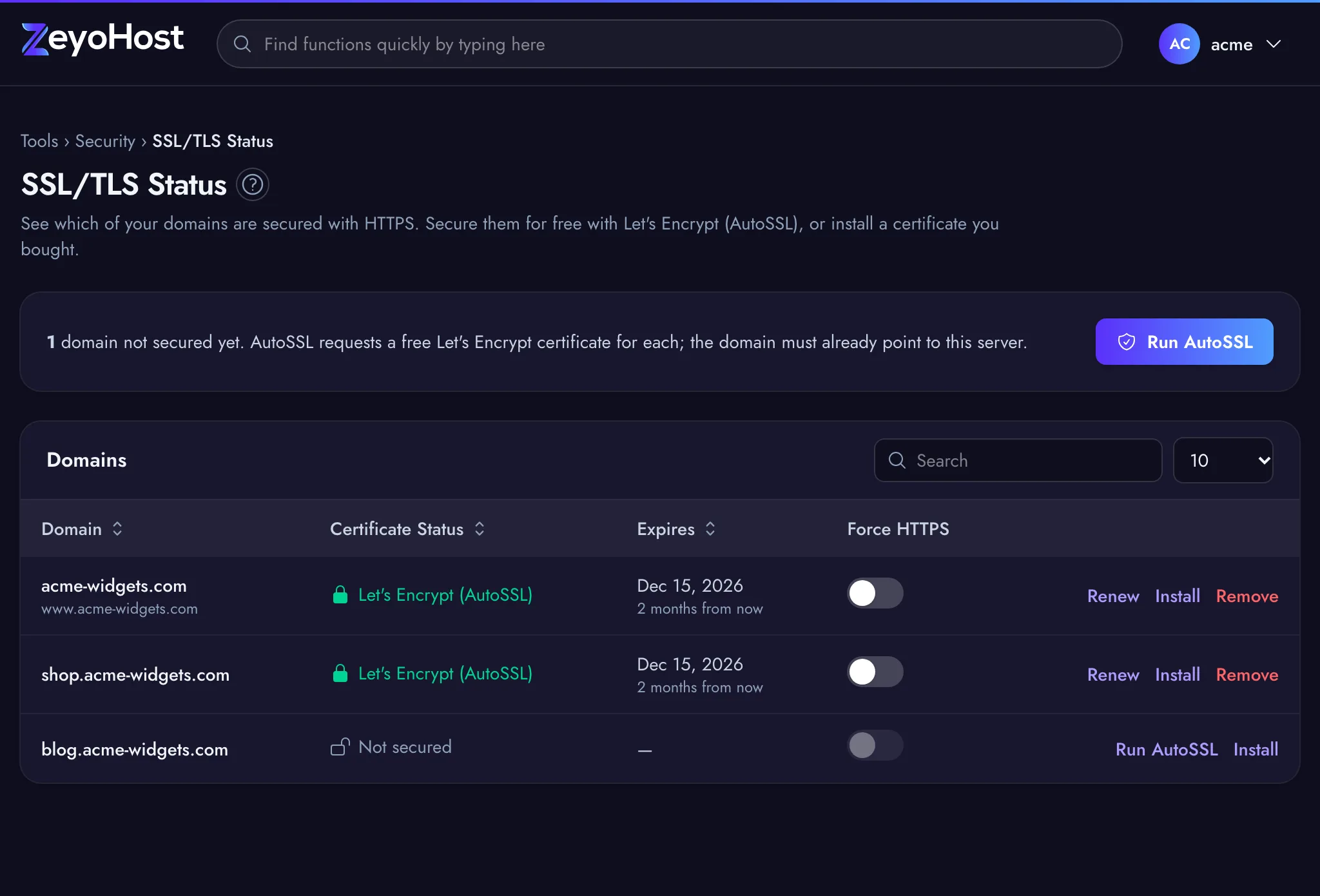
SSL/TLS Status lists every website domain in your hosting account with its certificate, when it expires and whether visitors are always sent to HTTPS. From here you get free Let's Encrypt certificates (the panel calls this AutoSSL), install a certificate you bought from another certificate authority, or remove one.
Check your domains
- In the panel, open Security → SSL/TLS Status.
- Read the box at the top. It says either "All of your domains have a certificate." or how many domains are not secured yet. Suspended domains are not counted, because AutoSSL skips them.
- In the table, the Certificate Status column shows one of these: Let's Encrypt (AutoSSL), the name of the certificate's issuer (or Custom certificate), Expired or Not secured. The Expires column shows the date and how long is left.
Get free certificates with AutoSSL
- To secure every domain that has no certificate, click Run AutoSSL in the box at the top. Suspended domains are left out. The button is greyed out when every domain already has one.
- To secure one domain, click Run AutoSSL on its row instead.
- Getting a certificate runs in the background. A strip at the top of the page says it is in progress, and you can keep working. When it is done you see a message such as "example.com is now secured with a free Let's Encrypt certificate."
If it fails, the strip says why. Click Try again once you have fixed the cause, or Dismiss to hide it.
To request a fresh Let's Encrypt certificate straight away, click Renew on the domain's row.
Always use HTTPS
Switch on Force HTTPS on a domain's row to send every visitor to the https:// address.
The switch only works once the domain has a certificate. Switch it off again to allow plain http://.
Install a certificate you bought
- Click Install on the domain's row.
- Paste the PEM files from your certificate authority: the Certificate (CRT) and the Private Key (KEY). If it gave you intermediate certificates, paste them under Certificate Authority Bundle (CABUNDLE, optional). Leave that field empty if there are none.
- Click Install Certificate.
The private key must not be protected with a passphrase. It is sent straight to the hosting server and is not
stored by the panel. The panel checks that the key belongs to the certificate, that the certificate is issued
for this domain and that it has not expired. A wildcard certificate such as *.example.com covers
shop.example.com but not example.com itself.
If the domain already has a certificate, the new one replaces it. If that was a Let's Encrypt certificate, it is removed first, so a later renewal does not overwrite yours.
Remove a certificate
- Click Remove on the domain's row.
- Click Remove certificate to confirm.
Common errors
| Message | Why | What to do |
|---|---|---|
| This is not a PEM certificate. It starts with -----BEGIN CERTIFICATE-----. | The certificate field holds something else, or the text is incomplete. | Paste the whole certificate, including the BEGIN and END lines. |
| This private key is protected with a passphrase. Paste the unencrypted key. | The key is encrypted. | Remove the passphrase on your computer first, then paste the result. |
| This is not a PEM private key. It starts with -----BEGIN PRIVATE KEY-----. | The key field holds something else, or the text is incomplete. | Paste the whole private key, including the BEGIN and END lines. |
| This private key does not belong to the certificate. | The key was made for a different certificate. | Use the key you created the certificate request with. |
| This certificate is not issued for example.com. | The certificate names other domains. | Install it on the domain it was issued for, or get one that covers this domain. |
| This certificate has expired. | The certificate's end date has passed. | Renew it with your certificate authority, or use AutoSSL. |
| The CA bundle must be one or more PEM certificates. | The bundle field holds something else. | Paste only the certificates, each with its BEGIN and END lines. |
| Getting a certificate for example.com is already in progress. Please wait for it to finish. | A request for this domain is still running. | Wait for the strip at the top to finish. |
| That item is suspended. | The domain is suspended. | Contact support to find out why. |
If Let's Encrypt keeps failing, see My SSL certificate is not issuing.
Related
- Secure your site with HTTPSGet a free Let's Encrypt certificate with AutoSSL, then send every visitor to the https:// address.
- My SSL certificate does not issueAutoSSL fails or the domain stays "Not secured". Check where the domain and its aliases point, then try again.
- Point your domain to Zeyo HostSend your domain's visitors to Zeyo Host, either with our name servers or with A records, and check the change.
- Zone EditorAdd, change and remove the DNS records that tell the internet where your website and email live.
- AliasesShow the same website under another name, such as a second domain or the www. version of your domain.
Was this page helpful?
Sent without cookies; we do not store your IP address.
Still stuck? Contact the team; tell us the page and what you see.