

Terminal
Open a command line for your hosting account in the browser, or connect over SSH from your own computer.
Terminal gives you a command line on the server, running as your hosting account, for anything you would otherwise do over SSH, such as running a script. The terminal opens in your server's control interface in a new browser tab.
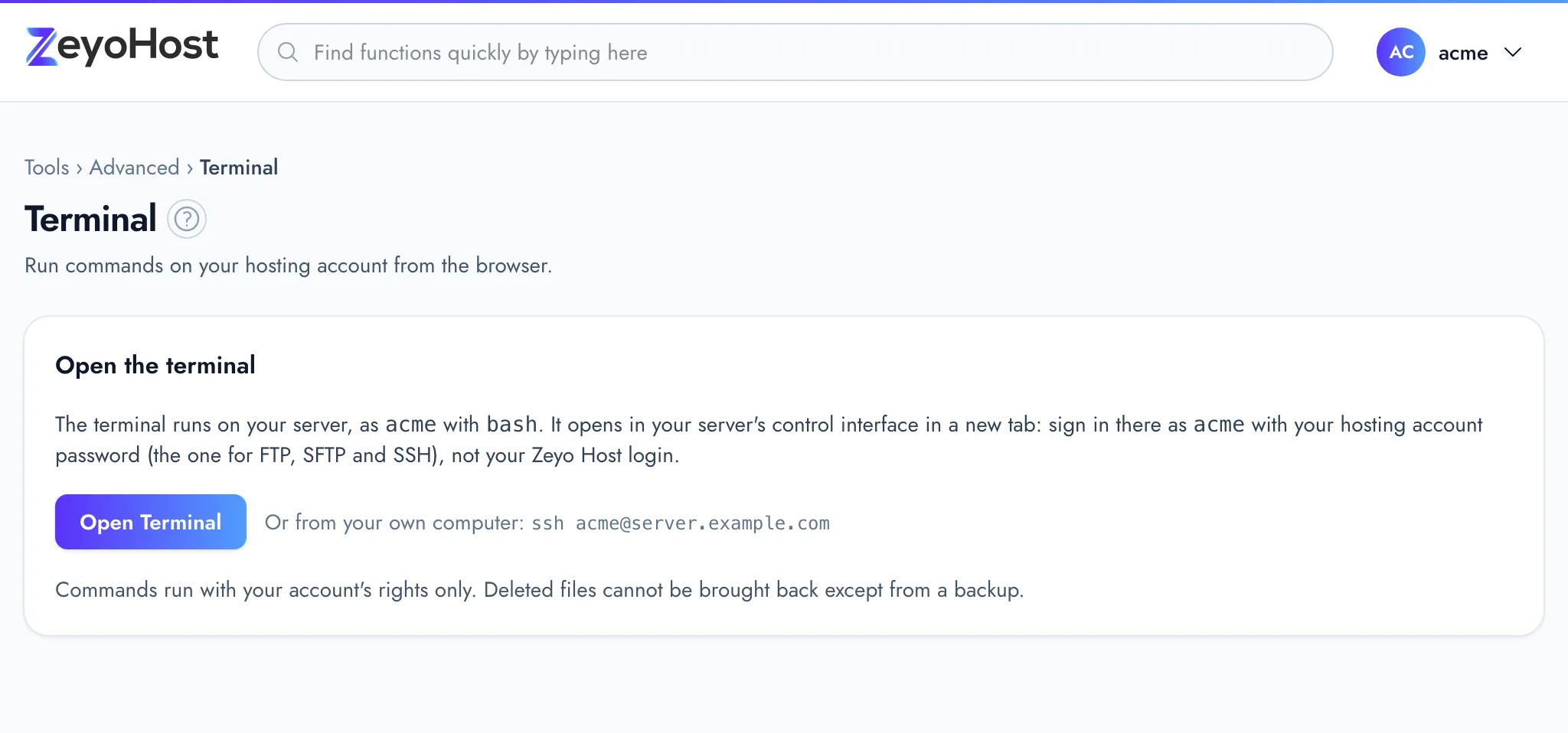
Open the terminal
- In the panel, open Advanced → Terminal.
- Under Open the terminal, check the line that says which username and shell the terminal runs as.
- Click Open Terminal. It opens in a new tab.
- Sign in there with the username the page shows and your hosting account password: the one for FTP, SFTP and SSH, not the email and password you sign in to the Zeyo Host panel with. You change it in Password & Security.
Connect from your own computer
Next to Open Terminal, the page shows an ssh command with your username and your
server's address (and the port, when it is not the standard one). Copy it into a terminal on your own computer to
connect over SSH with the same username and hosting account password. To sign in with a key instead of a password, add your
public key in SSH Access.
Before you run commands
Commands run with your hosting account's rights only, on the same files you see in the File Manager.
Common errors
| Message | Why | What to do |
|---|---|---|
| The web terminal is not turned on for your server. Please contact support if you need it; you can still use SFTP (Web Disk) for files. | The browser terminal is switched off on the server your hosting account is on. | Contact support if you need it. For files, use Web Disk or the File Manager. |
| Your account has no shell access, so it cannot use a terminal. Please contact support to turn on SSH access for your account. | Your hosting account has no shell, so it cannot run commands. | Contact support and ask for SSH access for your hosting account. |
Related
- SSH AccessAdd and remove the SSH public keys that let you log in to your hosting account without a password.
- Web DiskOpen your website files like a drive on your computer over SFTP, and drag files in and out.
- File ManagerBrowse the files of your hosting account, create and edit text files, and copy, move, compress or delete files and folders.
- Cron JobsRun a command or script automatically at set times, and choose whether its output is emailed to you.
- BackupSee the backups of your hosting account, create a new one, and restore websites, email, databases or files from one.
Was this page helpful?
Sent without cookies; we do not store your IP address.
Still stuck? Contact the team; tell us the page and what you see.