

Backup
See the backups of your hosting account, create a new one, and restore websites, email, databases or files from one.
A backup is a copy of your hosting account: websites, DNS zones, email, databases, cron jobs and files. The server makes backups automatically, and you can create one yourself before a big change, such as updating a site or moving files around. If something goes wrong, restore the parts you need from a backup.
To restore just one website, mail domain or database instead of a whole part, use the Backup Wizard.
Create a backup
- In the panel, open Files → Backup.
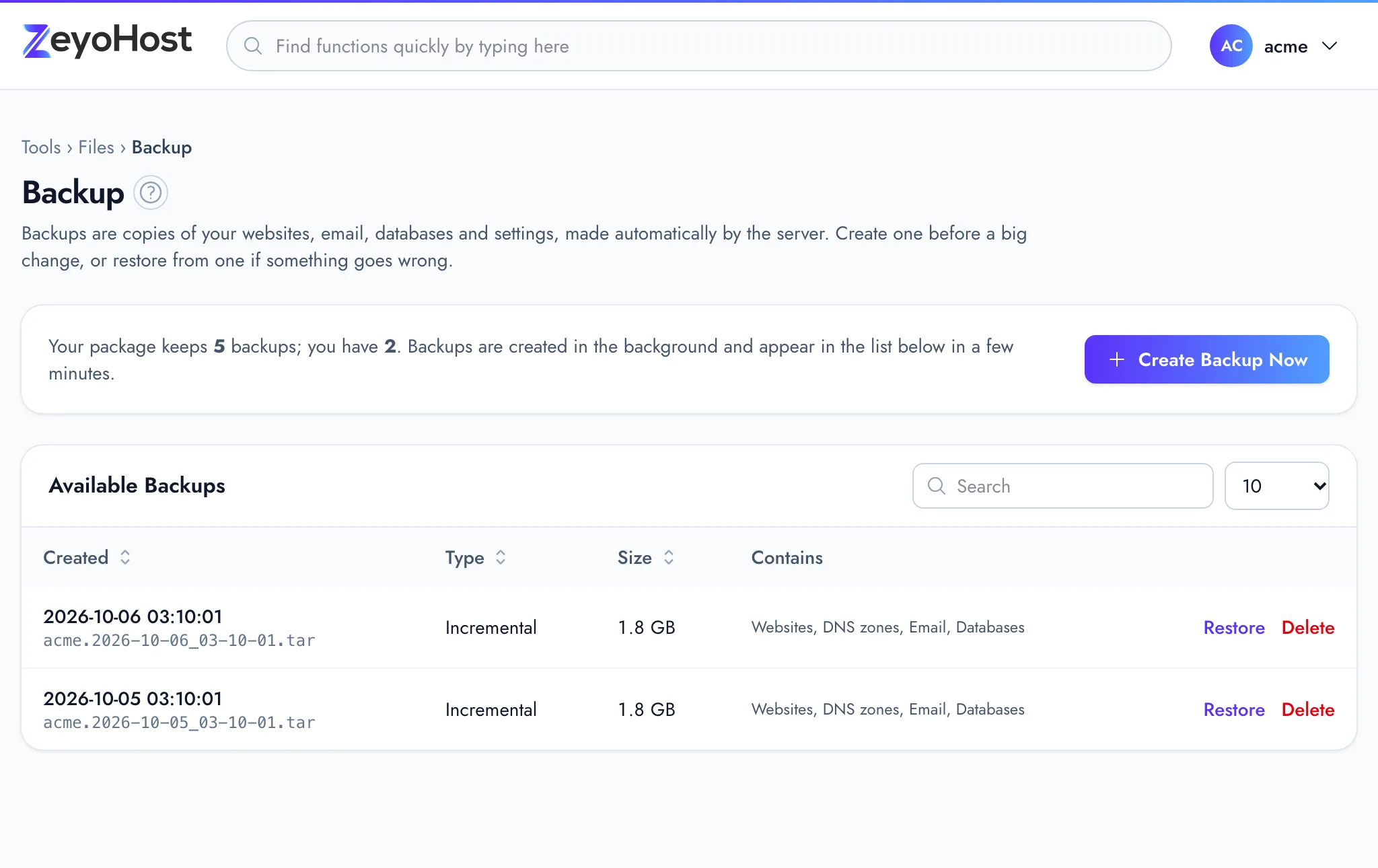
- Check the line at the top: it says how many backups your package keeps and how many you have.
- Click Create Backup Now.
The backup is made in the background and appears in the list a few minutes later. Larger accounts take longer.
Read the backup list
| Column | Shows |
|---|---|
| Created | The date and time of the backup, with its file name underneath. |
| Type | The kind of backup the server made. |
| Size | How big the backup is. |
| Contains | Which parts are in it: Websites, DNS zones, Email, Databases, Cron jobs, Files and folders. |
Restore from a backup
- Find the backup in the list and click Restore.
- Tick what to bring back: Websites, DNS zones, Email, Databases, Cron jobs or Files and folders. Parts marked "(not in this backup)" cannot be chosen.
- Click Restore.
The restore runs in the background on the server and can take a while.
Delete a backup
- Click Delete next to the backup.
- Confirm with Delete backup.
Common errors
| Message | Why | What to do |
|---|---|---|
| Your package keeps … backups. Delete one before creating another. | You already have as many backups as your package keeps. | Delete an old backup, then create a new one. |
| That item already exists. | A backup or a restore is already waiting to run for your account. | Wait a few minutes for it to finish, then try again. |
| Choose at least one thing to restore. | Nothing was ticked in the restore dialog. | Tick at least one part. |
| That item does not exist. | The backup was deleted in the meantime. | Reload the page and choose another backup. |
Related
- Backup WizardBack up your whole hosting account, or restore chosen websites, mail domains, databases and more from a backup, step by step.
- Disk UsageSee how much of your plan's disk space you use, and find which folders and files take up the most.
- File ManagerBrowse the files of your hosting account, create and edit text files, and copy, move, compress or delete files and folders.
- MySQL® DatabasesCreate a MySQL database and its user for an application such as WordPress, change the user's password, or delete a database.
Was this page helpful?
Sent without cookies; we do not store your IP address.
Still stuck? Contact the team; tell us the page and what you see.