

Invoices and receipts
Find your invoices, pay an open one, and print an invoice or receipt.
Every payment you make has an invoice in the panel: your first order, each renewal, and any plan upgrade. Once an invoice is paid, its printable copy becomes a receipt.
See your invoices
- In the panel, open Preferences → Billing.
- Scroll to Invoices. It lists your most recent invoices, newest first, with the Invoice number, Date, Total and Status.
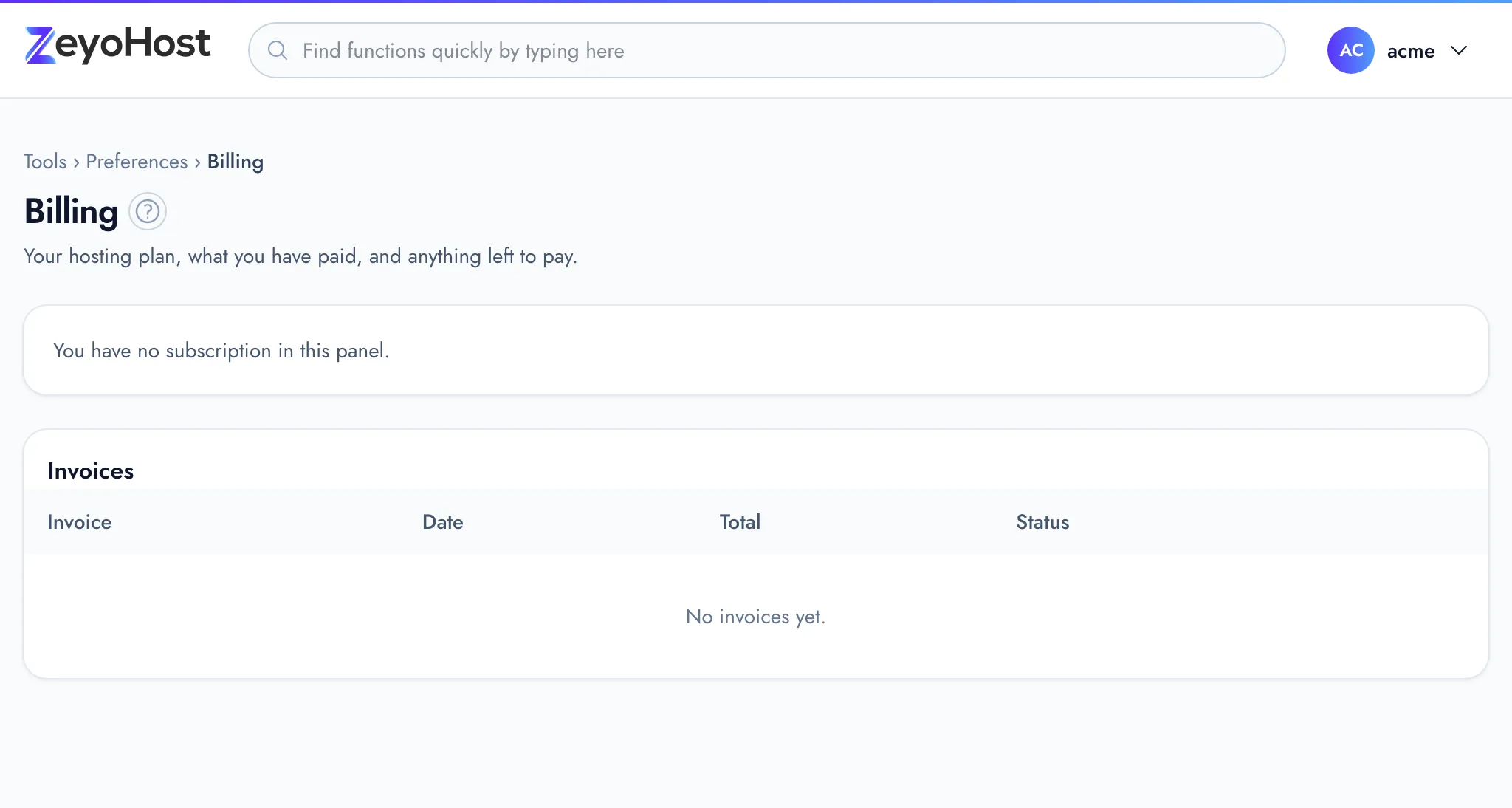
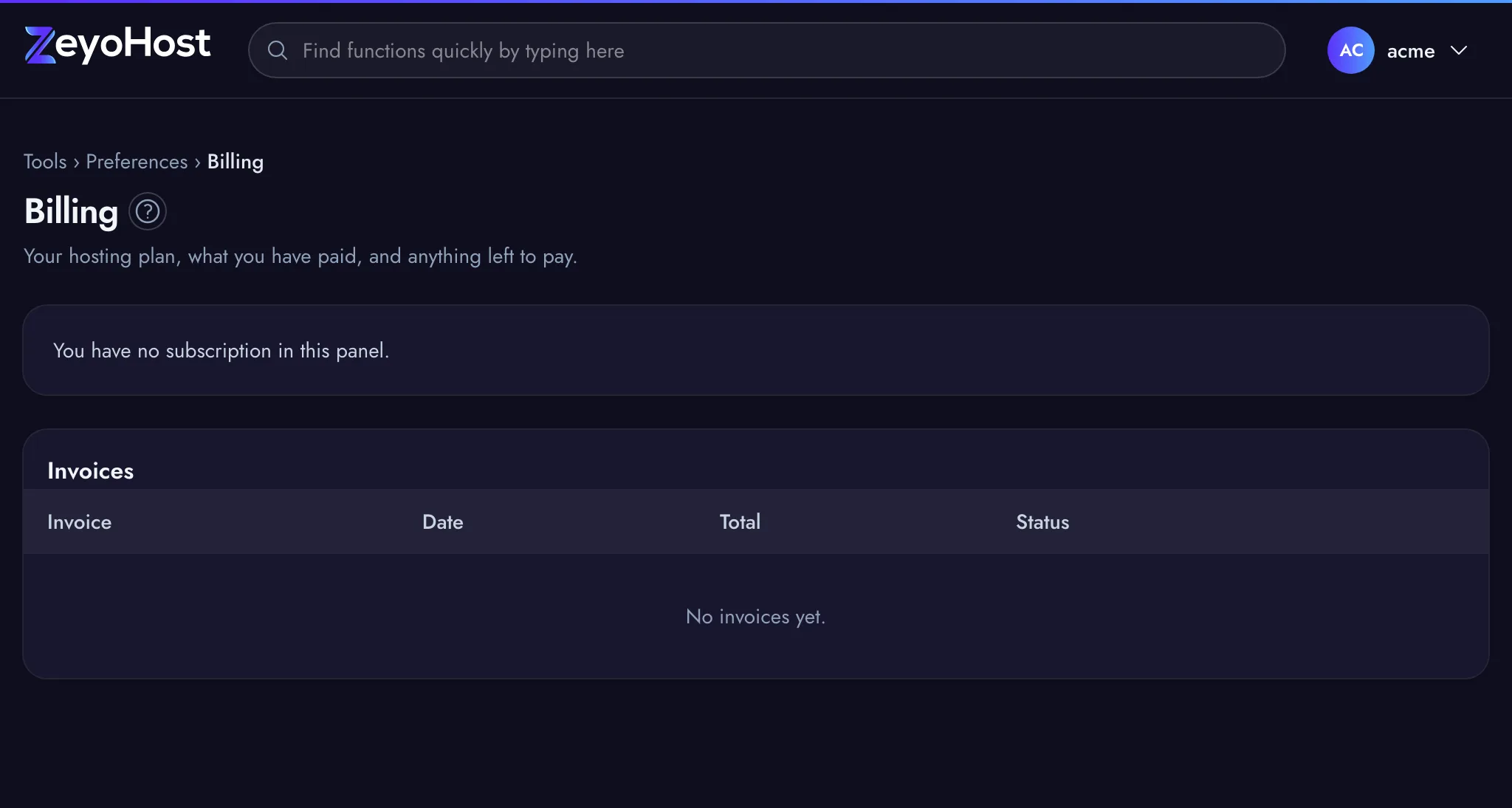
Billing is always available, whatever your plan, and shows only your own invoices.
| Status | Meaning |
|---|---|
| Unpaid, due … | Waiting for payment, with its due date. |
| Paid | Paid in full. |
| Refunded | The payment was refunded. |
Pay an open invoice
- In Invoices, find the unpaid invoice.
- Click Pay now. The payment page of the method that subscription uses opens: the card, PayPal or Paddle checkout, or the bank details for a bank transfer.
- Complete the payment. The status changes to Paid once the payment is confirmed.
For bank transfers, quote the invoice number as the payment reference. The invoice is marked paid once we have confirmed the transfer.
View or print an invoice
- In Invoices, click View. The invoice opens in a new tab.
- Click Print to print it or save it as a PDF from your browser's print dialog.
The page is titled Invoice while unpaid and Receipt once paid. It shows who it is billed to, each line (for example the plan and period, a setup fee, or a renewal), any Discount and Tax, the Total, and each payment with its date. A refunded amount is shown next to the payment.
When invoices are created
| Invoice | When |
|---|---|
| First invoice | When you place an order. It includes the plan, any setup fee and any coupon discount. |
| Renewal, card, PayPal or Paddle | When the provider charges the renewal; it appears already paid. |
| Renewal, bank transfer | Before your renewal date. We email it to you with a link to pay. |
| Plan upgrade | When you upgrade: the difference for the rest of the current period. See Change your plan. |
The name and email on the invoice come from your Zeyo account. To change the email, use Sign-in & Security in the user menu.
Common errors
| Message | Why | What to do |
|---|---|---|
| Payment could not be started: … | The payment provider did not answer. | Try again in a few minutes. |
| No invoices yet. | You have no invoices on this Zeyo account. | If you expected one, check that you are signed in with the email you ordered with. |
Related
- BillingSee your plan and when it renews, pay and print invoices, change your payment method or plan, and cancel or keep your subscription.
- Payment methodsThe ways you can pay for hosting, how each one works, and how to update the card or account you pay with.
- Failed payments and suspensionWhat happens when a payment fails or an invoice is not paid, and how to get a suspended account back.
- Plans and pricesWhat a plan includes, how billing periods, setup fees and taxes work, and where to see your own plan.
Was this page helpful?
Sent without cookies; we do not store your IP address.
Still stuck? Contact the team; tell us the page and what you see.