

Application Manager
Start, stop and restart your Node.js, Python and Ruby apps, read their logs, set their variables and install their packages.
The Application Manager lists every Node.js, Python and Ruby app on your hosting account. From here you start, stop and restart them, read what they print, set their variables, install their packages and delete them. To create an app, use New Node.js app, New Python app or New Ruby app at the top of the page, which open Setup Node.js App, Setup Python App and Setup Ruby App.
See your apps
- In the panel, open Software → Application Manager.
- Your apps lists each app with its type, its script and port, the website it serves and its status: Running, Stopped or Stopped with an error.
Start, stop or restart an app
Click Restart or Stop on a running app, or Start on a stopped one. If an app stops with an error, the server starts it again by itself; if it keeps failing, read its log to find out why.
Read an app's log
Click Logs & variables. Latest log lines shows the last 100 lines your app printed, or (no output yet). Click Logs & variables again to load newer lines.
Set an app's variables
Variables pass settings such as a database address or an API key to your app without putting them in its files.
- Click Logs & variables on the app's row.
- In Variables, write one variable per line as
NAME=value, for exampleDATABASE_URL=mysql://…. Names use upper-case letters, digits and_. Each value is one line of at most 1024 characters. - Click Save and Restart. The app restarts with the new variables.
The server sets PORT and HOST for you, and you cannot set PORT, HOST, HOME, USER, or names that start
with LD_ or SYSTEMD_.
Install an app's packages
Click Install packages. What it runs depends on the app's type, and the file it needs must be next to the app's script:
| Type | Needs | What happens |
|---|---|---|
| Node.js | package.json |
npm install, without development dependencies |
| Python | requirements.txt |
A .venv folder is made next to the script and the packages are installed into it. The app then runs with that .venv. |
| Ruby | Gemfile |
bundle install into vendor/bundle |
Installing runs in the background and restarts the app when it is done. If it fails, the strip at the top of the page says why and offers Try again.
Delete an app
- Click Delete on the app's row.
- Confirm. The app's files stay in your home folder.
The website goes back to the page-caching setting it had before the app, so Optimize Website can change it again.
Limits
What each app may use, and how many apps you may have, come from your plan: memory, processor time, the number of processes, and the number of apps. Where your plan sets no limit of its own, the server's defaults apply: by default, each app may use up to 512 MB of memory, half a processor core and 64 processes, and there is no limit on the number of apps. If you move to a plan that allows fewer apps than you have, your apps keep running, but you cannot create a new one until you are below the new limit.
Common errors
| Message | Why | What to do |
|---|---|---|
| Write each variable as NAME=value (…) | A line in Variables has no =. The message shows the line. |
Write the line as NAME=value, or remove it. |
| API-KEY cannot be set: use upper-case letters, digits and _, and none the server sets itself. | The name has other characters, or it is one the server sets itself. | Rename it, for example API_KEY. |
| The value of API_KEY must be one line of at most 1024 characters. | The value is too long or has a line break in it. | Shorten it and keep it on one line. |
| The server could not read the data it was given. | The app could not start or restart. | Open Logs & variables and read the latest lines. |
| There is no package.json next to the script (apps/shop/). Put it there, then install the packages again. | Install packages found no package.json, requirements.txt or Gemfile in the script's folder. The message names the file and the folder. |
Put the file in that folder, then click Install packages again. |
| npm is not installed on the server, so packages cannot be installed yet. Support can add it. | The server lacks the tool that installs packages: npm, Python's venv or bundler. | Contact support. |
| Installing the packages of shop failed. The app's log may say why; packages that must be compiled need build tools on the server, which support can add. | The package tool ran but could not install everything, for example a package name is wrong or a package must be compiled. | Open Logs & variables and read the latest lines. Fix the package file and try again, or contact support about build tools. |
| That app is not on your account. | The app was deleted, for example in another browser tab. | Reload the page. |
| Installing the packages of shop is already in progress. Please wait for it to finish. | The packages are already being installed. | Wait for it to finish. |
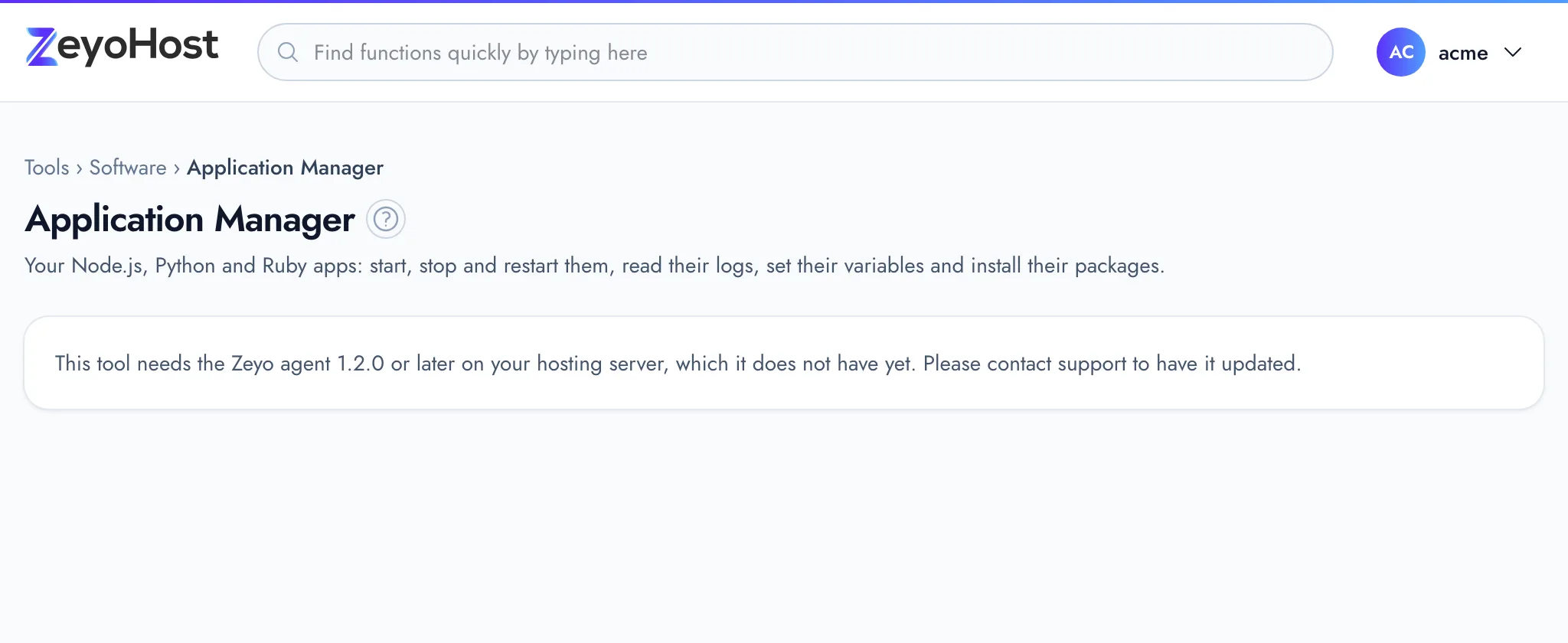
| This tool needs the Zeyo agent 1.2.0 or later on your hosting server, which it does not have yet. Please contact support to have it updated. | Your hosting server is not ready for apps yet. | Contact support. |
Related
- Setup Node.js AppRun a Node.js app, such as an Express site, on one of your websites.
- Setup Python AppRun a Python app, such as a Flask or Django site, on one of your websites.
- Setup Ruby AppRun a Ruby app, such as a Rack or Sinatra site, on one of your websites.
- File ManagerBrowse the files of your hosting account, create and edit text files, and copy, move, compress or delete files and folders.
- A tool is not in my planThe panel says "This tool is not included in your plan" or "This tool is not shared with you", or a tool is missing from the home page.
Was this page helpful?
Sent without cookies; we do not store your IP address.
Still stuck? Contact the team; tell us the page and what you see.