

Your first website
Add your domain to your hosting account and put your website's files in the right folder.
A website on Zeyo Host needs three things: the domain added to your hosting account, the site's files in that domain's folder, and the domain pointing at our server. This page covers the first two. If you want WordPress, add the domain and then follow Install WordPress instead of uploading files.
1. Add your domain
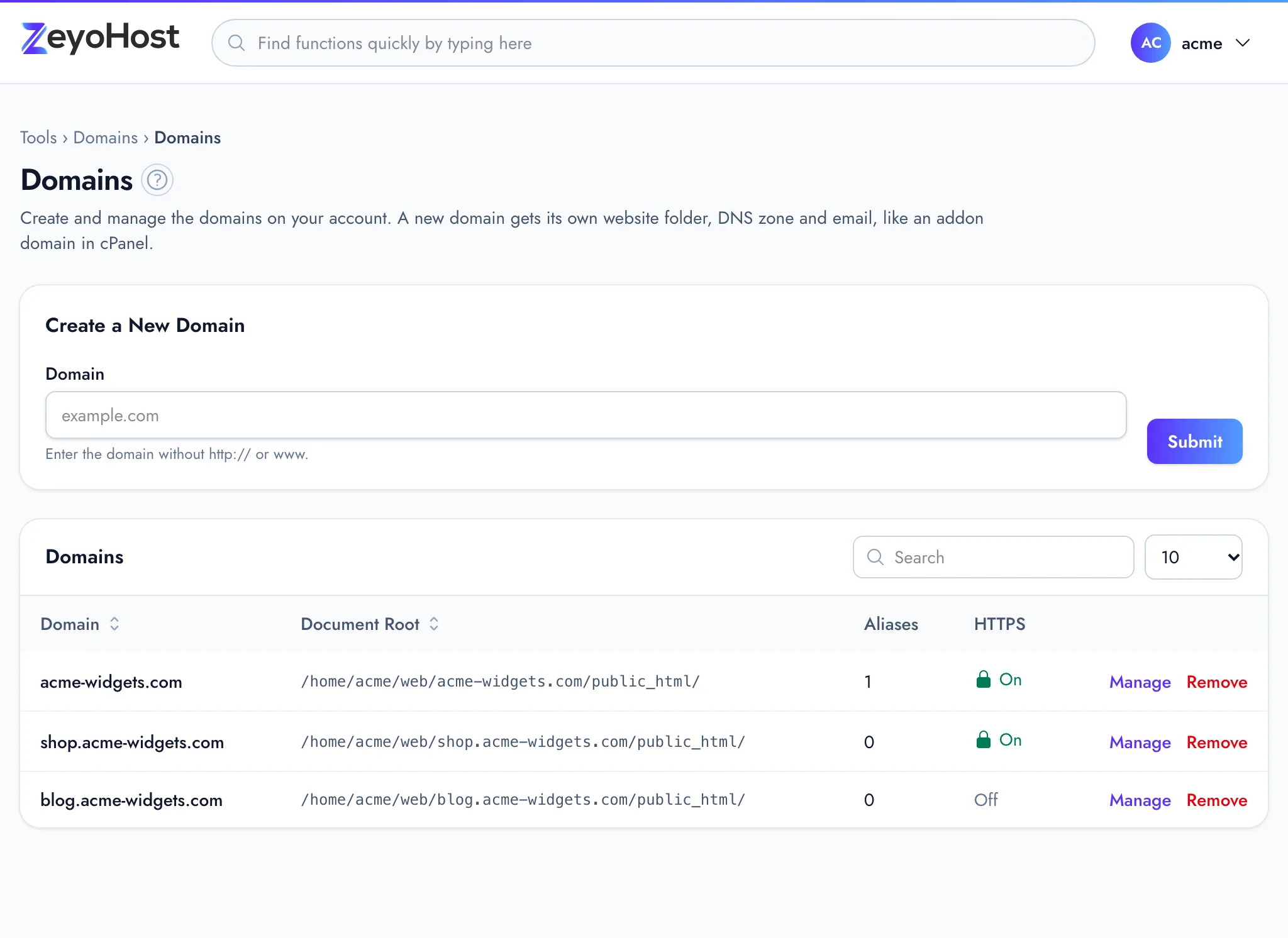
- In the panel, open Domains → Domains.
- Under Create a New Domain, enter your domain in Domain, without
http://orwww, for exampleexample.com. - Click Submit.
The panel confirms that the domain "was created, with its DNS zone and mail domain". The domain now has its own website folder, a DNS zone in the Zone Editor and a mail domain. The list shows its Document Root: the folder its website is served from.
2. Find the right folder
Each domain's files go in its own public_html folder:
web/example.com/public_html
The full path, as the Document Root column shows it, starts with your home directory, for
example /home/acme/web/example.com/public_html/. The page visitors see first is the index.html or index.php in
that folder.
If your site is served from a subfolder, such as the public folder of a Laravel application, click
Manage on the domain's row, enter the folder in Subfolder (optional)
and click Save. See Domains.
3. Upload your files
You have two ways. Use File Manager for a few text files, and FTP for everything else.
With File Manager (text files up to 1 MB)
- In the panel, open Files → File Manager.
- Your home directory is read-only. Open web, then your domain's folder, then
public_html. - Click Upload and choose a text file such as an HTML, PHP, CSS or JS file, or click + File to create one and type its contents.
- To change a file, select it and click Edit, then Save Changes.
File Manager cannot upload images, archives or other binary files. Use FTP for those. See File Manager.
With FTP (any file)
- In the panel, open Files → FTP Accounts.
- Under Add FTP Account, enter a Log In name and choose the Domain. The full log in starts with your hosting username and an underscore.
- Enter a Password, or click Generate.
- Leave Directory empty to give the account the whole domain folder, or enter
public_htmlto limit it to the website. - Click Create FTP Account.
- In your FTP program (for example FileZilla), use the values under Connection Details: the FTP Server, port 21 with explicit TLS (FTPS), and the full log in as the username.
- Upload your files into
public_html.
Have your site as a .zip file? Upload the archive with FTP, then select it in File Manager and click
Extract. See FTP Accounts.
4. Point the domain here
Your site is on the server now, but visitors reach it only once your domain points to Zeyo Host. Continue with Point your domain to Zeyo Host, then Secure your site with HTTPS.
Common errors
| Message | Why | What to do |
|---|---|---|
| That item already exists. | The domain is already on a hosting account. | Check the list on the Domains page. |
| You have reached the limit of your plan. … | Your plan's number of domains is used up. | Remove a domain you no longer need, or change your plan. |
| Only text files (HTML, PHP, CSS, JS, ...) can be uploaded here. Use FTP for images, archives and other binary files. | File Manager only carries text. | Upload the file with FTP. |
| You need a domain before you can add FTP accounts. | No domain has been added yet. | Add the domain first (step 1). |
Related
- DomainsAdd a domain as a new website with its own folder, DNS zone and email, change which folder it serves, or remove it.
- File ManagerBrowse the files of your hosting account, create and edit text files, and copy, move, compress or delete files and folders.
- FTP AccountsCreate FTP logins that can upload files to one folder of a website, and change their password or folder.
- Point your domain to Zeyo HostSend your domain's visitors to Zeyo Host, either with our name servers or with A records, and check the change.
- Install WordPressInstall WordPress on your domain with WordPress Manager, then sign in to your new site.
Was this page helpful?
Sent without cookies; we do not store your IP address.
Still stuck? Contact the team; tell us the page and what you see.