

File Manager
Browse the files of your hosting account, create and edit text files, and copy, move, compress or delete files and folders.
The File Manager shows the files in your hosting account's home directory and lets you work on them in the browser:
create files and folders, edit text files, upload small text files, and copy, move, rename, compress, extract and
delete. Each website's files live in web/<domain>/public_html, for example web/example.com/public_html.
Find your way around
- In the panel, open Files → File Manager.
- The path bar shows where you are, starting at your home directory (
/home/followed by your hosting account's username). Click any part of it to go back there, or click the arrow to go up one level. - Click a folder's name to open it. The list shows each entry's Name, Size, Last Modified date and Permissions.
- Tick the box in front of one or more entries to select them. The toolbar buttons that need a selection become available.
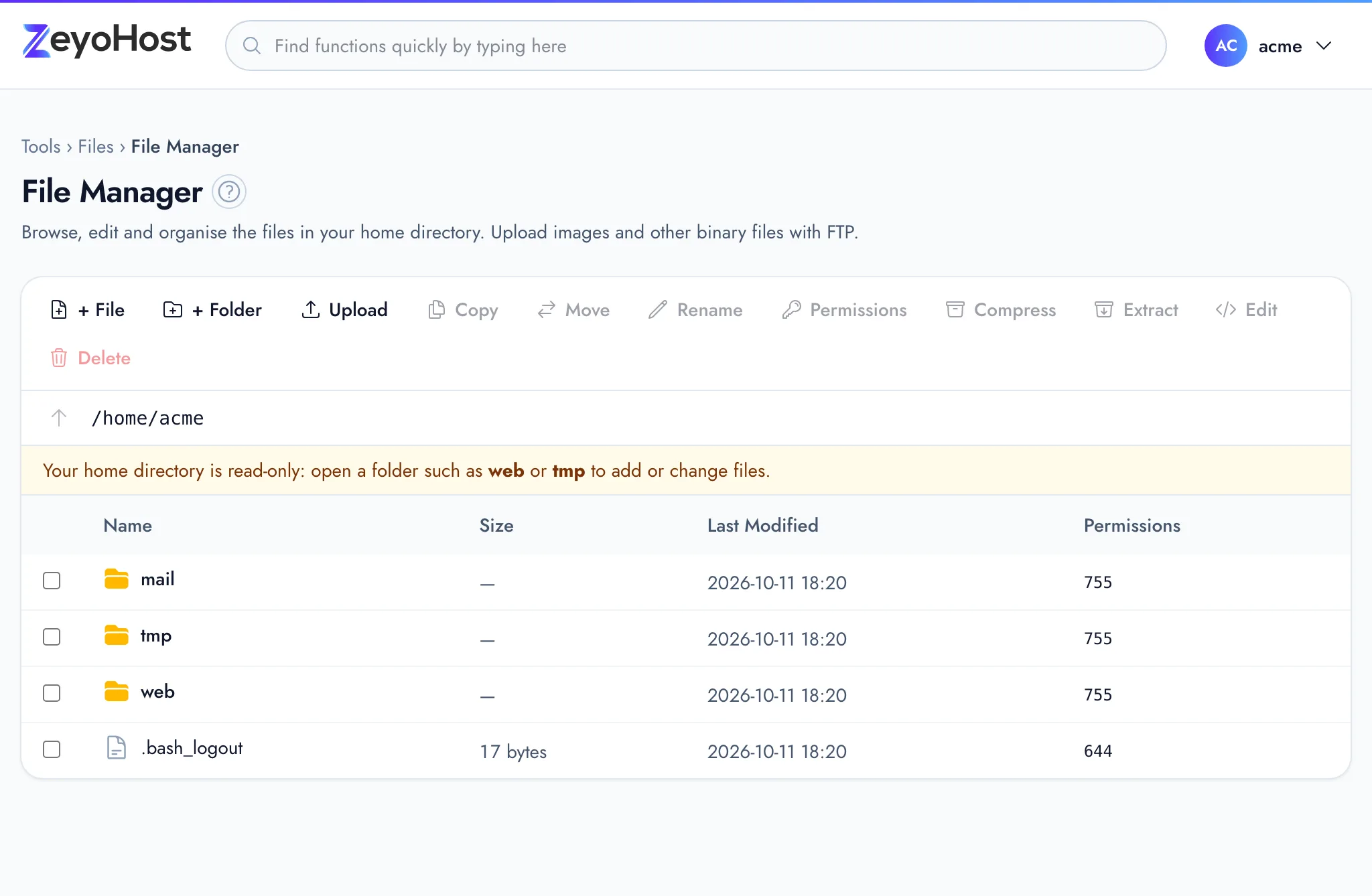
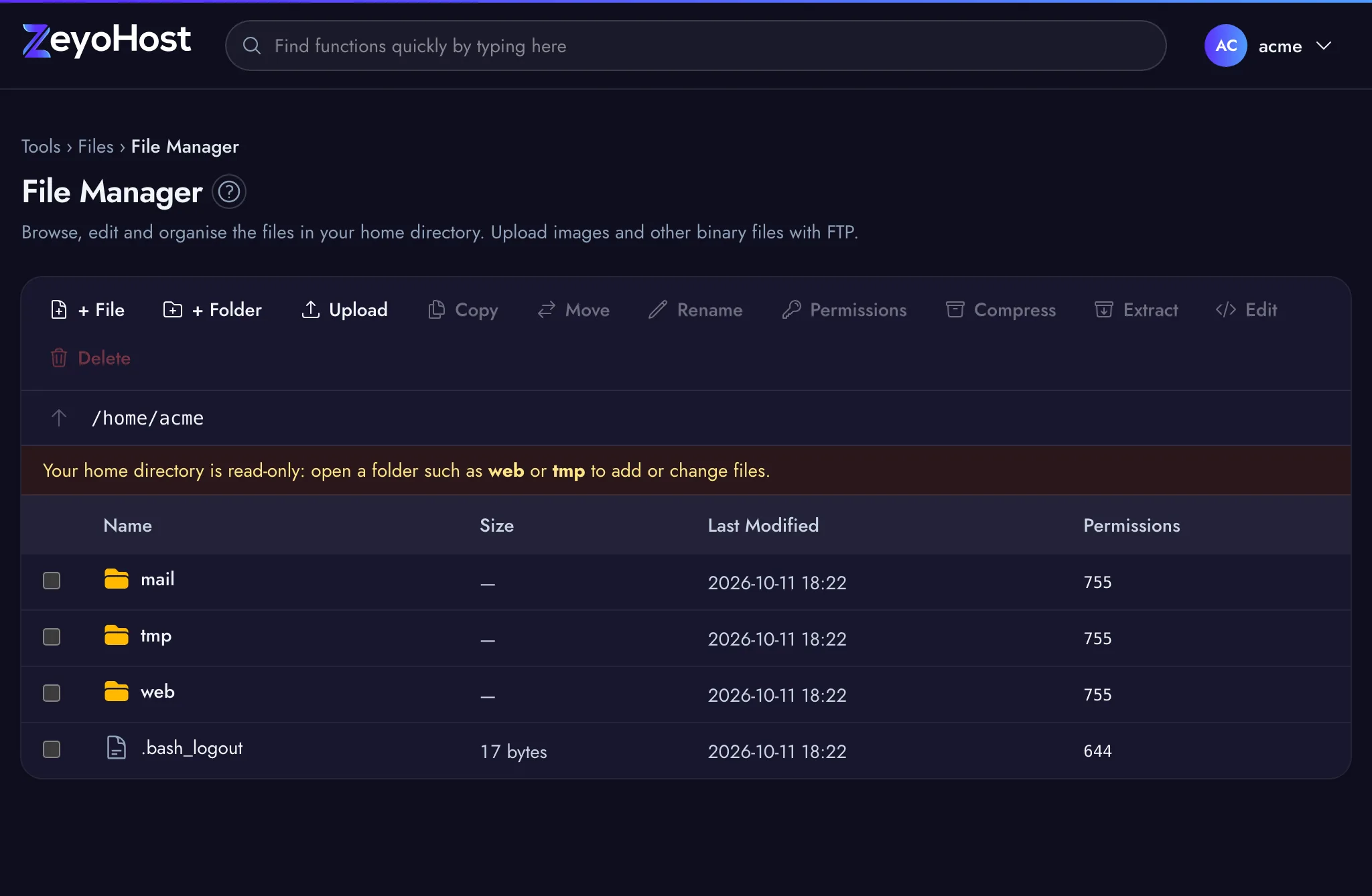
Your home directory itself is read-only. To add or change files, open a folder inside it first, such as web or tmp.
Create a file or folder
- Open the folder you want it in.
- Click + File or + Folder.
- Enter the File name or Folder name. A name cannot contain slashes.
- Click Create File or Create Folder.
Edit a text file
- Click the file's name, or select it and click Edit.
- Change the text in the editor.
- Click Save Changes, or press Ctrl + S (⌘ + S on a Mac). Click Close to leave without saving.
The editor saves the file exactly as you wrote it, byte for byte.
Upload a text file
- Open the folder you want the file in.
- Click Upload and choose the file under Text file (up to 1 MB).
- Click Upload.
HTML, PHP, CSS and JavaScript files upload here. Images, archives and other binary files do not; use FTP for those.
Copy, move or rename
- Select the files or folders.
- Click Copy or Move, and enter the destination under
Copy to folder or Move to folder. It is a path inside your home
directory, such as
web/example.com/public_html. - To rename, select exactly one entry, click Rename and enter the New name.
- Click the dialog's button to finish.
Change permissions
- Select one or more files. Folders cannot be changed here.
- Click Permissions.
- Enter three octal digits, for example
644(usual for files) or600(only your account can read the file). - Click Change.
If a site shows "403 Forbidden" because of wrong permissions across many files, use Fix Home Permissions instead.
Compress or extract an archive
- To compress, select the files and folders, click Compress, keep or change the
Archive name (a
.tar.gzfile, saved in the current folder) and click Compress. - To extract, select one archive, such as a
.zipor.tar.gzfile, click Extract, enter the folder under Extract into folder and click Extract.
Both run in the background. A strip at the top of the page shows that they are in progress, and you can keep working. You see a message when they finish.
Delete files and folders
- Select the files and folders.
- Click Delete and confirm.
Files the Virus Scanner quarantined are in the .quarantine folder in your home
directory. You can see and delete them here, but not open them.
Common errors
| Message | Why | What to do |
|---|---|---|
| Your home directory itself is read-only. Open a folder first (for example web or tmp), then add files there. | You tried to create, upload, copy or extract straight into your home directory. | Open a folder such as web or tmp, or give a destination inside one. |
| There is already an item called … here. Choose another name, or delete that one first. | A file or folder with that name is already in this folder. This includes the archive name when you compress. | Choose another name, or delete or rename the existing one first. |
| The folder … does not exist (any more). Open its parent folder and try again. | The folder you were in was moved or deleted meanwhile. | Open its parent folder and try again. |
| Names cannot contain slashes or control characters. | The name includes /, \ or an invisible character. |
Enter only the name, without a path. |
| Enter permissions as three octal digits, such as 644 or 755. | The value is not three digits from 0 to 7. | Enter a value such as 644. |
| Hestia can only change the permissions of files, not folders. | Only folders were selected. | Select files instead. |
| This file is larger than 1 MB. Download it with FTP to edit it. | The editor opens files of up to 1 MB. | Use an FTP account or Web Disk. |
| This looks like a binary file, which the editor cannot open. | The file is not plain text (an image, archive or similar). | Work on it with FTP or Web Disk. |
| Upload files of up to 1 MB here; use FTP for bigger ones. | The upload is larger than 1 MB. | Upload it with FTP or Web Disk. |
| Only text files (HTML, PHP, CSS, JS, ...) can be uploaded here. Use FTP for images, archives and other binary files. | The upload is a binary file. | Upload it with FTP or Web Disk. |
| Symbolic links cannot be opened or changed in the File Manager. | The path goes through a symbolic link. | Open the folder the link points to directly. |
| That folder could not be opened. | The folder is gone, or the server could not list it. The File Manager goes back to your home directory. | Open the folder again from your home directory. |
| That file could not be read. | The server's answer for the file was not readable. | Try again. If it keeps happening, download the file with FTP. |
| That path is outside your home directory. | The path uses .. to leave your home directory. |
Enter a path inside your home directory. |
| Your home directory itself cannot be moved or deleted. | The home directory was the target. | Select entries inside it instead. |
| Select at least one file or folder first. | Nothing is selected. | Tick the entries you want to act on. |
| … is already in progress. Please wait for it to finish. | The same archive is already being made or unpacked. | Wait for the first one to finish. |
Related
- FTP AccountsCreate FTP logins that can upload files to one folder of a website, and change their password or folder.
- Web DiskOpen your website files like a drive on your computer over SFTP, and drag files in and out.
- Disk UsageSee how much of your plan's disk space you use, and find which folders and files take up the most.
- Fix Home PermissionsCheck your website folders for wrong ownership and unsafe permissions, and put them back to safe settings.
- Your first websiteAdd your domain to your hosting account and put your website's files in the right folder.
Was this page helpful?
Sent without cookies; we do not store your IP address.
Still stuck? Contact the team; tell us the page and what you see.