

Domains
Add a domain as a new website with its own folder, DNS zone and email, change which folder it serves, or remove it.
Domains lists every website on your hosting account and lets you add new ones. When you add a domain, the panel
creates three things together: a website with its own folder, a DNS zone, and a mail domain. It also adds
www. in front of the domain as an alias, so www.example.com shows the same site. Use it whenever you want
another website on the same hosting account.
Add a domain
- In the panel, open Domains → Domains.
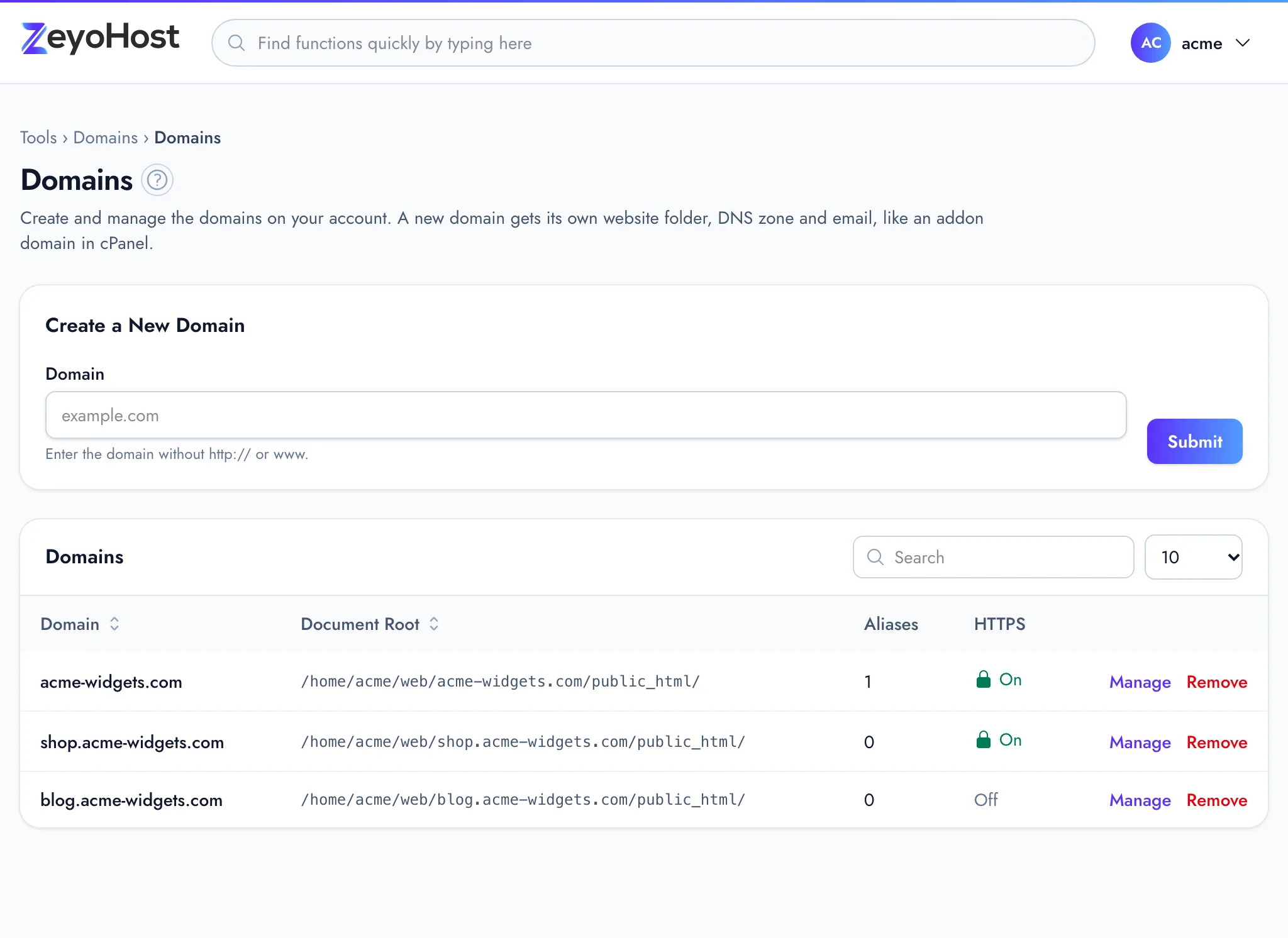
- Under Create a New Domain, type the domain in Domain, for
example
example.com. Leave outhttp://andwww.. - Click Submit.
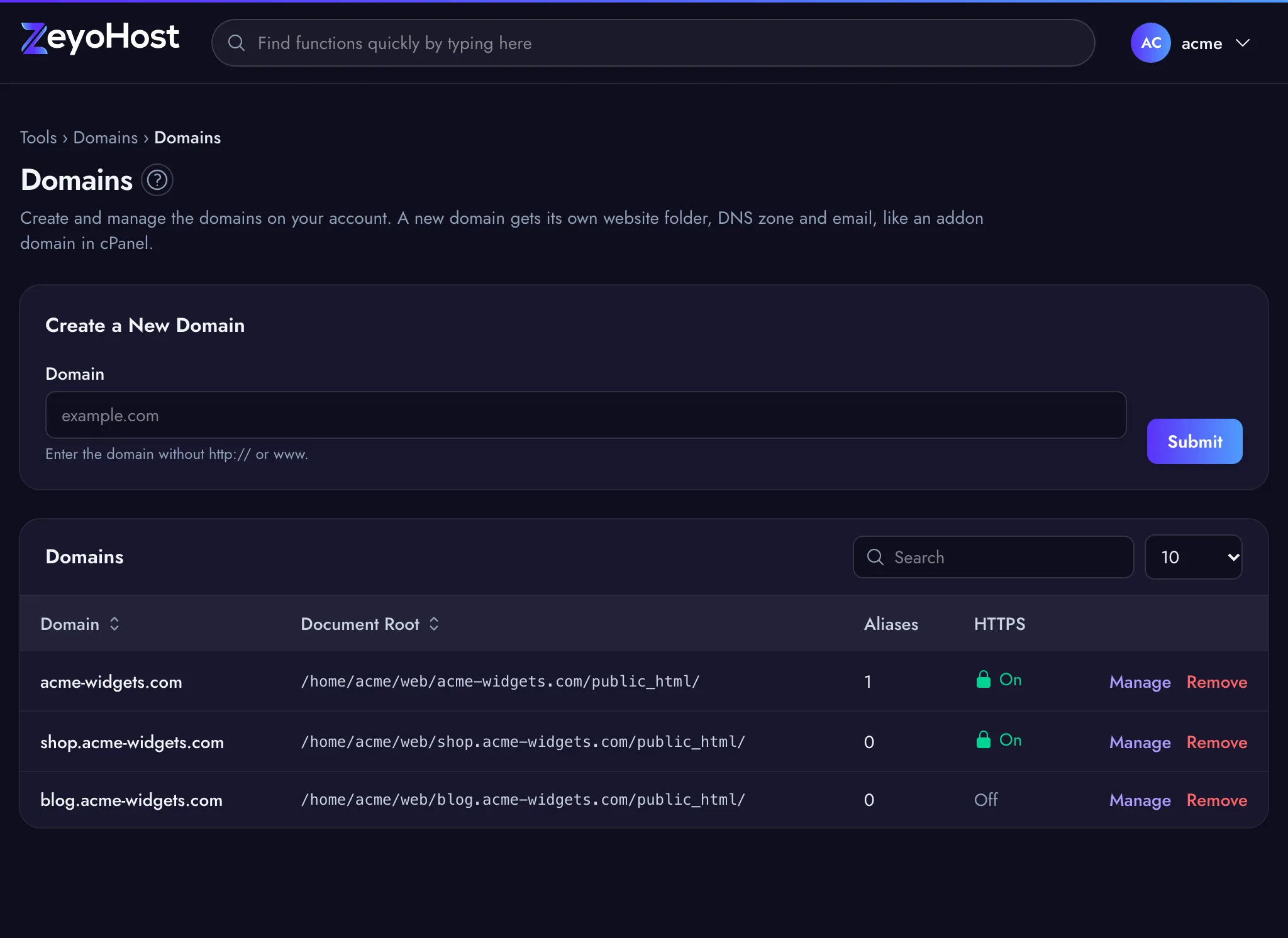
The panel confirms that the domain "was created, with its DNS zone and mail domain". The new domain appears in the table with its Document Root, the folder its files go in. Upload your site to that folder with File Manager or an FTP account.
Read the table
| Column | What it shows |
|---|---|
| Domain | The domain name. Click it to open the site in a new tab. A Suspended badge means the site is switched off. |
| Document Root | The folder on the server the site is served from. |
| Aliases | How many other names show this site, such as www.example.com. Manage them in Aliases. |
| HTTPS | On when the site has a certificate, Off when it does not. Turn it on in SSL/TLS Status. |
Use Search above the table to find a domain or folder, and click a column heading to sort.
Change which folder a domain serves
By default each domain serves its own folder, public_html/. You can make it serve a subfolder of its own folder
instead, for example when an application such as Laravel keeps its public files in public. You can also make it
serve another domain's folder, or a subfolder of it, when two domains should show one site.
- Click Manage on the domain. The dialog opens on the folder the domain serves now.
- In Serve files from, choose Its own folder (default) or another domain's folder.
- Optional: in Subfolder (optional), enter a folder inside that folder's
public_html/, such aspublic. Leave it empty to servepublic_html/itself. - Click Save.
The panel confirms that "the document root" for the domain "was updated", and the Document Root column shows the new folder. Choosing another option in Serve files from empties Subfolder (optional), so enter the subfolder after you choose the folder.
Remove a domain
- Click Remove on the domain.
- Read the message, then click Remove domain.
Common errors
| Message | Why | What to do |
|---|---|---|
| The domain field format is invalid. | The name has http://, a path, spaces or other characters a domain cannot have. |
Enter only the domain, such as example.com. |
| That item already exists. | The domain is already on this hosting account, or on another account on the same server. | Check the table. If the domain is on another of your hosting accounts, remove it there first. |
| You have reached the limit of your plan. Remove something first, or move to a bigger plan in Billing. | Your plan's limit on domains is reached. Subdomains count towards it. | Remove a domain you no longer use, or change your plan. |
| The subfolder field format is invalid. | The subfolder contains .. or characters other than letters, numbers, ., _, - and /. |
Enter a plain folder path, such as public or app/public. |
| The selected folder is invalid. | The domain chosen in Serve files from is no longer on the account. | Reload the page and choose again. |
Related
- SubdomainsCreate a subdomain such as blog.example.com with a website of its own, or remove one you no longer need.
- AliasesShow the same website under another name, such as a second domain or the www. version of your domain.
- Zone EditorAdd, change and remove the DNS records that tell the internet where your website and email live.
- SSL/TLS StatusSee which of your domains use HTTPS, secure them with a free Let's Encrypt certificate, or install a certificate you bought.
- Your first websiteAdd your domain to your hosting account and put your website's files in the right folder.
Was this page helpful?
Sent without cookies; we do not store your IP address.
Still stuck? Contact the team; tell us the page and what you see.