

Connect Devices
Find the server names, ports and sign-in details to set up your email on a phone, tablet or computer.
Connect Devices shows the settings a mail app needs to send and receive mail for your addresses: Outlook, Apple Mail, Thunderbird, Gmail and others. The settings depend on the domain and on where your plan keeps email, so always copy them from this page rather than from another provider's guide.
Find your settings
- In the panel, open Email → Connect Devices.
- If you have more than one email domain, choose the Domain of the address you are setting up.
- Read the panel Settings for addresses @example.com.
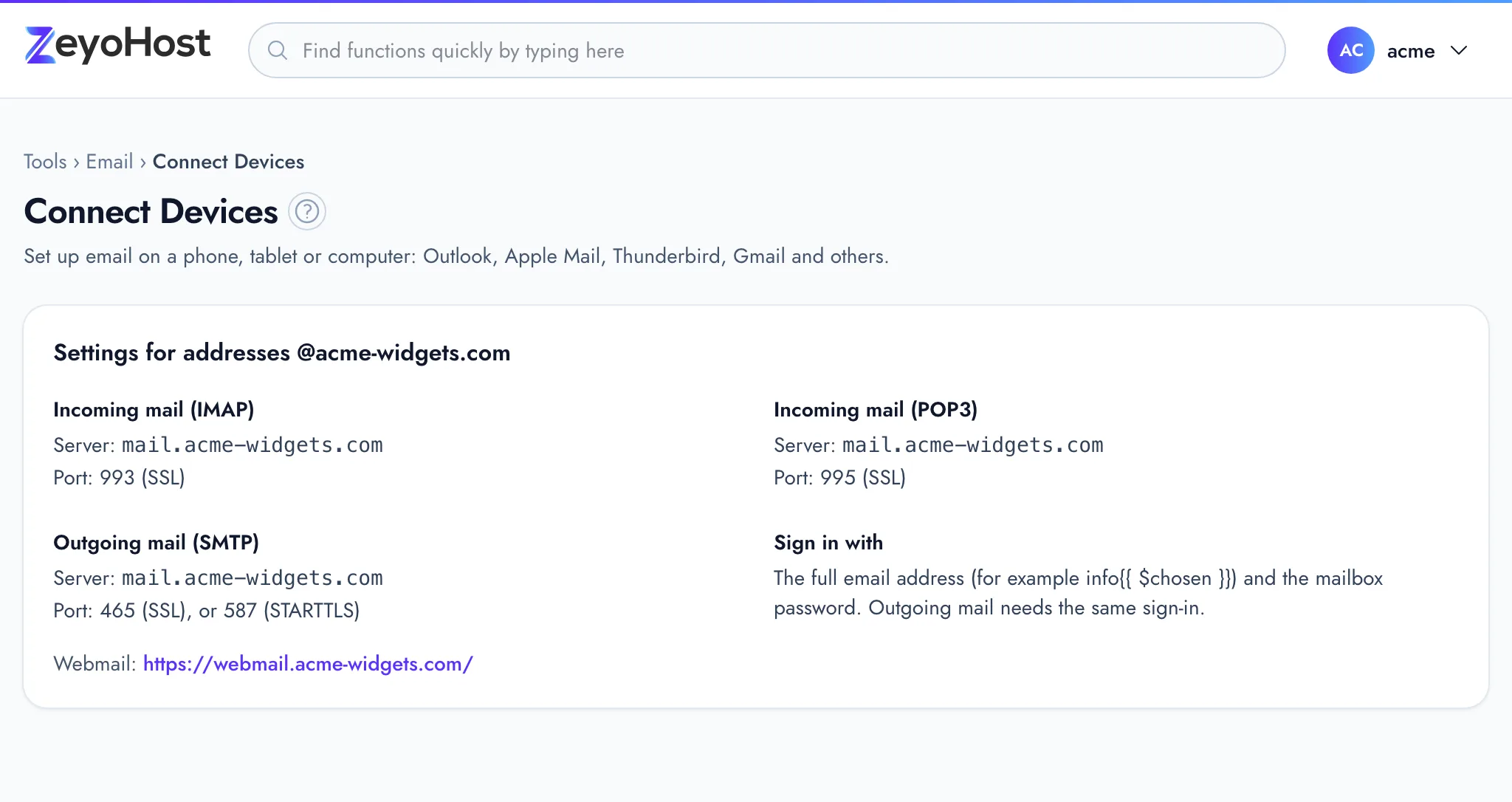
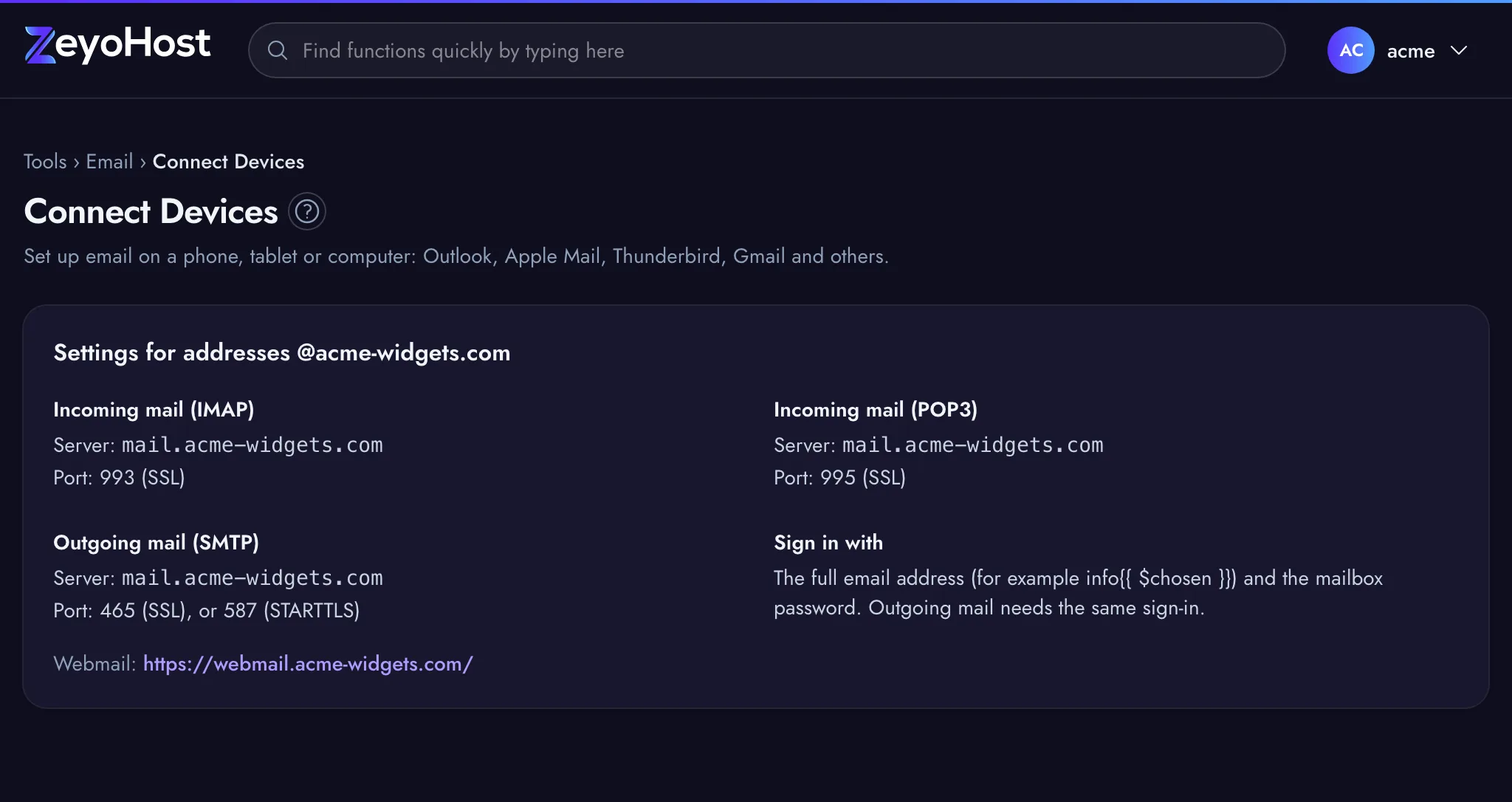
The page shows:
| Heading | What it tells you |
|---|---|
| Incoming mail (IMAP) | The server and port for IMAP. IMAP keeps your mail on the server, so every device sees the same folders. |
| Incoming mail (POP3) | The server and port for POP3, when offered. POP3 downloads mail to one device. |
| Outgoing mail (SMTP) | The server and port for sending, and a second port to try if the first is blocked. |
| Sign in with | The full email address, such as [email protected], and the mailbox password. |
| Webmail | A link to read mail in your browser, when there is one. |
Each port is followed by its security in brackets: SSL means an encrypted connection from the start, STARTTLS means the connection switches to encryption after it opens. Choose the same option in your mail app.
For email on this hosting server, the server name is mail. followed by your domain, for example
mail.example.com. For email on Zeyo Host Mail, the page shows Zeyo Host Mail's own server names.
Set up a mail app
- In your mail app, add a new account and choose manual or advanced setup if it asks.
- Choose IMAP (recommended) or POP3 and enter the incoming server and port from the page.
- Enter the outgoing (SMTP) server and port from the page.
- Use the full email address as the username, and the mailbox password, for both incoming and outgoing mail. Outgoing mail needs the same sign-in.
- Save, then send yourself a test message.
Common errors
| Message | Why | What to do |
|---|---|---|
| You have no email domains yet. | Your hosting account has no domain with email yet. | Add a domain in Domains, or on Zeyo Host Mail in Email Domains. |
| Zeyo Host Mail could not be reached. Please try again shortly. | The panel could not connect to Zeyo Host Mail to read the settings. | Wait a minute and reload the page. |
If your mail app says the password is wrong, set a new one with Manage in
Email Accounts and enter it again. Make sure the username is the full email address,
not only the part before the @.
Related
- Email AccountsCreate mailboxes on your domains, change their passwords and storage space, and delete the ones you no longer need.
- WebmailRead and send email in your browser, without setting up a mail app.
- Email DomainsSee which domains your email uses, and on Zeyo Host Mail add a domain, set up its DNS records and check them.
- Set up emailCreate a mailbox on your domain and add it to your phone, tablet or computer.
- Email is not arrivingMessages to your domain's addresses never show up. Check where your domain's mail goes, the mailbox and its storage.
Was this page helpful?
Sent without cookies; we do not store your IP address.
Still stuck? Contact the team; tell us the page and what you see.