

Git™ Version Control
Clone a Git repository from GitHub, GitLab or another host, pull new changes, switch branches and deploy the files to a website.
Git™ Version Control keeps a copy of your site's code repository on your hosting account. Clone it once, then pull new
changes whenever you push them, switch to another branch, and deploy the files into a website's public_html.
Each repository lives in its own folder of your home folder, by default under repositories, and reaches a website
only when you deploy it.
Clone a repository
- In the panel, open Files → Git™ Version Control.
- Repository address: paste the repository's address. Public repositories work with their
https://address, such ashttps://github.com/you/site.git. For a private repository, use its SSH address, such as[email protected]:you/site.git, and a deploy key (see below). - Folder (from your home folder): where the repository goes. The panel suggests
repositories/followed by the repository's name. The folder must not exist yet. - Branch (optional): the branch to check out, such as
main. Leave it empty for the repository's default branch. - Click Clone.
Cloning runs in the background. A strip at the top of the page shows it is in progress, and the repository appears under Your repositories when it finishes.
Use a deploy key for a private repository
A deploy key is a key made for one repository folder. Once you add it to the repository, the server can read the repository with it.
- Enter the SSH address and the folder in the clone form.
- Click make one for this folder. The page shows the Deploy key for that folder.
- Copy the key and add it to the repository as a deploy key: on GitHub under Settings → Deploy keys, on GitLab under Settings → Repository → Deploy keys. Read-only access is enough.
- Back in the panel, click Clone.
To see the key again later, click Deploy key next to the repository in the list.
Pull new changes
- Find the repository under Your repositories.
- Click Pull.
The pull runs in the background. When it finishes, Last change shows the newest commit. Pulling updates the repository folder only; deploy it to update your website.
Switch branch or deploy to a website
- Click Manage next to the repository.
- To change branch, choose it under Switch to branch and click Switch.
- To publish the files, choose the website under Deploy the files to, click Deploy and confirm with Deploy.
Deploying copies the files of the checked-out branch into that website's public_html. It runs in the background.
Stop listing a repository
- Click Forget next to the repository.
- Confirm with Forget.
The repository is removed from the list, but its folder and files are kept. Delete the folder in the File Manager if you no longer need it.
Common errors
| Message | Why | What to do |
|---|---|---|
| Use an https:// address, or an SSH one like [email protected]:you/site.git. | The address is not an https:// or SSH address. |
Copy the address from the repository host's Clone button. |
| Folder names can use letters, digits, dots, dashes and underscores, and cannot start with a dot or dash. | The folder has spaces or other characters, or a name in it starts with a dot or dash. | Choose a folder name without them, such as repositories/site. |
| That is not a branch name. | The branch has characters Git does not allow, or no branch was chosen. | Check the branch name, or choose one from the list. |
| That item already exists. | The folder already exists. | Choose another folder. |
| Git could not clone that address. Check it, and for a private repository that its deploy key (shown here) was added to it with read access. | The address is wrong, or the private repository does not have this folder's deploy key. | Check the address, add the deploy key to the repository, then clone again. |
| Git could not pull: the copy here has local changes, the branches have diverged, or the remote refused the deploy key. | Files in the repository folder were changed on the server, the history cannot be updated directly, or the deploy key was removed from the repository. | Undo the changes on the server, or clone the repository again into a new folder. Check the deploy key is still on the repository. |
| Git could not switch to …: the copy here has local changes, or there is no such branch. | Files in the repository folder were changed on the server, or the branch does not exist. | Undo the changes on the server, pull, then try again. |
| The files could not be written to …'s public_html (check the folder's permissions, or use Fix Home Permissions). | The server could not write into the website's public_html. |
Run Fix Home Permissions, then deploy again. |
| That website is not yours. | The website is no longer on your hosting account. | Reload the page and choose a listed website. |
| That item does not exist. | A folder above the one you entered does not exist, such as projects in projects/site. |
Use a folder under repositories, or create the folder above first. |
| That repository is not on your account. | The repository was forgotten in the meantime. | Reload the page. |
| … is already in progress. Please wait for it to finish. | The same clone, pull or deploy is already running. | Wait for it to finish. |
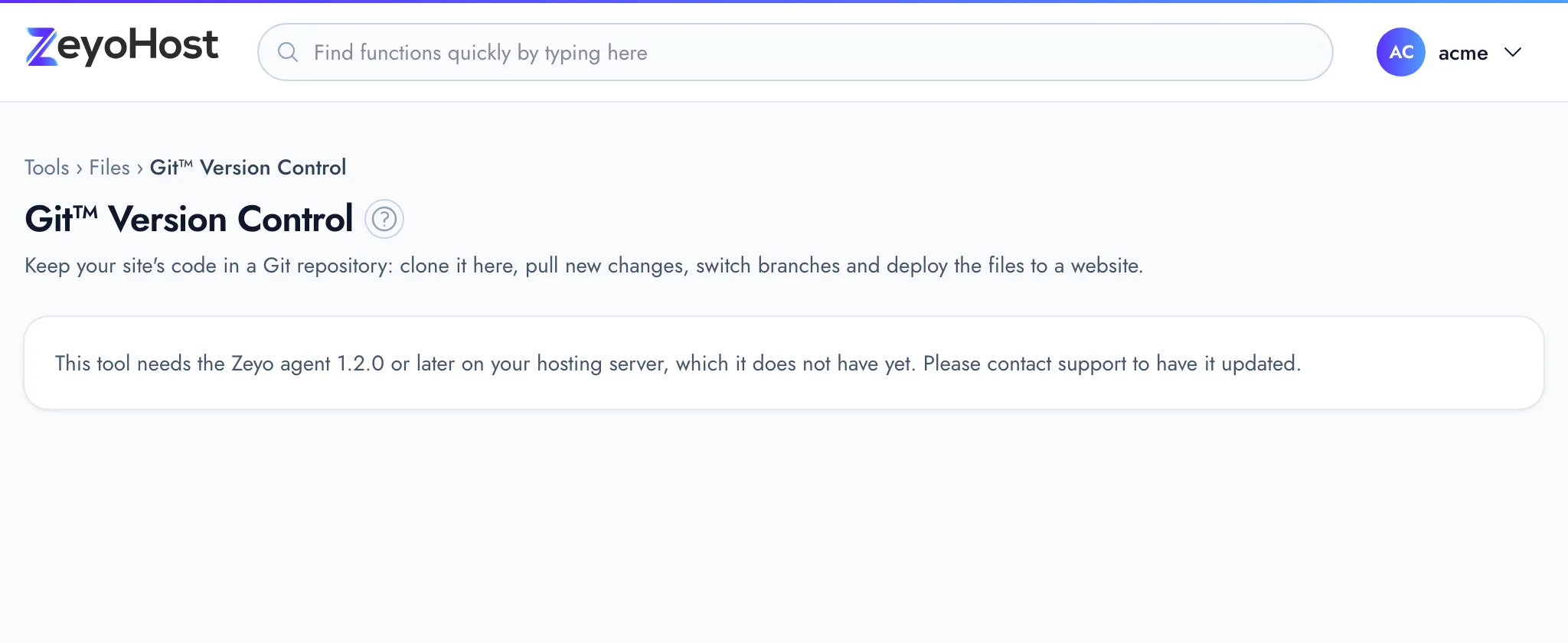
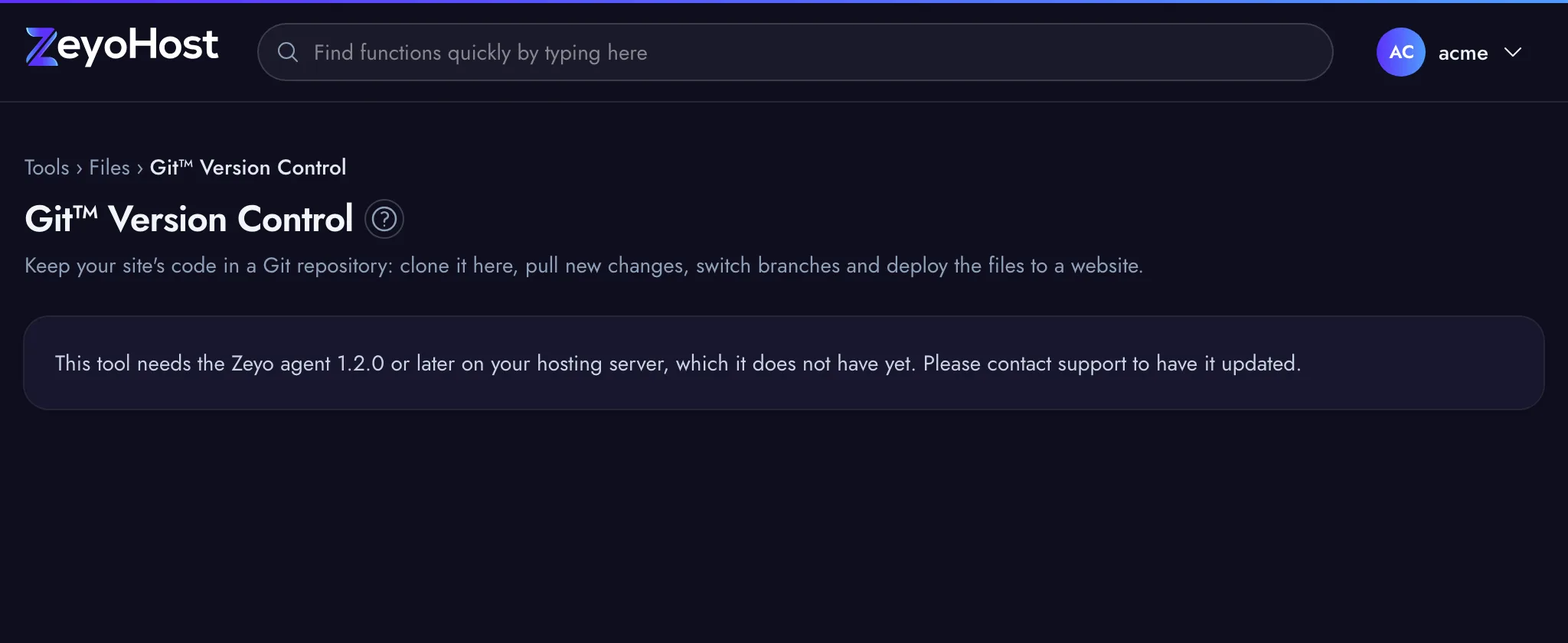
| This tool needs the Zeyo agent 1.2.0 or later on your hosting server, which it does not have yet. Please contact support to have it updated. | Your hosting server needs an update before the tool can run. | Contact support and quote the message. |
Related
- File ManagerBrowse the files of your hosting account, create and edit text files, and copy, move, compress or delete files and folders.
- DomainsAdd a domain as a new website with its own folder, DNS zone and email, change which folder it serves, or remove it.
- SSH AccessAdd and remove the SSH public keys that let you log in to your hosting account without a password.
- TerminalOpen a command line for your hosting account in the browser, or connect over SSH from your own computer.
Was this page helpful?
Sent without cookies; we do not store your IP address.
Still stuck? Contact the team; tell us the page and what you see.