

Password & Security
Change your hosting account's password, the one for FTP, SFTP and SSH, which is separate from your panel sign-in.
Password & Security changes your hosting account's password: the one for FTP, SFTP and SSH, and for signing in to the Terminal. It is not the password you sign in to the panel with: that one belongs to your Zeyo account.
You have two passwords, and each is changed in its own place:
| Password | What it is for | Where to change it |
|---|---|---|
| Panel password | Signing in to the panel, with your email and two-factor authentication. | Your user menu → Sign-in & Security |
| Hosting account password | FTP, SFTP and SSH for the hosting account. | Preferences → Password & Security (this page) |
Mailboxes and FTP accounts have passwords of their own, set in Email Accounts and FTP Accounts. Changing the hosting password does not change them.
Change the hosting password
- In the panel, open Preferences → Password & Security.
- Under Change Password, enter your Current password.
- Enter a New password of at least 10 characters with upper- and lower-case letters and numbers, or click Generate to make a strong one. The eye button shows or hides it.
- Enter it again in Confirm new password.
- Click Change Password Now.
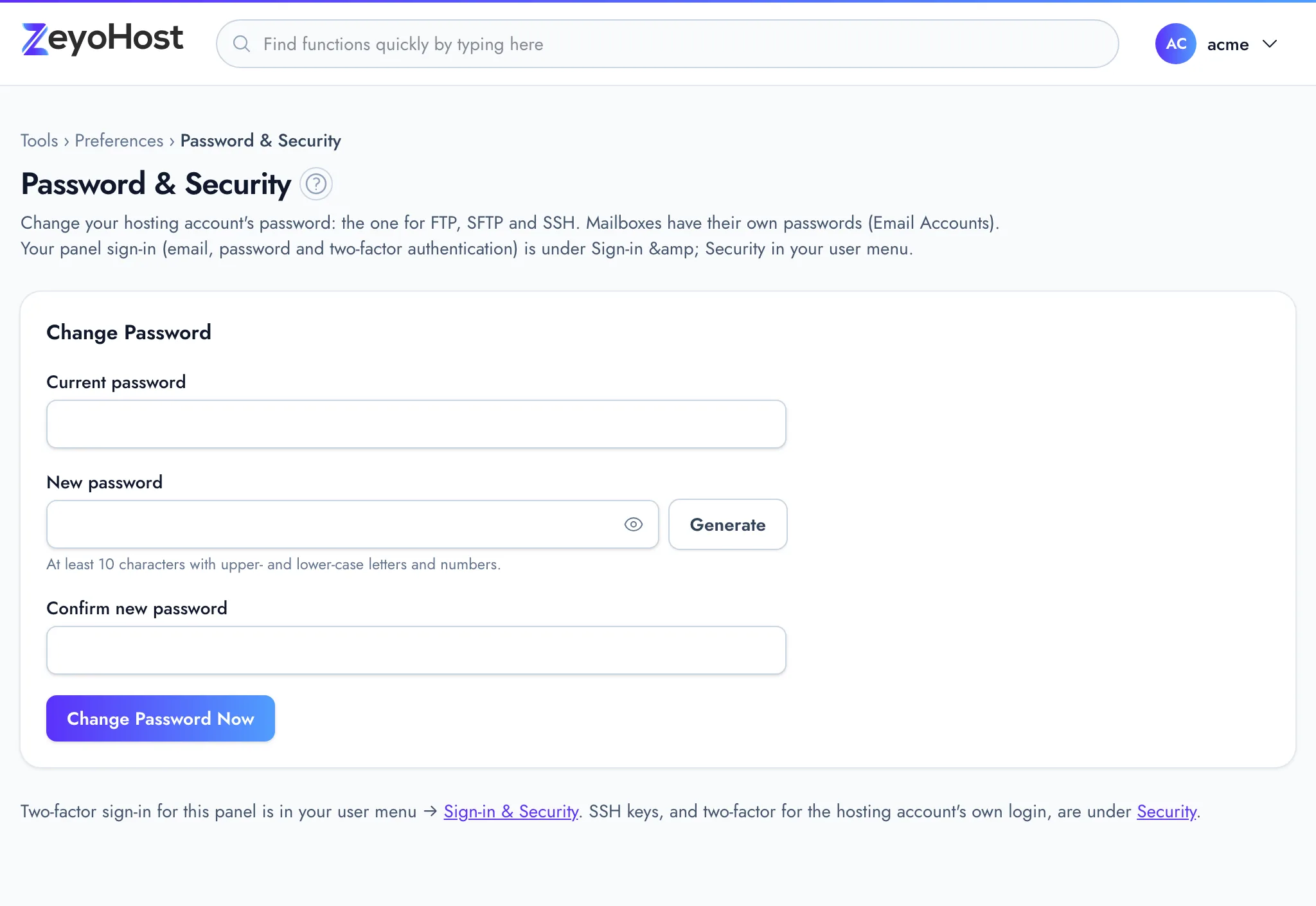
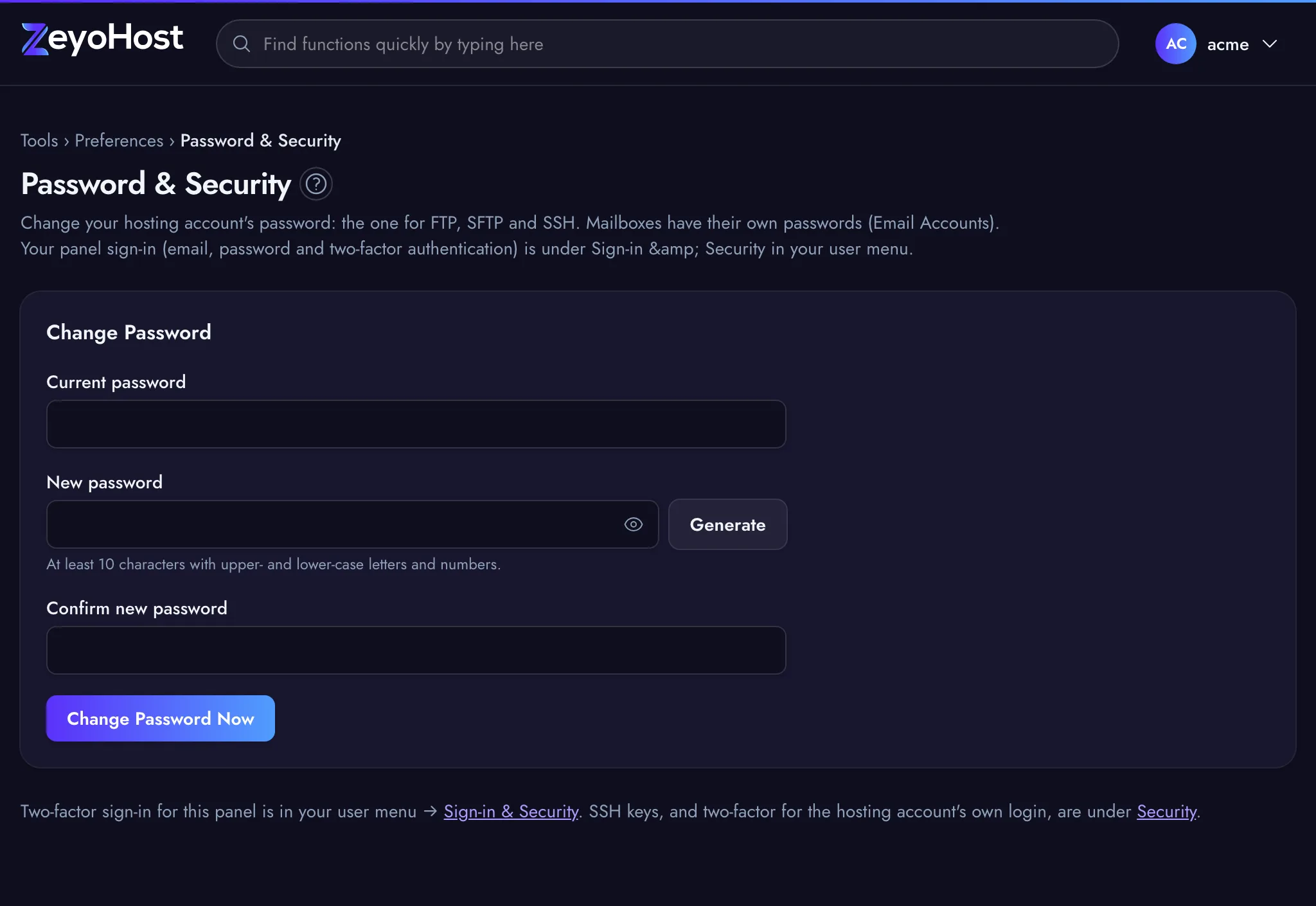
The panel confirms with "Your hosting account password was changed. Use it for FTP, SFTP and SSH from now on." The new password works straight away. Update it in any FTP, SFTP or SSH app that has the old one saved.
Common errors
| Message | Why | What to do |
|---|---|---|
| That is not your current password. | The current password is wrong. | Enter the hosting password, not your panel password. |
| Too many attempts. Please wait a minute and try again. | The current password was wrong five times. | Wait a minute before trying again. |
| The two passwords do not match. | The confirmation differs from the new password. | Type the new password again in both fields. |
| Choose a password you have not used for this account. | The new password is the same as the current one. | Choose a different password. |
| The new password field must be at least 10 characters. | The new password is too short. | Use 10 characters or more, or click Generate. |
| The new password field must contain at least one uppercase and one lowercase letter. | The new password has only one case. | Add both upper- and lower-case letters. |
| The new password field must contain at least one number. | The new password has no digits. | Add at least one number. |
If you do not know the current hosting password, see the sign-in troubleshooting guide.
Related
- Account PreferencesSee your hosting account's details at a glance and reach every setting that belongs to you from one page.
- SSH AccessAdd and remove the SSH public keys that let you log in to your hosting account without a password.
- FTP AccountsCreate FTP logins that can upload files to one folder of a website, and change their password or folder.
- I cannot sign inYour password is refused, you are told to wait, or you lost the phone with your two-factor codes.
- Accounts, hosting accounts and team membersHow your Zeyo account, your hosting accounts and the people you invite fit together, and which password is for what.
Was this page helpful?
Sent without cookies; we do not store your IP address.
Still stuck? Contact the team; tell us the page and what you see.