

Zone Editor
Add, change and remove the DNS records that tell the internet where your website and email live.
The Zone Editor shows every domain whose DNS is hosted with Zeyo Host and lets you manage its records: where the website lives (A and AAAA), aliases (CNAME), where email goes (MX), verification and email-security text (TXT), services (SRV), which certificate authorities may issue for the domain (CAA), and name servers (NS).
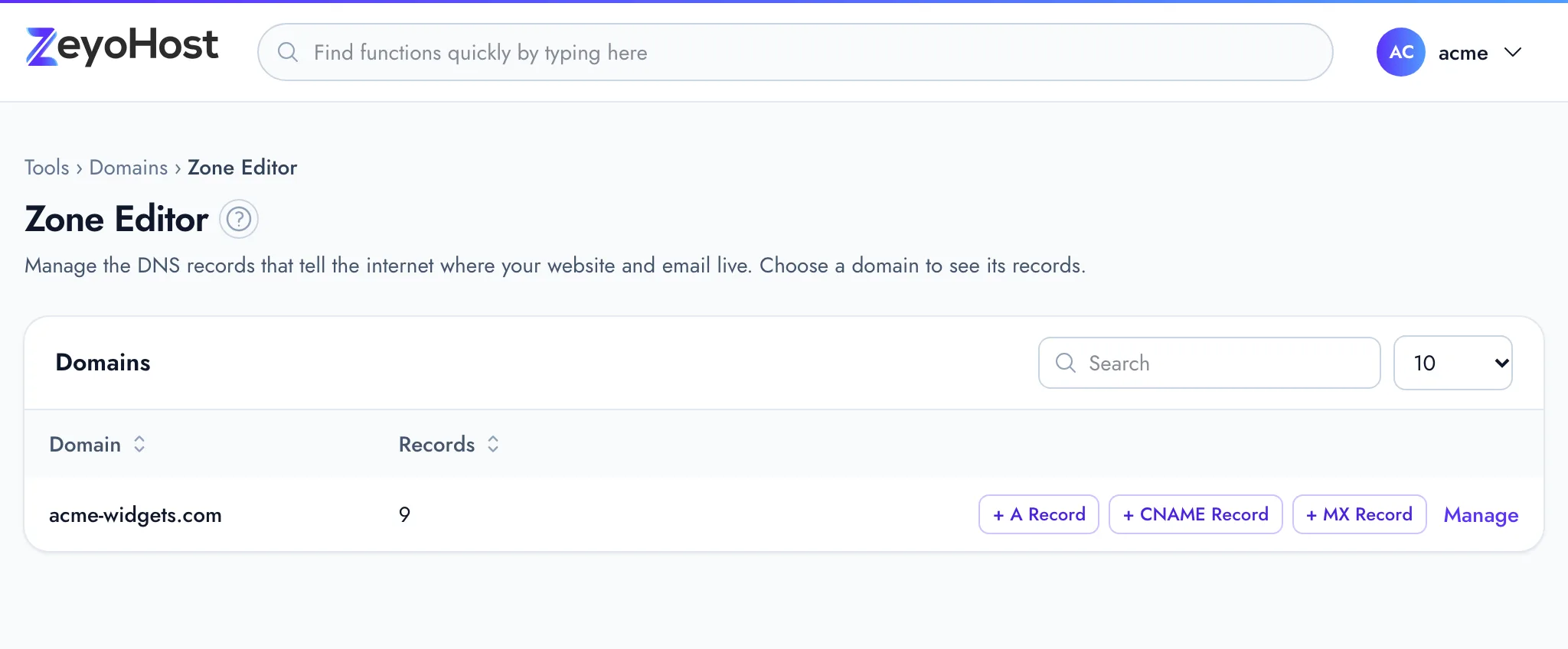
Open a domain's records
- In the panel, open Domains → Zone Editor.
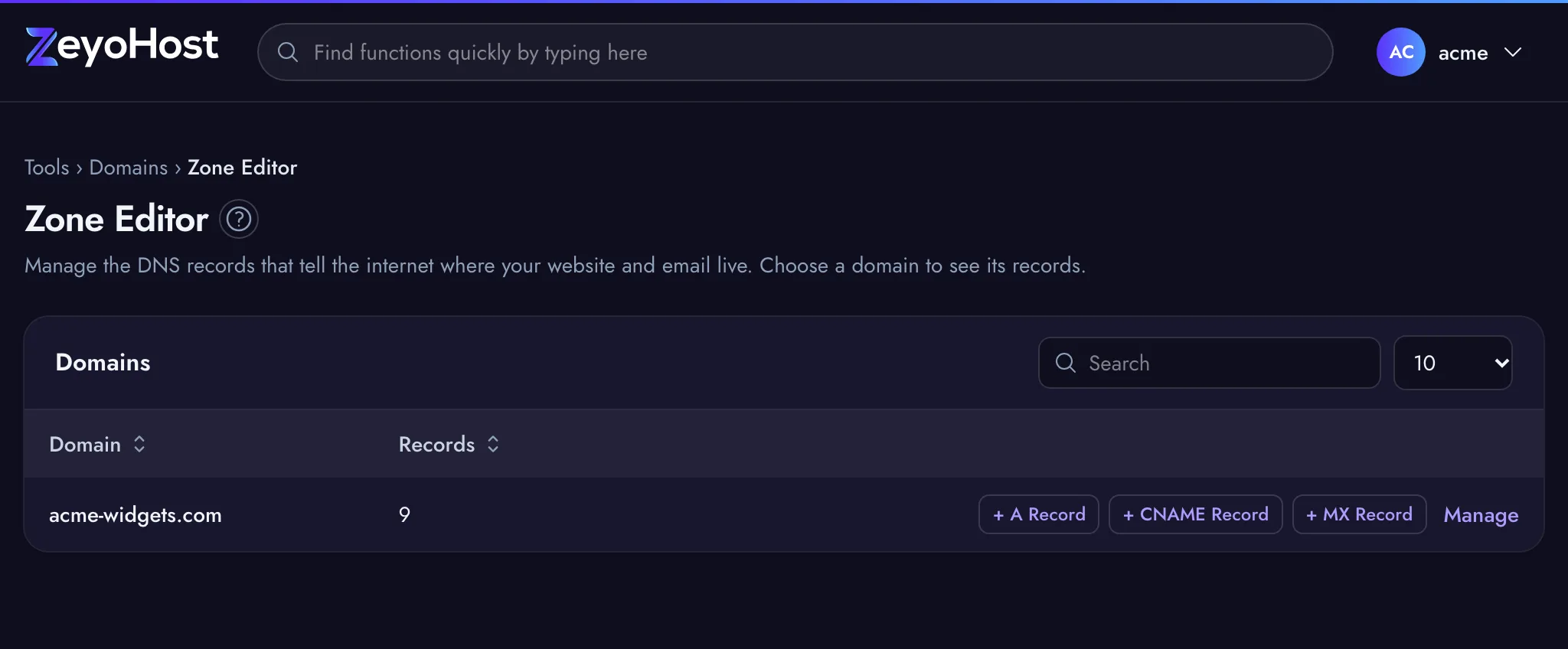
- Find the domain in the list. The Records column shows how many records it has.
- Click Manage to see all of its records, or use the + A Record, + CNAME Record or + MX Record shortcuts to add one straight away.
Add a record
- Open the domain with Manage, then click Add Record.
- Name: the part before your domain. Use
@for the domain itself,wwwforwww.example.com, or*for every name that has no record of its own. - Type: choose the record type. The value field's label changes to tell you what it expects.
- Value: fill it in as the label says, for example an IPv4 address for an A record or a host name such as
mail.example.comfor an MX record. - Priority (MX and SRV only): lower numbers are tried first.
10is a common choice for a single mail server. - TTL (seconds): how long other servers may cache the record. The form starts at 14400 (four hours) and the minimum is 60. Lower it a day before you plan to change the record, so the change spreads faster.
- Click Add Record.
Changes reach our name servers straight away. Other networks may keep the old answer until its TTL runs out.
What each type expects
| Type | Value | Example |
|---|---|---|
| A | An IPv4 address | 203.0.113.10 |
| AAAA | An IPv6 address | 2001:db8::1 |
| CNAME | A host name | example.com. or shops.myshopify.com |
| MX | A mail server host name, with a priority | mail.example.com, priority 10 |
| TXT | Plain text | v=spf1 a mx ~all |
| SRV | Weight, port and target, with a priority | 5 5060 sip.example.com |
| CAA | Flags, tag and value | 0 issue "letsencrypt.org" |
| NS | A name server host name | ns1.example.net |
Change or delete a record
- Open the domain with Manage. Use the type filter to narrow a long list.
- Click Edit on the record, change it, and click Save Record.
- To remove it, click Delete and confirm.
Common errors
| Message | Why | What to do |
|---|---|---|
| An A record points to an IPv4 address, such as 203.0.113.10. | The value is not an IPv4 address. | Enter four numbers separated by dots. For IPv6, choose AAAA. |
| An AAAA record points to an IPv6 address, such as 2001:db8::1. | The value is not an IPv6 address. | Enter the IPv6 address. For an IPv4 address, choose A. |
| A CNAME record points to a host name, such as mail.example.com. | CNAME, MX and NS values must be host names, not addresses or URLs. | Remove https:// and any path; enter only the host name. |
| Enter weight, port and target, such as "5 5060 sip.example.com". | An SRV value needs three parts. | Enter the weight, port and target separated by spaces; put the priority in its own field. |
| Enter flags, tag and value, such as 0 issue "letsencrypt.org". | A CAA value needs three parts, with the value in quotes. | Use 0 issue "letsencrypt.org" to allow Let's Encrypt. |
| TXT records may only contain plain text characters. | The value contains characters such as emoji or smart quotes. | Paste the value as plain text; copy it again from the source if needed. |
| That item already exists. | An identical record is already in the zone. | Edit the existing record instead. |
| You have reached the limit of your plan. Remove something first, or move to a bigger plan in Billing. | Your plan's DNS record limit is reached. | Remove records you no longer need, or change your plan. |
Related
- DomainsAdd a domain as a new website with its own folder, DNS zone and email, change which folder it serves, or remove it.
- Email DomainsSee which domains your email uses, and on Zeyo Host Mail add a domain, set up its DNS records and check them.
- SSL/TLS StatusSee which of your domains use HTTPS, secure them with a free Let's Encrypt certificate, or install a certificate you bought.
- Track DNSLook up a name's DNS records, see which name servers are in charge of a domain, and trace the network route to a server.
- Point your domain to Zeyo HostSend your domain's visitors to Zeyo Host, either with our name servers or with A records, and check the change.
Was this page helpful?
Sent without cookies; we do not store your IP address.
Still stuck? Contact the team; tell us the page and what you see.