

Select PHP Version
Choose which PHP version each of your websites runs, and which version the php command uses in SSH and cron jobs.
Select PHP Version sets the PHP version for each of your websites, and the version the php command runs in SSH
and in cron jobs. Newer versions are faster and safer, but an older application may need an older version. Only the
versions installed on your hosting server are offered.
Change a website's PHP version
- In the panel, open Software → Select PHP Version.
- Find the domain in the table. Current version shows the version it runs now, such as PHP 8.3, or PHP off.
- In Change to, choose the version. The change is made as soon as you choose it; there is no save button.
If Current version shows a name such as default instead of a PHP version,
Change to shows Choose a version…. Any version you choose there is
applied.
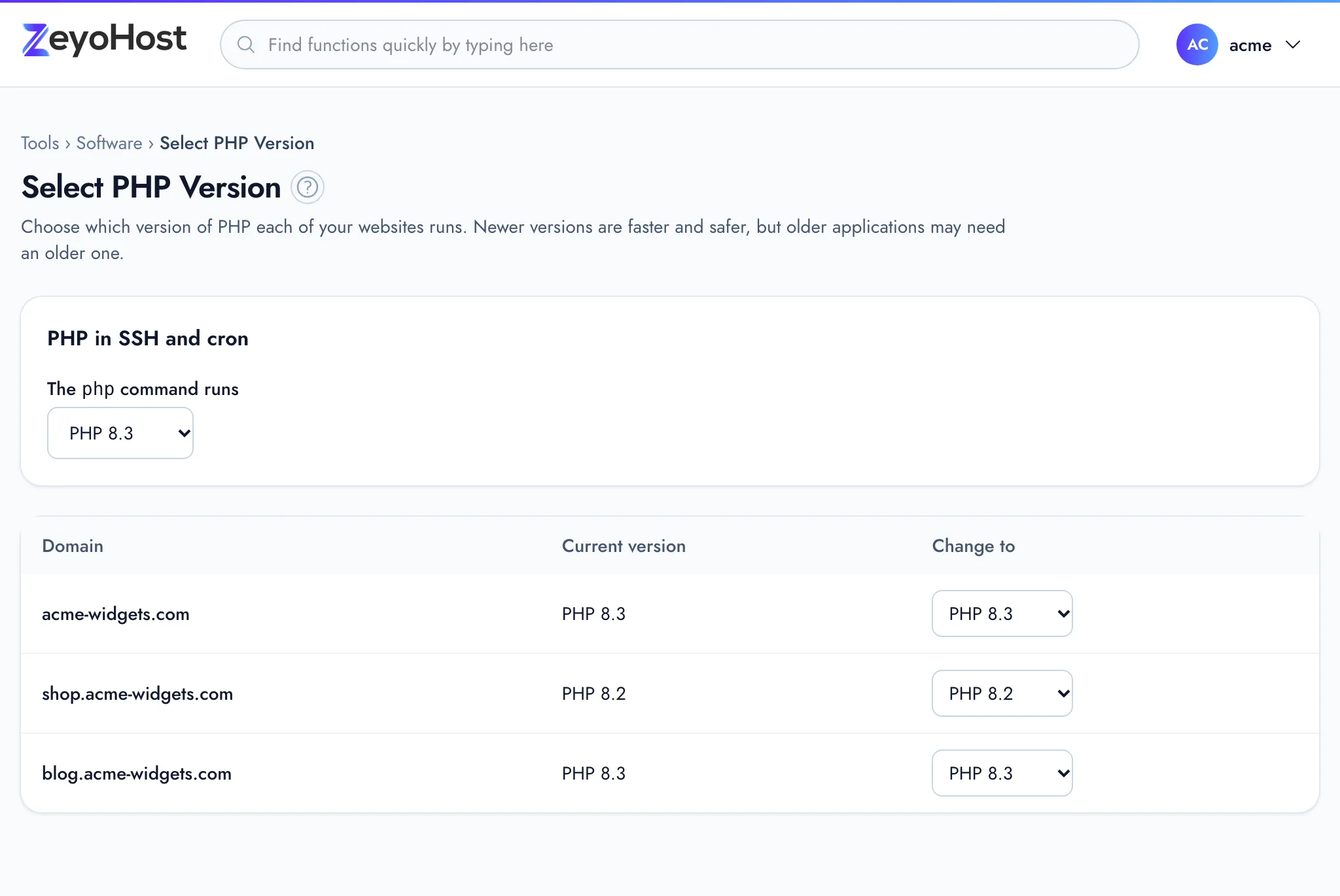
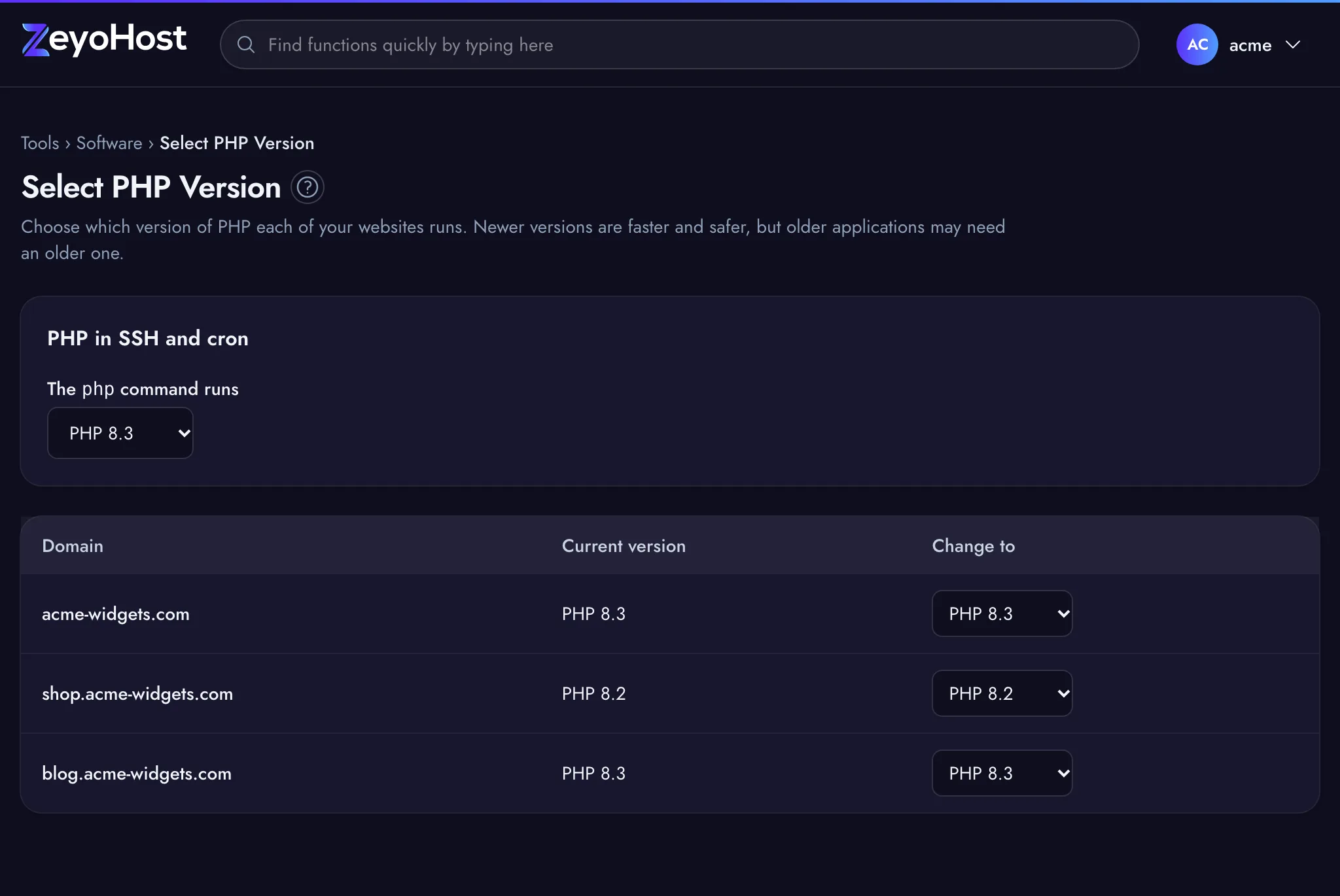
The panel confirms the change, for example "example.com now runs PHP 8.3." Open your site afterwards to check it still works. If it shows errors, choose the version it ran before.
Turn PHP off for a website
A website that has only static files (HTML, images, styles) does not need PHP.
- Find the domain in the table.
- In Change to, choose No PHP.
Change the PHP version for SSH and cron
This setting is for commands you run yourself, in the Terminal or over SSH, and for Cron Jobs. It does not change the version your websites run.
- Under PHP in SSH and cron, find The php command runs.
- Choose the version. The change is made at once.
The panel confirms it, for example "The php command in SSH and cron now runs PHP 8.3."
Common errors
| Message | Why | What to do |
|---|---|---|
| That PHP version is not installed on this server. | The version you chose is not on your hosting server, for example because it was removed after the page loaded. | Reload the page and choose one of the versions listed. |
| That item does not exist. | The domain is no longer on your hosting account. | Reload the page. |
| A service could not be restarted, so your change may not be live yet. | The server saved the change but could not apply it straight away. | Wait a few minutes and check your site. If the old version is still in use, send the message to support as written. |
Related
- WordPress® ManagerInstall WordPress on one of your websites, then keep it updated, switch debug mode and reset a WordPress password.
- Cron JobsRun a command or script automatically at set times, and choose whether its output is emailed to you.
- TerminalOpen a command line for your hosting account in the browser, or connect over SSH from your own computer.
- My site shows a 500 errorFind out why your website shows "500 Internal Server Error" and fix the most common causes.
- PHP PEAR PackagesInstall and remove PEAR packages for your PHP code, in the pear folder of your home folder.
Was this page helpful?
Sent without cookies; we do not store your IP address.
Still stuck? Contact the team; tell us the page and what you see.