

MIME Types
Choose the content type your website sends for a file extension, so browsers and apps know what the file is.
Every file your website sends comes with a content type (MIME type) that tells the browser or app what it is, for
example text/calendar for a calendar file. Most extensions already have the right type. Use MIME Types when a
file is shown as text, downloaded instead of opened, or rejected by an app because its type is wrong or missing.
Images, styles, scripts and the other files the server's front end sends itself keep their standard types and cannot be changed here.
Add a MIME type
- In the panel, open Advanced → MIME Types.
- If you have more than one website, choose it under Website.
- Under Add a MIME Type, enter the MIME type, for example
application/manifest+json. Capitals are turned into lower case. - Extensions: enter one to ten extensions, separated by spaces or commas, for example
.webmanifest. The dot is optional. - Click Add.
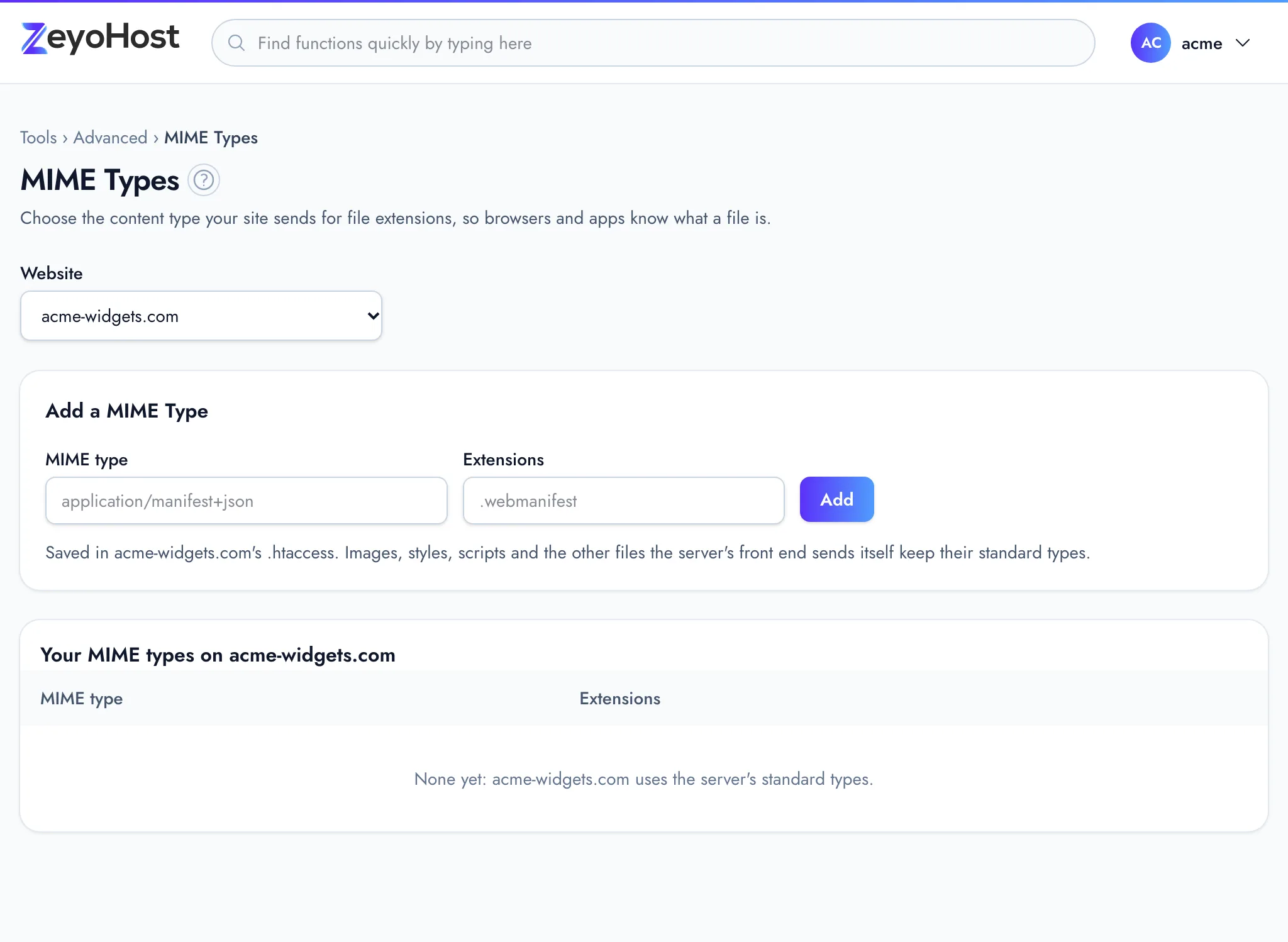
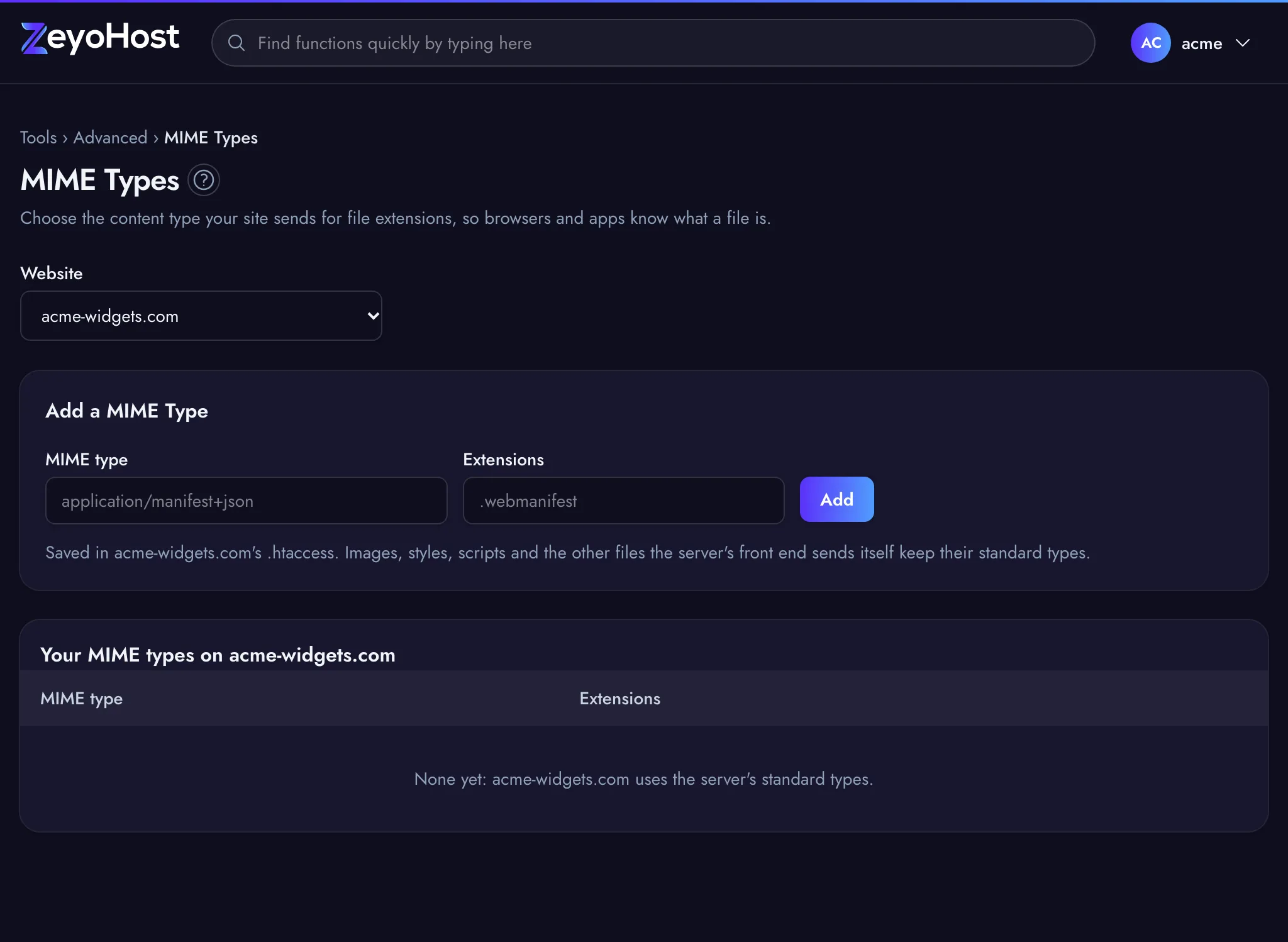
The type appears under Your MIME types on example.com. While the table is empty, the website uses the server's standard types.
- To add more extensions to a type, add the type again with the new extensions: they join the ones already there.
- Each extension has one type, so adding an extension to a new type takes it away from the old one.
- A website can have up to 50 types here.
| Extension | A common MIME type |
|---|---|
.webmanifest |
application/manifest+json |
.ics |
text/calendar |
The panel saves the types in the .htaccess file in your website's top folder, between the lines
# BEGIN ZeyoHost mime-types and # END ZeyoHost mime-types. The rest of the file is kept as it is.
Remove a MIME type
- In the panel, open Advanced → MIME Types.
- Click Remove on the type's row.
- The panel asks, for example, Remove text/calendar? and names the extensions that go back to the server's standard type. Click Remove to confirm.
Common errors
| Message | Why | What to do |
|---|---|---|
| Write a MIME type like application/x-example. | The type is not in the form type/subtype, or contains spaces or quotes. |
Enter only the type, such as text/calendar. |
| The MIME type field is required. | The MIME type field is empty. | Enter the type to send. |
| Give one to ten extensions, like .webmanifest or .ics. | The Extensions field is empty or holds more than ten. | Enter between one and ten extensions; add the rest in a second go. |
| Extensions can use letters, digits, dashes and underscores. | An extension has other characters, or is longer than 16 characters. | Enter only the extension, such as ics, without paths or file names. |
| This site's nginx serves .svg files itself, with its own types, so a type here would do nothing. | The server's front end sends files with that extension directly, with its own type. | Leave that extension out. |
| A site can have up to 50 types here. | The website already has 50 types. | Remove types you no longer need, or add the extension to a type you already have. |
| You have no websites yet. Add one in Domains. | MIME types belong to a website, and your hosting account has none. | Add a website in Domains first. |
| That folder's .htaccess is not a plain file. Fix or remove that file in the File Manager, then come back. | The .htaccess in your website's top folder is a link or a folder, so the panel cannot read or change it. |
Open the website's public_html folder in the File Manager, remove the .htaccess link or folder or replace it with a plain file, then open this page again. |
Related
- Apache HandlersChoose how the web server treats files with a given extension, by sending them as they are or using them as type maps.
- IndexesChoose whether visitors see a list of files when they open a folder of your website that has no index page.
- File ManagerBrowse the files of your hosting account, create and edit text files, and copy, move, compress or delete files and folders.
Was this page helpful?
Sent without cookies; we do not store your IP address.
Still stuck? Contact the team; tell us the page and what you see.