

User Manager
Invite a developer or colleague into your hosting account with their own sign-in, and choose which tools they can use.
User Manager lets other people, such as a developer or a colleague, work in one of your hosting accounts. Each person you invite becomes a team member: they sign in with their own Zeyo account (their own email and password) and see only the tools you choose for them. You never share your password.
Only the owner of the hosting account can open User Manager. Team members do not see it.
Invite someone
- Select the hosting account in your user menu, if you own more than one.
- In the panel, open Preferences → User Manager.
- Under Invite Someone, enter Their email address.
- Under Tools they can use, tick each tool they need. Choose at least one.
- Click Send Invitation.
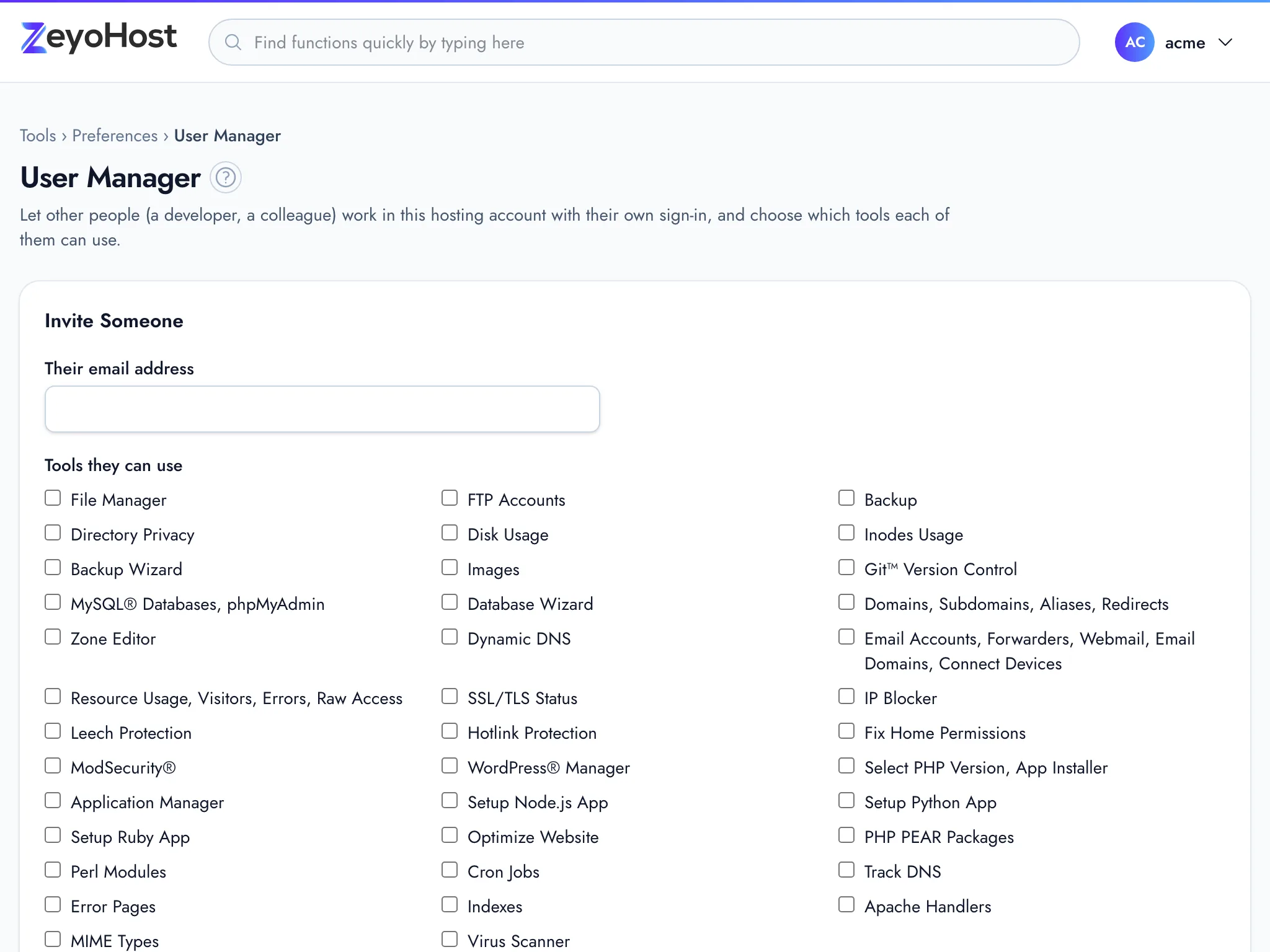
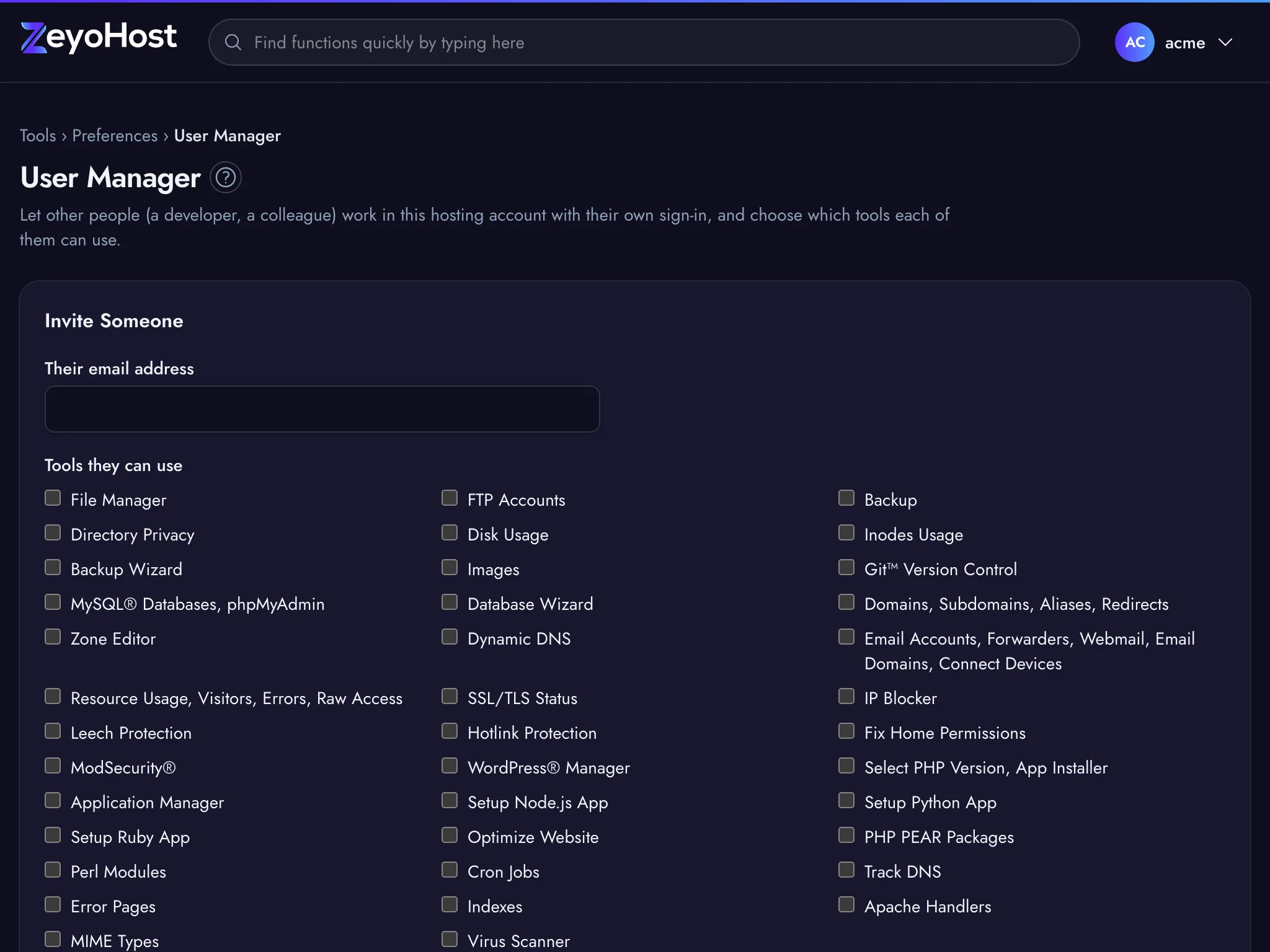
They get an email with a link that works for 7 days. The person appears under People on this account as Invited until they accept.
Which tools you can share
The list shows the tools your plan includes. Some options cover several tools at once, because those tools come together: for example, the email option covers Email Accounts, Forwarders, Webmail, Email Domains and Connect Devices.
These always stay yours and cannot be shared: Billing, the Preferences pages (Password & Security, Contact Information, Change Language, Change Style, Account Preferences), the Security pages (SSH Access, Two-Factor Authentication, Login History), User Manager, Manage API Tokens, Terminal and Web Disk.
What the invited person does
- They open the link in the email.
- On Join a hosting account, they follow what the page shows:
- Already signed in with the invited email: Join the account.
- Already have a sign-in for that email: Sign in to join, then sign in.
- New to Zeyo Host: enter Your name and a password twice, then click Create my sign-in and join.
- The panel opens with your hosting account selected. If they have more than one, they switch in the user menu, where yours is marked "(shared)".
They must join with the exact email address you invited. The panel shows them as Active once they have joined.
Change someone's tools
- Click Change tools next to the person.
- Tick or untick tools, then click Save.
Send an invitation again
If the email was lost or the status reads Invitation expired, click Send again. A new link is sent and the old one stops working.
Remove someone
- Click Remove next to the person.
- The panel asks, for example, Remove [email protected]? Click Remove to confirm.
Common errors
| Message | Why | What to do |
|---|---|---|
| Choose at least one tool. | No tool is ticked. | Tick at least one tool. |
| Some of those tools cannot be shared. | A tool is owner-only or no longer in your plan. | Reload the page and choose from the list again. |
| That is your own email address. | You entered your own sign-in email. | Enter the other person's address. |
| … is already on this account. | That address was already invited. | Use Change tools or Send again on their row. |
| An account can have up to 20 people. | The hosting account already has 20 people. | Remove someone you no longer work with first. |
| This invitation link is not valid. … | The link expired, was used, or was replaced by a newer one. | The owner clicks Send again. |
| This invitation is for … | The person is signed in with a different email. | Sign out, then open the link again and use the invited email. |
| This is already your own hosting account. | The owner opened their own invitation. | Invite someone else's address. |
Related
- Accounts, hosting accounts and team membersHow your Zeyo account, your hosting accounts and the people you invite fit together, and which password is for what.
- Account PreferencesSee your hosting account's details at a glance and reach every setting that belongs to you from one page.
- BillingSee your plan and when it renews, pay and print invoices, change your payment method or plan, and cancel or keep your subscription.
- A tool is not in my planThe panel says "This tool is not included in your plan" or "This tool is not shared with you", or a tool is missing from the home page.
Was this page helpful?
Sent without cookies; we do not store your IP address.
Still stuck? Contact the team; tell us the page and what you see.