

Optimize Website
Turn page caching on or off for each website, clear the cache, and check that pages are sent compressed.
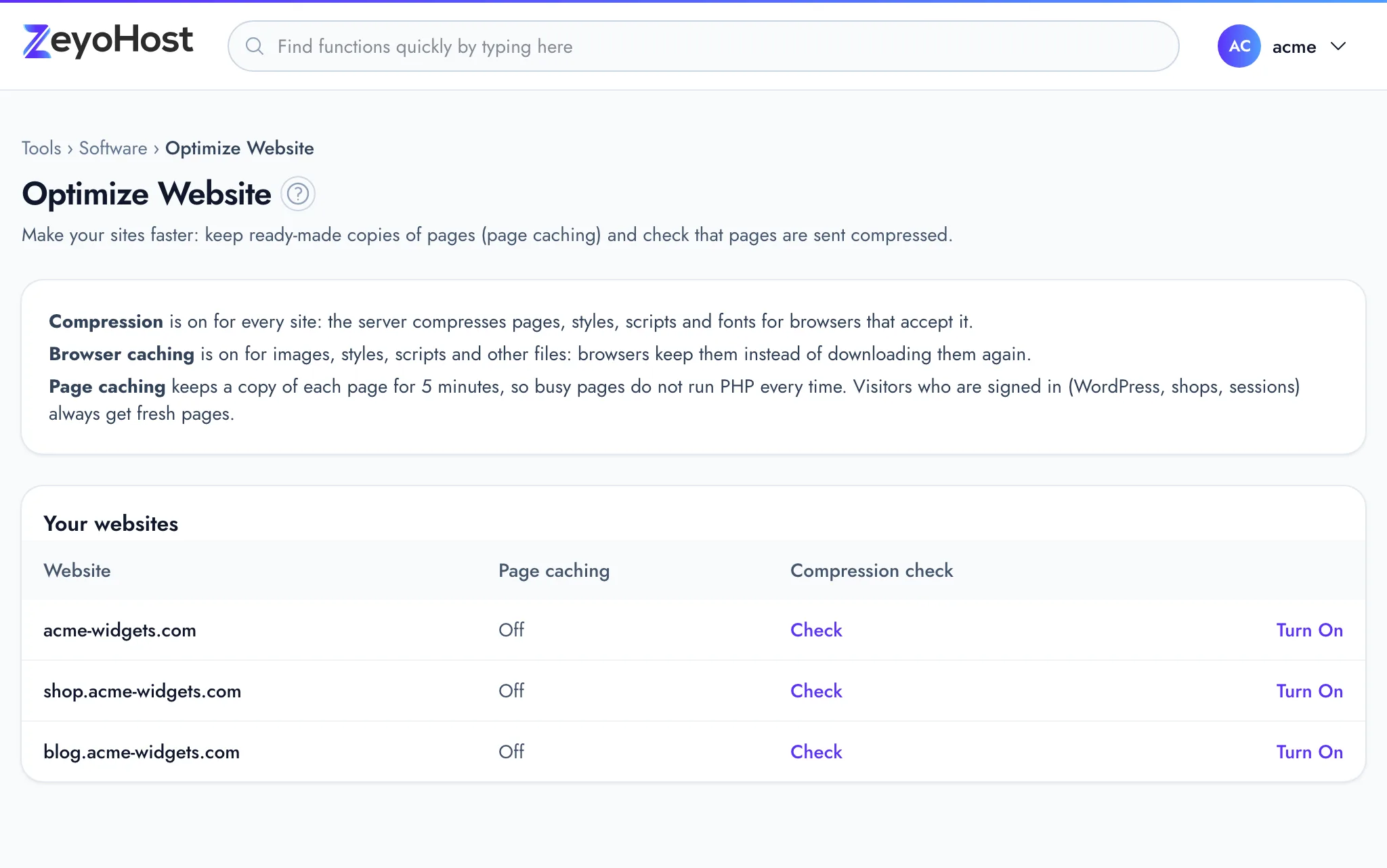
Optimize Website makes your websites faster with page caching, and lets you check that pages are sent compressed. Two things are already on for every website and need no setting:
- Compression: the server compresses pages, styles, scripts and fonts for browsers that accept it.
- Browser caching: browsers keep images, styles, scripts and other files instead of downloading them again.
Page caching is the part you choose per website. It keeps a copy of each page for 5 minutes, so busy pages do not run PHP every time. Visitors who are signed in (to WordPress, a shop or anything else that uses sessions) always get fresh pages.
Turn page caching on or off
- In the panel, open Software → Optimize Website.
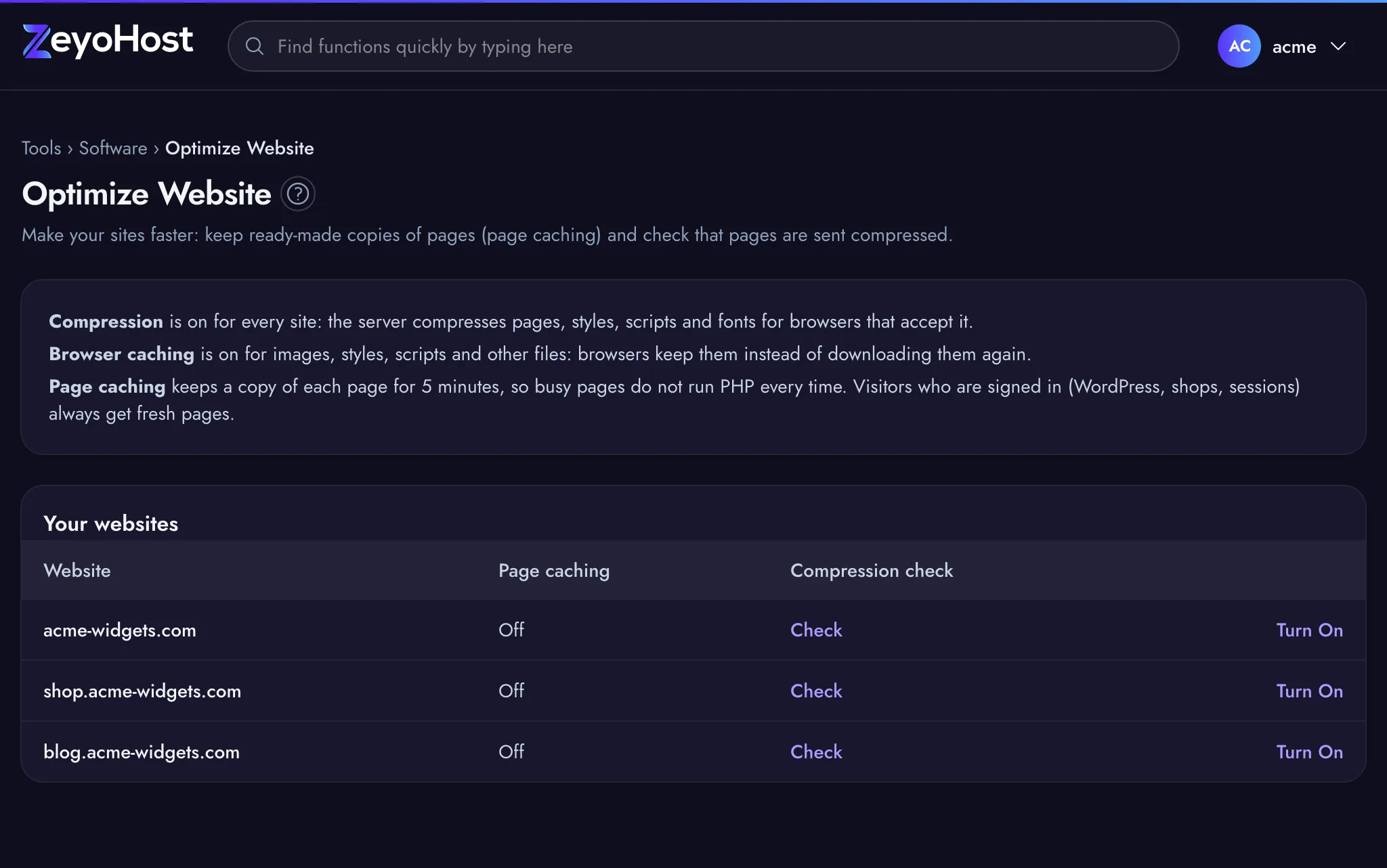
- Find the website under Your websites. Page caching shows On or Off.
- Click Turn On, or Turn off to stop caching.
Two other states cannot be switched here:
- Runs an app (Application Manager); caching comes back when the app is deleted: the website sends every request to a Node.js, Python or Ruby app. When you delete the app in the Application Manager, the website goes back to the caching setting it had before.
- Set by support, followed by a name in brackets: the website uses a setup support chose for it. Contact support if you need caching changed for it.
Clear the page cache
After you change a page, visitors who are not signed in can see the old copy for up to 5 minutes. To show the new version at once:
- Find the website under Your websites. Clear cache appears only while page caching is on.
- Click Clear cache.
Check compression
- Find the website under Your websites.
- Under Compression check, click Check. The panel asks your hosting
server for the website's home page, the way a browser that accepts compression would. If the home page redirects
to the same website, for example to
https://or towww, the check follows the redirect, up to three times.
| Result | Meaning |
|---|---|
| Compressed (gzip) | The home page is sent compressed. The name in brackets is the method used. |
| Not compressed (status 200) | The page was sent, but not compressed. |
Not compressed (status 301) or 302 |
The home page redirects to another website, or through more than three redirects. The check does not follow those, so it saw the redirect, not your page. |
| The site did not answer | The server did not reply, or took longer than 10 seconds. |
Common errors
| Message | Why | What to do |
|---|---|---|
| example.com uses the nginx setup that support chose for it. Please contact support to change caching. | The website uses a setup support chose, shown in the Page caching column. The message names it. | Contact support if you need caching changed for it. |
| example.com runs an app, which nginx sends every request to. Its earlier caching setting comes back when the app is deleted. | The website runs an app from the Application Manager, so page caching does not apply to it. | Nothing to do while the app runs. Delete the app if the website should serve its files again. |
| example.com has no page cache to clear. | Page caching is off for that website, for example after it was turned off in another tab. | Reload the page. There is nothing to clear. |
| That website is not yours. | The website is no longer on your hosting account. | Reload the page. |
| A service could not be restarted, so your change may not be live yet. | The server saved the change but could not apply it straight away. | Wait a few minutes. If nothing changes, send the message to support as written. |
Related
- WordPress® ManagerInstall WordPress on one of your websites, then keep it updated, switch debug mode and reset a WordPress password.
- SSL/TLS StatusSee which of your domains use HTTPS, secure them with a free Let's Encrypt certificate, or install a certificate you bought.
- DomainsAdd a domain as a new website with its own folder, DNS zone and email, change which folder it serves, or remove it.
- Resource UsageSee how much disk space and bandwidth your hosting account uses against your plan, broken down by type and by website.
Was this page helpful?
Sent without cookies; we do not store your IP address.
Still stuck? Contact the team; tell us the page and what you see.