

Track DNS
Look up a name's DNS records, see which name servers are in charge of a domain, and trace the network route to a server.
Track DNS checks what the internet sees for a name: its DNS records, the chain of name servers that answers for it, and the network route to a server. Every check runs from your hosting server, so it shows what your website and email see, not what your own computer has cached. Use it after you change name servers or records, or when a site or mailbox does not reach the right place.
Look up records
- In the panel, open Advanced → Track DNS.
- Host name or IP address: enter the name to check, for example
example.comormail.example.com. - Record: choose the record type: A, AAAA, MX, NS, TXT, CNAME, SOA or CAA.
- Click Look Up.
The result appears in a box titled, for example, MX records of example.com. Each line
shows the name, how long the answer may be cached (in seconds), the type and the value, for example
example.com. 3600 IN MX 10 mail.example.com. If there is nothing to show, the page says
"No answer. The name may not exist, or have no records of this type."
See which name servers are in charge
- In the panel, open Advanced → Track DNS.
- Enter the domain in Host name or IP address.
- Click Show Delegation.
The result, Delegation of example.com, starts at the internet's root name servers and follows the chain down to the name servers that answer for your domain. If the last step does not list the name servers you expect, your domain does not use them yet. See Point your domain to Zeyo Host.
Trace the route to a server
- In the panel, open Advanced → Track DNS.
- Enter a host name or an IP address, for example
203.0.113.10. - Click Trace Route.
The result, Route to 203.0.113.10, lists the network hops between your hosting server and that address. The Record list is not used for this check. Trace Route needs a tool that not every server has; if yours does not, the page says so.
Common errors
| Message | Why | What to do |
|---|---|---|
| Enter a host name such as example.com, or an IP address. | The field holds something else, such as a full web address, a path or a space. | Remove https:// and anything after the name; enter only example.com or an IP address. |
| The host name or address field is required. | The field is empty. | Enter a name or an IP address. |
| Tracing routes needs the traceroute tool on your hosting server, which it does not have. Support can install it. | Only when you click Trace Route: your server cannot trace routes. | Use Look Up and Show Delegation, which still work, or contact support. |
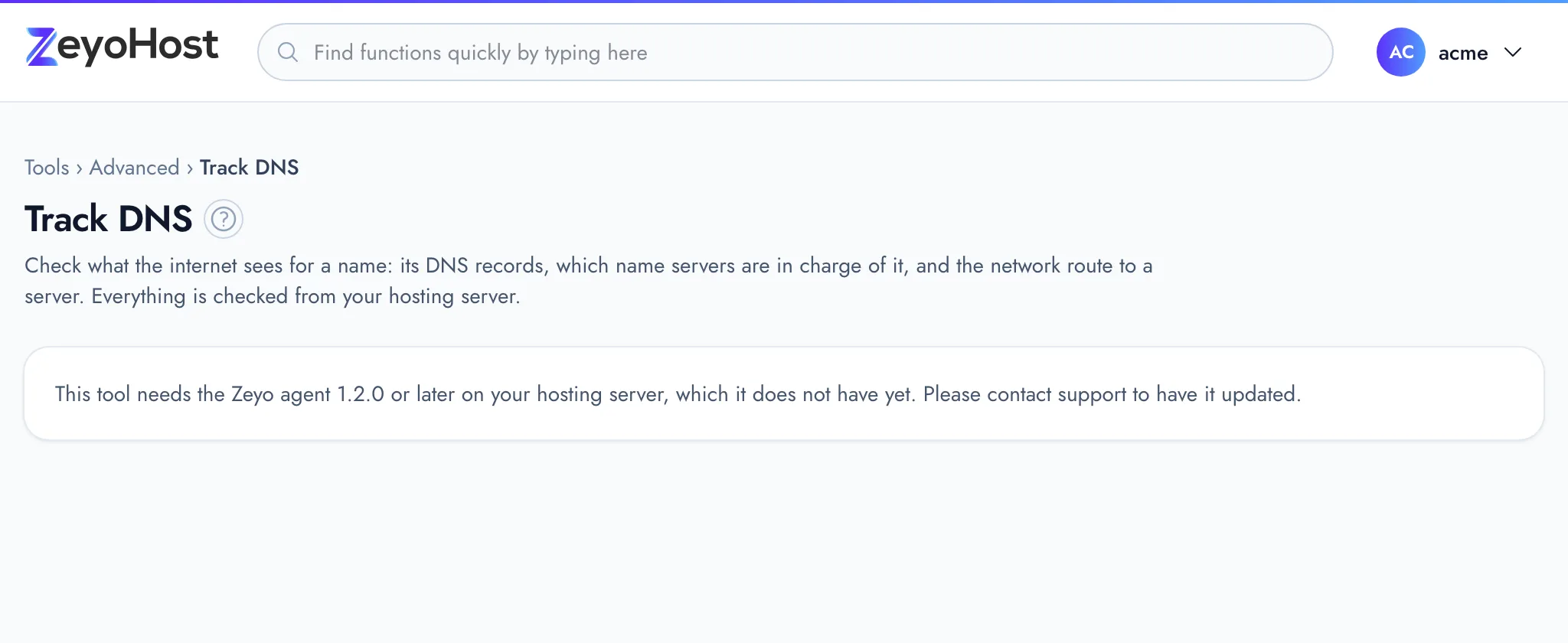
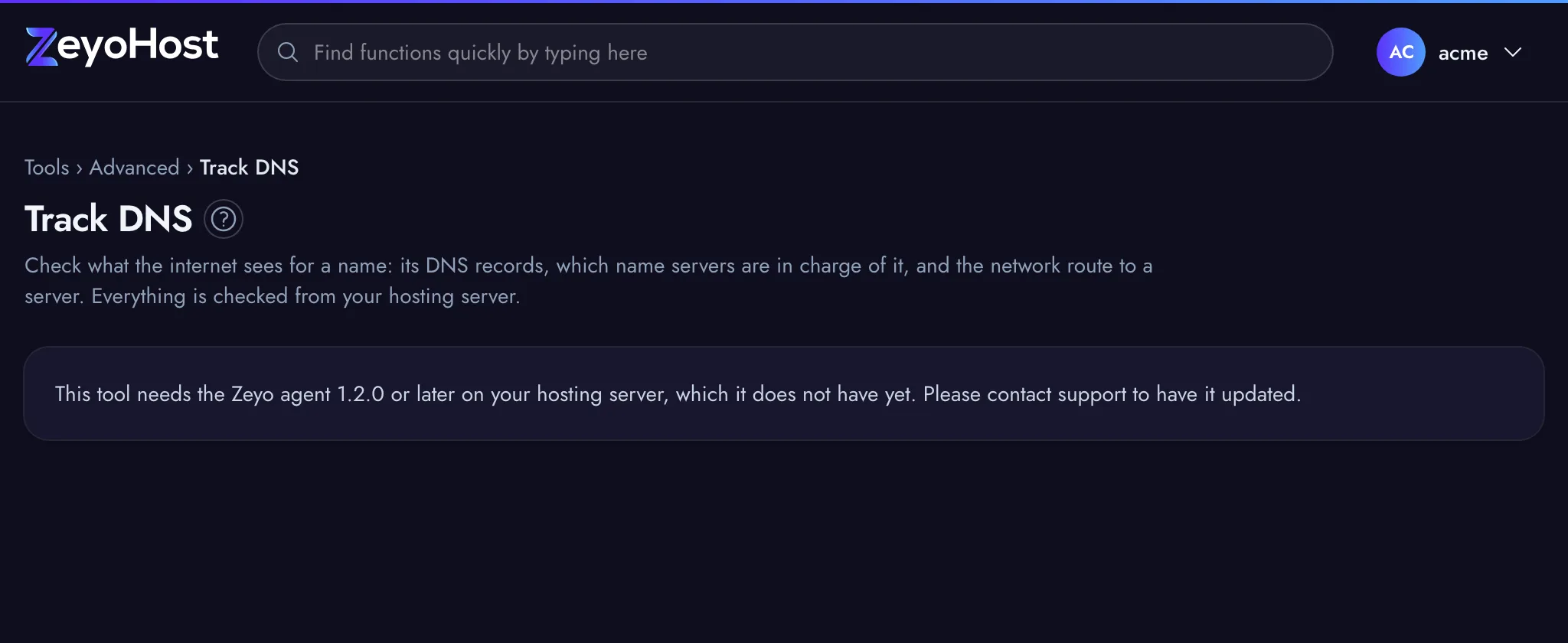
| This tool needs the Zeyo agent 1.2.0 or later on your hosting server, which it does not have yet. Please contact support to have it updated. | Your hosting server is not yet set up for this tool. | Contact support and quote the message. |
Related
- Zone EditorAdd, change and remove the DNS records that tell the internet where your website and email live.
- Point your domain to Zeyo HostSend your domain's visitors to Zeyo Host, either with our name servers or with A records, and check the change.
- My site does not load after moving to Zeyo HostYour site worked at your old host but not here. Check DNS, the files' folder, the database and HTTPS.
- Email is not arrivingMessages to your domain's addresses never show up. Check where your domain's mail goes, the mailbox and its storage.
Was this page helpful?
Sent without cookies; we do not store your IP address.
Still stuck? Contact the team; tell us the page and what you see.