

Point your domain to Zeyo Host
Send your domain's visitors to Zeyo Host, either with our name servers or with A records, and check the change.
Adding a domain to your hosting account does not move it. Visitors reach your site only once the domain's DNS points to the server your hosting account is on. You make that change where you registered the domain (your registrar), in one of two ways.
| Use our name servers | Keep your DNS, add A records | |
|---|---|---|
| What you change at your registrar | The domain's name servers | The domain's A records (at whoever hosts its DNS) |
| Where you manage records afterwards | The Zone Editor in your panel | Wherever the domain's DNS is hosted now |
| Choose it when | You want everything (website, email, DNS) in one place | You use another service for email or DNS and want to keep it |
Option 1: use our name servers
- In the panel, open Preferences → Account Preferences.
- Under Your account, note the host names listed under Name servers.
- Sign in at your registrar and find the domain's name server setting (often called "Nameservers" or "DNS").
- Choose custom name servers and replace the current ones with the ones from the panel. Remove any others.
- Save the change at your registrar.
From then on, the records in your panel's Zone Editor are the ones the internet uses. The zone was created when you added the domain. Check it there before you switch, and add any records your old DNS had that you still need (for example TXT records that verify the domain with other services).
Option 2: add A records where your DNS is now
- In the panel, open the home page and note the Shared IP Address under General Information.
- Sign in to the service that hosts your domain's DNS now.
- Set the A record for the domain itself (often written
@) to that address. - Set the A record for
wwwto the same address, or makewwwa CNAME of your domain. - Save. Leave the MX records alone if your email stays with another provider.
The "Your hosting is ready" email we sent when your account was set up also names your server and its address.
How long it takes
Name server changes go through the domain's registry and can take several hours, sometimes up to a day or two. A record changes follow the record's TTL (time to live): other networks keep the old answer until it runs out. If you are changing an A record, lower its TTL a day before so the switch is quicker.
During the change, some visitors may still reach your old host. Keep your old hosting running until the check below shows the new values.
Check the change with Track DNS
- In the panel, open Advanced → Track DNS.
- Enter your domain in Host name or IP address.
- To check the name servers, click Show Delegation. It shows which name servers are in charge of the domain.
- To check the website's address, choose
Ain Record and click Look Up. The answer should be your Shared IP Address.
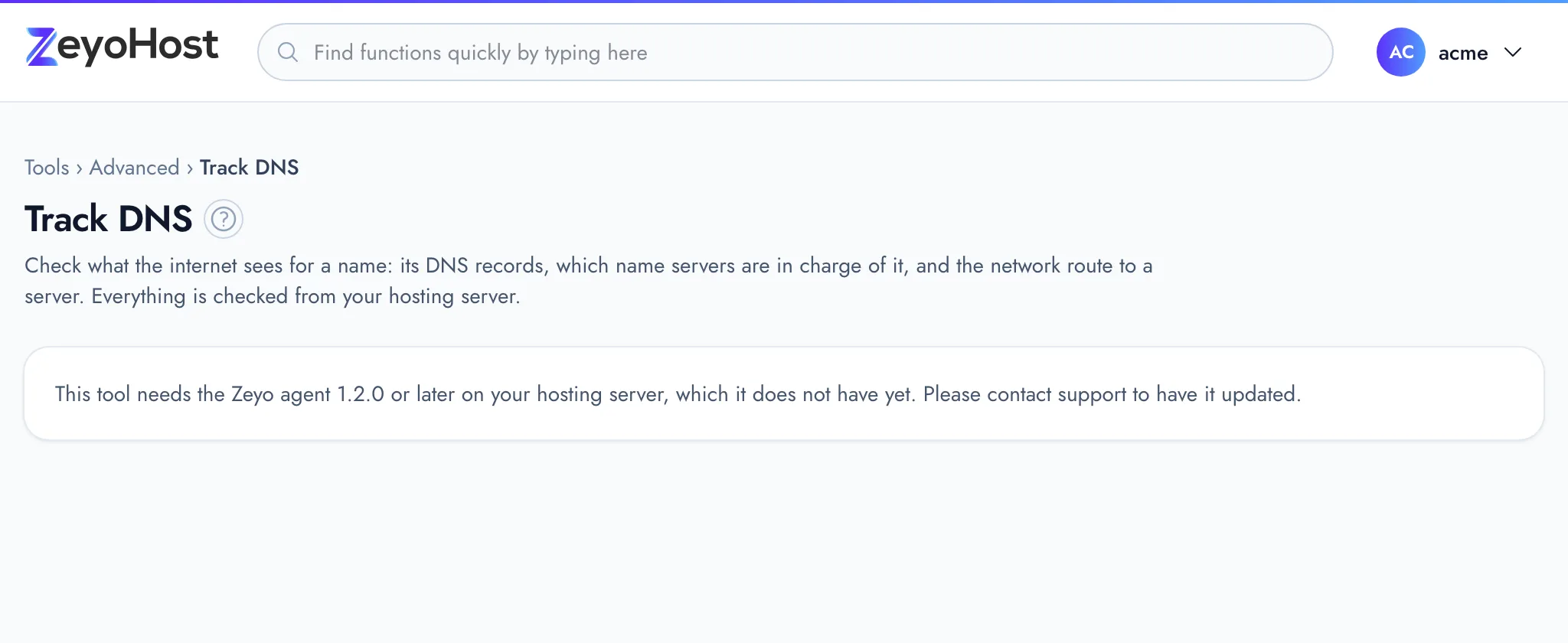
Track DNS asks from your hosting server, so it can show the new values before your own computer does. See Track DNS.
Next
Once the domain points here, get a free certificate: Secure your site with HTTPS. If the site still does not open, see My site does not load after moving.
Related
- Track DNSLook up a name's DNS records, see which name servers are in charge of a domain, and trace the network route to a server.
- Zone EditorAdd, change and remove the DNS records that tell the internet where your website and email live.
- Account PreferencesSee your hosting account's details at a glance and reach every setting that belongs to you from one page.
- My site does not load after moving to Zeyo HostYour site worked at your old host but not here. Check DNS, the files' folder, the database and HTTPS.
- Secure your site with HTTPSGet a free Let's Encrypt certificate with AutoSSL, then send every visitor to the https:// address.
Was this page helpful?
Sent without cookies; we do not store your IP address.
Still stuck? Contact the team; tell us the page and what you see.