

Change Style
Choose whether the control panel is light, dark or follows your device's setting.
Change Style sets how the control panel looks: light, dark, or matching your device. The choice is remembered in the browser you make it in, so another computer or browser keeps its own choice.
Choose a style
- In the panel, open Preferences → Change Style.
- Under Appearance, click Light, Dark or Match my device.
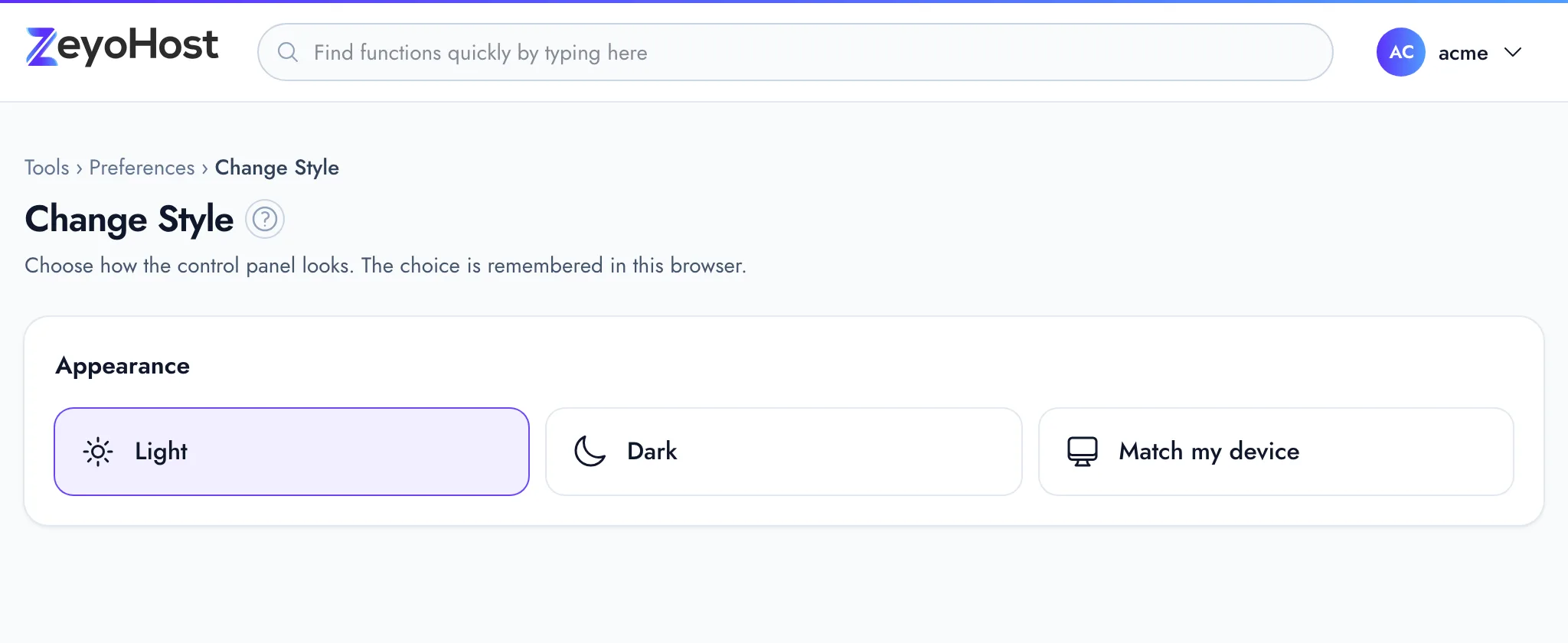
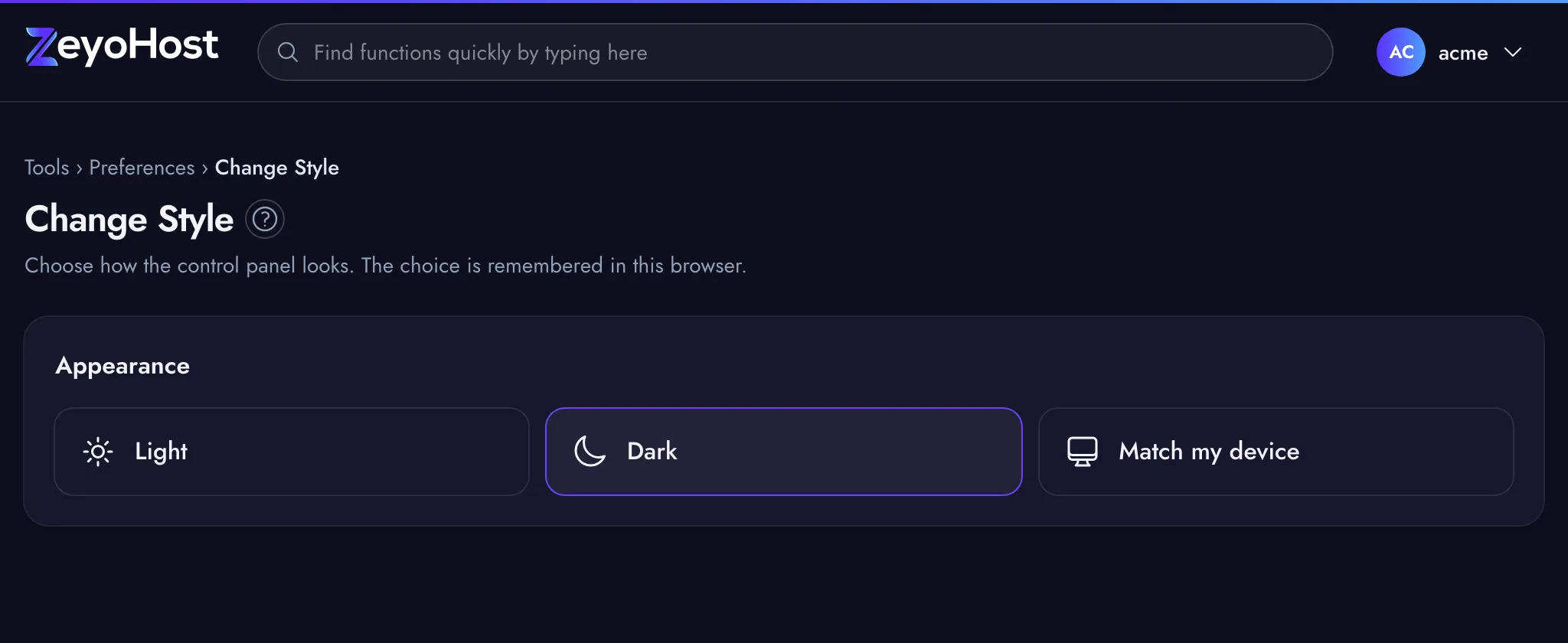
The panel changes straight away; there is no save button. When you choose Light or Dark, you may also see "Saved.".
Match my device follows your computer's or phone's light or dark setting, and changes when your device does.
A quicker way
The same three choices are in your user menu, next to Theme, on every page of the panel.
Related
- Account PreferencesSee your hosting account's details at a glance and reach every setting that belongs to you from one page.
- Change LanguageChoose the language for notices and emails sent from your hosting account.
- Contact InformationChoose the email address where notices about your hosting account are sent, such as quota warnings and cron output.
Was this page helpful?
Sent without cookies; we do not store your IP address.
Still stuck? Contact the team; tell us the page and what you see.