

SSH Access
Add and remove the SSH public keys that let you log in to your hosting account without a password.
SSH Access manages the public keys allowed to log in to your hosting account over SSH. With a key, your computer
proves who you are, so you do not type the hosting account's password each time. You add the public key (the
.pub file); the private key never leaves your computer.
Connect over SSH or SFTP
When your hosting account has shell access, the Connect panel at the top of
Security → SSH Access shows the server and port to connect to, and the command to type in a
terminal on your computer, such as ssh [email protected]. If the server does not use the usual port 22, the
command includes it, for example ssh -p 2222 [email protected].
SFTP programs use the same server, port and username. With a key added here, your computer signs in with the key. Without one, sign in with your hosting account password: the one for FTP, SFTP and SSH, which you change in Password & Security. It is not your Zeyo Host sign-in.
Add a key
- If you do not have a key yet, create one on your computer, for example with
ssh-keygen -t ed25519. It saves the public key in a file ending in.pub. - In the panel, open Security → SSH Access.
- Under Import SSH Key, enter a Name for the key, such as
laptoporalice@work. Use letters, numbers, dots, dashes, underscores or @, up to 63 characters. - Open the
.pubfile in a text editor and paste its single line into Public Key. It starts with the key type, such asssh-ed25519orssh-rsa. - Click Import.
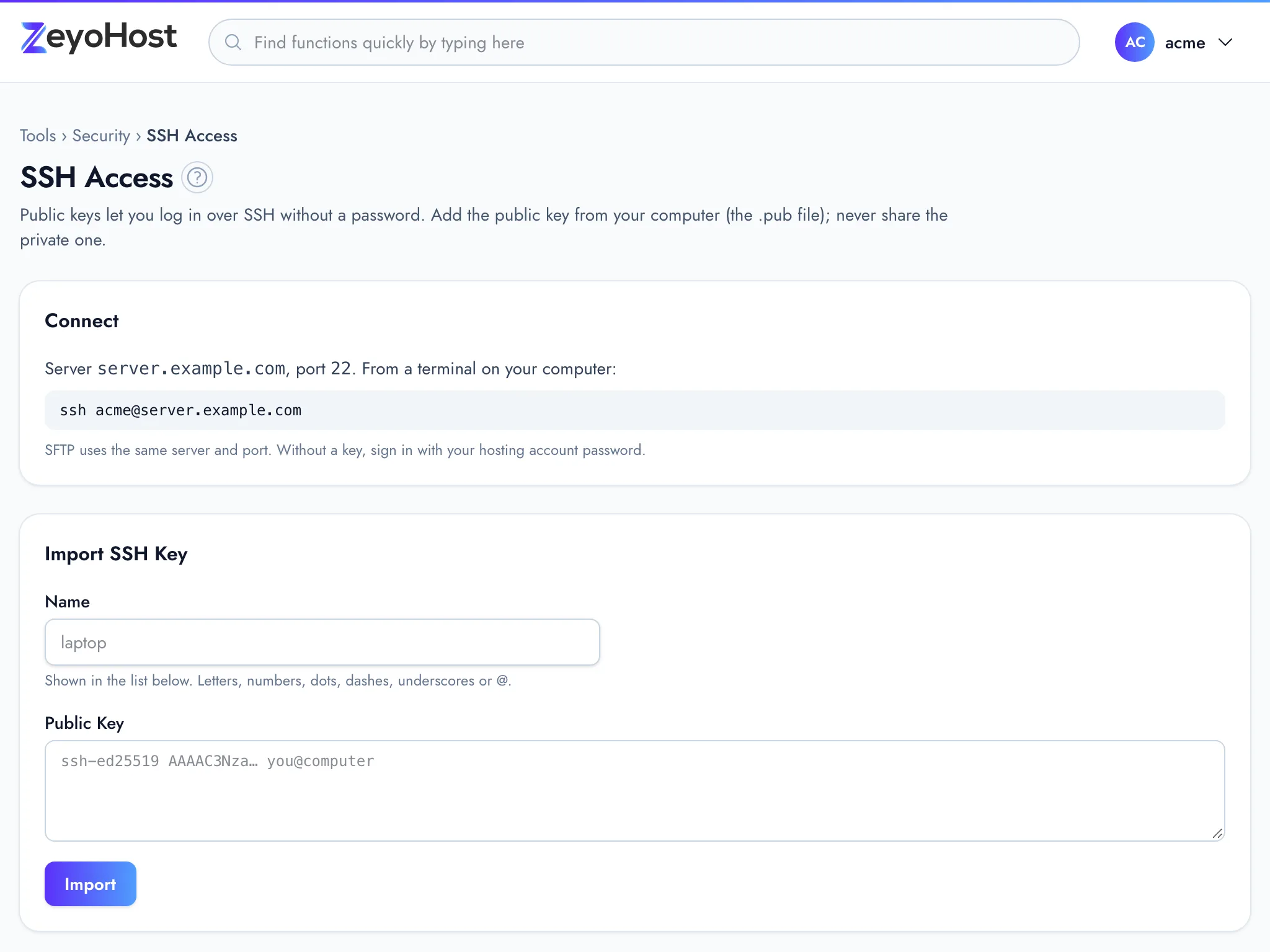
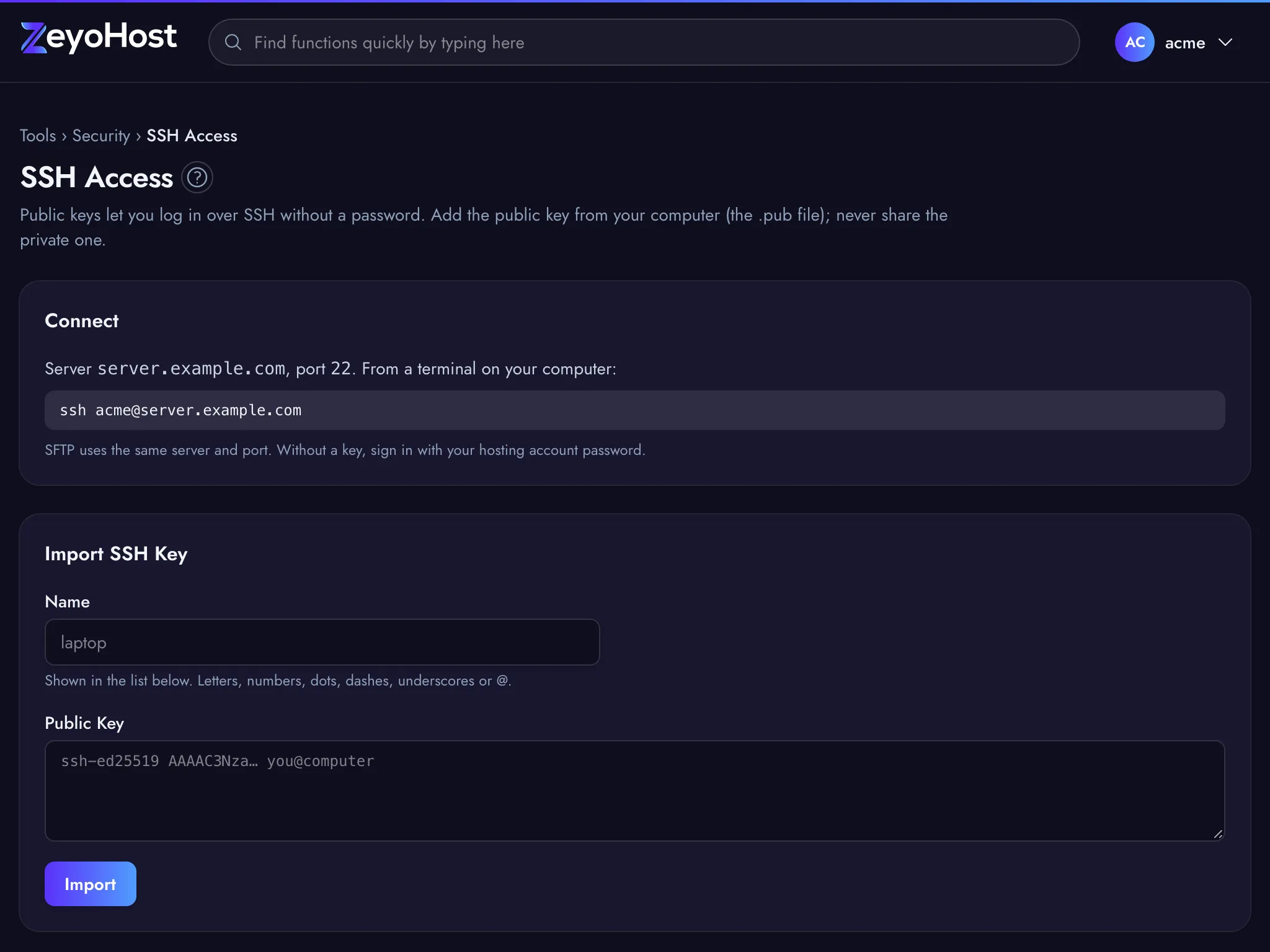
The key appears under Authorized Keys with its name and fingerprint. Log in with the command shown under Connect.
Key types you can add
| Type | Starts with |
|---|---|
| Ed25519 (recommended) | ssh-ed25519 |
| RSA | ssh-rsa |
| ECDSA | ecdsa-sha2-nistp256, ecdsa-sha2-nistp384 or ecdsa-sha2-nistp521 |
| Security key (FIDO) | [email protected] or [email protected] |
Check which keys are allowed
The Authorized Keys table lists every key by name and fingerprint. To match a key on your
computer, compare the fingerprint with the one ssh-keygen -lf prints for your .pub file.
Remove a key
- Click Remove on the key's row.
- Click Remove key to confirm.
Common errors
| Message | Why | What to do |
|---|---|---|
| This is not a public key. Paste the single line from your .pub file, starting with ssh-ed25519 or ssh-rsa. Never paste a private key. | The text is not a public key of a supported type, it spans several lines, or it is a private key. | Open the file that ends in .pub and paste its one line. |
| Use letters, numbers, dots, dashes, underscores or @ (for example laptop or alice@work). | The name has spaces or other characters. | Choose a name such as laptop. |
| That name or key is already on this account. | A key with this name, or the same key under another name, is already listed. | Use a different name, or keep the key that is already there. |
| That item does not exist. | The key was already removed, for example in another tab. | Reload the page. |
Related
- TerminalOpen a command line for your hosting account in the browser, or connect over SSH from your own computer.
- Password & SecurityChange your hosting account's password, the one for FTP, SFTP and SSH, which is separate from your panel sign-in.
- Git™ Version ControlClone a Git repository from GitHub, GitLab or another host, pull new changes, switch branches and deploy the files to a website.
- Web DiskOpen your website files like a drive on your computer over SFTP, and drag files in and out.
Was this page helpful?
Sent without cookies; we do not store your IP address.
Still stuck? Contact the team; tell us the page and what you see.