

WordPress® Manager
Install WordPress on one of your websites, then keep it updated, switch debug mode and reset a WordPress password.
WordPress Manager installs WordPress on one of your websites, with a new database of its own. Your WordPress sites then appear in a list where you can update WordPress, its plugins and its themes, turn debug mode on or off, and set a new password for a WordPress user who is locked out.
WordPress installed another way, for example uploaded with FTP, is listed too, and you manage it the same way. Until WordPress Manager has been used once on your hosting account (an install, an update, debug mode or a password reset), such a site shows its version only: its Updates and Debug columns are not checked yet.
Install WordPress
- In the panel, open Software → WordPress® Manager.
- Under Install WordPress, choose the Website.
- Folder (optional): leave it empty to install on the whole site. To install at
https://example.com/blog, enterblog. Use one folder name made of letters, digits, dashes and underscores. - Site title: the name WordPress shows on your site. You can change it later in WordPress.
- Admin user name: the name you sign in to WordPress with. It needs at least three characters, and
admin,administratorandrootare refused because attackers try them first. - Admin email: filled in with your hosting account's contact email. Change it if WordPress should use another address.
- Admin password: at least 10 characters, with upper-case and lower-case letters and a number. Generate makes a strong one for you.
- Click Install WordPress.
The folder must be empty, although a default index.html is fine. Installing takes a minute or two in the
background: a strip at the top of the page says In progress… and you can keep working. When
it is done, the panel says WordPress is ready and reminds you to sign in at /wp-admin with your admin user name.
If the install fails, the database made for it is removed again, so it does not count against your plan.
Update WordPress, plugins and themes
The Updates column says Up to date, or lists what is waiting, for example "WordPress, 2 plugins, 1 theme".
- In the panel, open Software → WordPress® Manager and find the site under Your WordPress sites.
- Click Update all, or update one part with Update WordPress, Update plugins or Update themes. Each of these appears only when an update of that kind is waiting.
- The update runs in the background. If it fails, the strip at the top of the page says why and offers Try again.
Turn debug mode on or off
Debug mode helps you find out why a WordPress site shows an error.
- Click Debug on on the site's row. Errors are written to
wp-content/debug.log, not shown to visitors. - Read
wp-content/debug.login the File Manager. - When you have finished, click Debug off.
Reset a WordPress password
- Click Reset password on the site's row.
- WordPress user name: the user name of the WordPress user, as it appears in WordPress.
- New password: at least 10 characters, with upper-case and lower-case letters and a number.
- Click Change Password.
This changes the password inside WordPress only. Your Zeyo account and hosting account passwords stay the same.
Common errors
| Message | Why | What to do |
|---|---|---|
| Choose a less obvious name than "admin": it is the first one attackers try. | The admin user name is admin, administrator or root. |
Choose another name. |
| Leave it empty for the whole site, or use one plain folder name. | The folder contains a slash, a space or another character that is not allowed. | Enter one folder name with letters, digits, dashes and underscores, such as blog. |
| The password field must be at least 10 characters. | The admin password is too short. | Use a longer password, or click Generate. |
| The password field must contain at least one uppercase and one lowercase letter. | The admin password has letters of one case only. | Add upper-case and lower-case letters, or click Generate. |
| That item already exists. | WordPress is already installed in that folder, or the folder has other files in it. | Choose another folder, or move the files out of this one first. |
| You have reached the limit of your plan. Remove something first, or move to a bigger plan in Billing. | The new database would go over your plan's database limit. | Delete a database you no longer need in MySQL® Databases, or move to a bigger plan. |
| That item does not exist. | When resetting a password: there is no WordPress user with that user name. | Check the spelling. Use the user name, not the email address or display name. |
| The server could not read the data it was given. | WordPress could not be downloaded, installed or updated, or its settings file could not be written. | Try again. If it keeps happening, send the message to support as written. |
| Installing WordPress on example.com is already in progress. Please wait for it to finish. | You started the same install twice. | Wait for the first one to finish. |
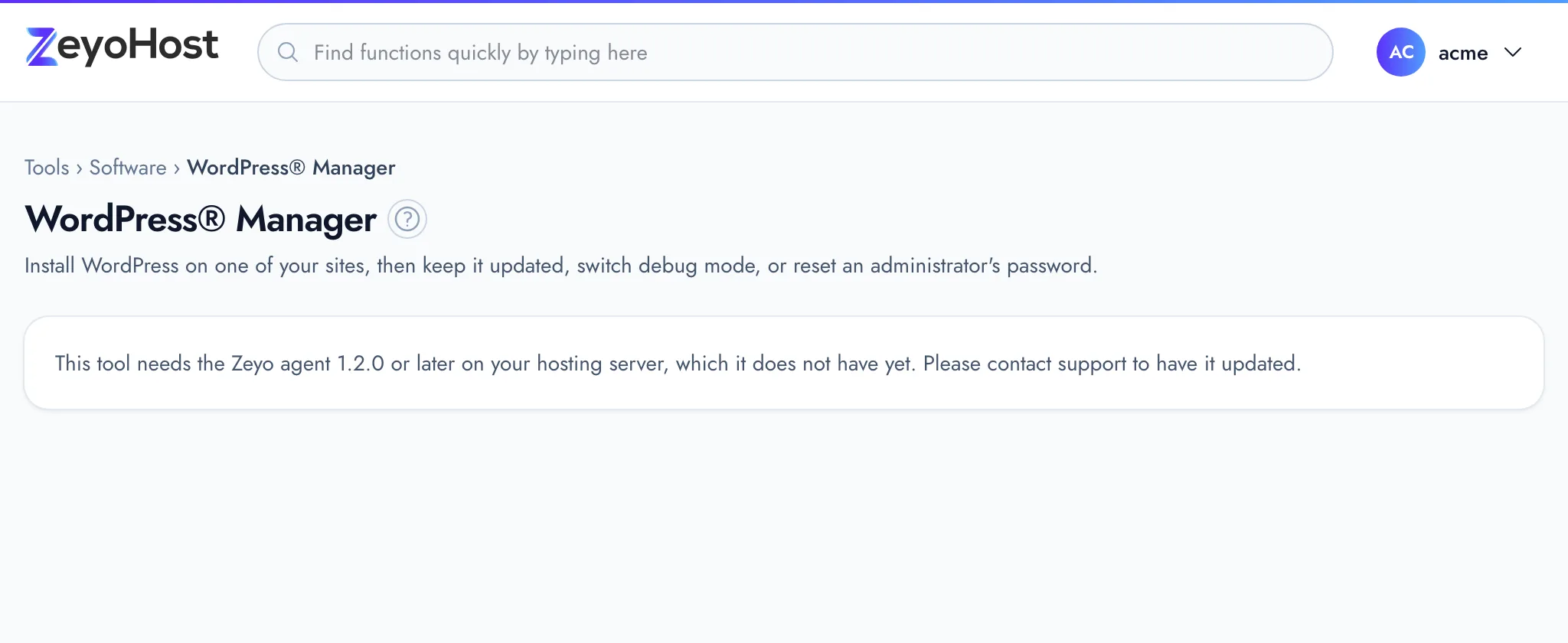
| This tool needs the Zeyo agent 1.2.0 or later on your hosting server, which it does not have yet. Please contact support to have it updated. | Your hosting server is not ready for this tool yet. | Contact support. |
Related
- Install WordPressInstall WordPress on your domain with WordPress Manager, then sign in to your new site.
- SSL/TLS StatusSee which of your domains use HTTPS, secure them with a free Let's Encrypt certificate, or install a certificate you bought.
- App InstallerInstall a ready-made application, such as Joomla, on one of your domains in one step.
- MySQL® DatabasesCreate a MySQL database and its user for an application such as WordPress, change the user's password, or delete a database.
- Select PHP VersionChoose which PHP version each of your websites runs, and which version the php command uses in SSH and cron jobs.
Was this page helpful?
Sent without cookies; we do not store your IP address.
Still stuck? Contact the team; tell us the page and what you see.